
How to Print From Ipad: A Step-by-step Guide
Are you tired of not being able to print from your iPad? Do you struggle with understanding how to connect your printer to your device? Look no further! In this article, we will guide you through the process of printing from your iPad using AirPrint, without AirPrint, and even using a USB cable.
Printing From Ipad: The Basics
Before we dive into the specifics, let’s cover the basics. Printing from an iPad is relatively straightforward, but it requires some basic setup and configuration. Here are the essential steps:
- Make sure you have a printer that supports AirPrint or has its own app for printing.
- Ensure your printer is connected to the same Wi-Fi network as your iPad.
- Open the document or photo you want to print from your iPad.
Printing With Airprint
AirPrint is Apple’s proprietary technology that allows you to print directly from your iOS device to a supported printer. Here’s how it works:
- Connect Your Printer to The Same Wi-fi Network as your iPad.
- Open The Document or Photo you want to print from your iPad.
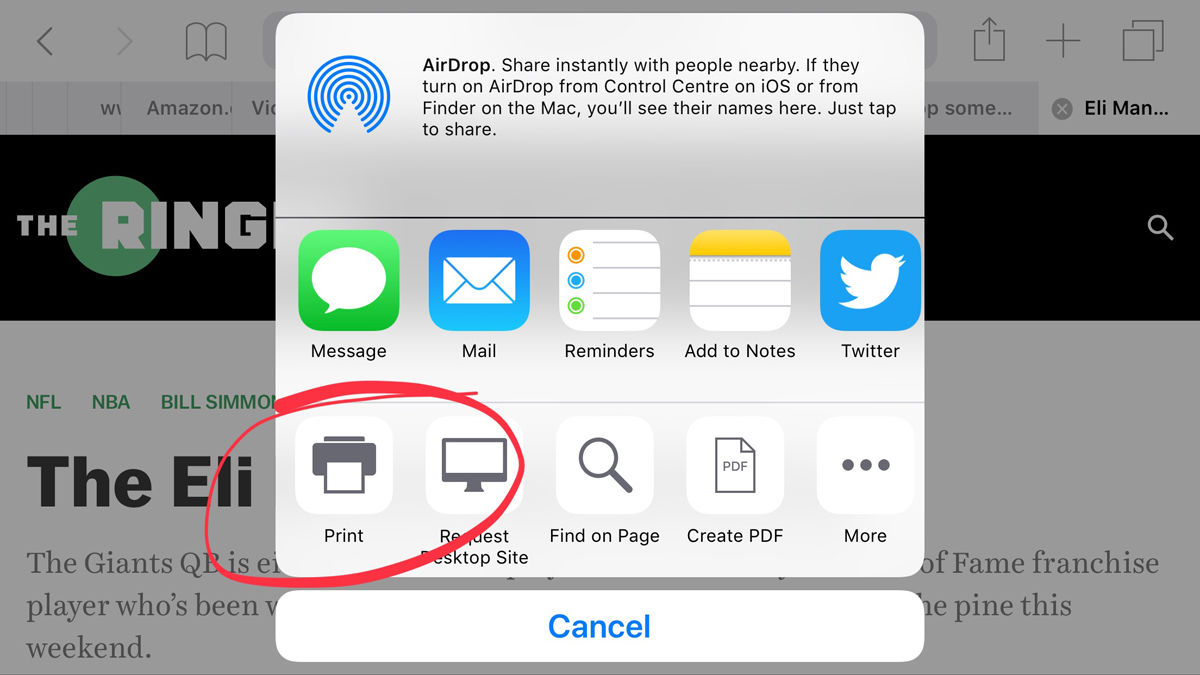
- Tap on The Share Icon, typically represented by a box with an arrow coming out of it.
- Select “Print” From The Menu that appears.
- Choose Your Printer from the list of available printers.
- Adjust Any Printing Settings, such as number of copies, color or grayscale, and paper size.
That’s it! Your iPad should now print to your AirPrint-enabled printer.
Printing Without Airprint
If your printer doesn’t support AirPrint, don’t worry. There are still ways to print from your iPad:
- Download The Printer’s App, available on the App Store.
- Follow The Instructions provided by the app to configure your printer for printing from your iPad.
For example, if you have an Epson printer, you can download the Epson Smart Panel app and follow the setup process.
Printing With a Usb Cable
In some cases, you may not have access to Wi-Fi or prefer to use a USB cable to connect your printer. Unfortunately, Printing From Ipad Using a Usb Cable is Not Supported on iPadOS. However, if your printer has Wi-Fi Direct capabilities, you can still print wirelessly without being connected to the same network.
To enable Wi-Fi Direct printing:
- Check if Your Printer Supports Wi-fi Direct by looking for a button with two arrows that point in opposite directions.
- Enable Wi-fi Direct on Your Printer, usually found in the settings menu.
- Connect Your Ipad to The Printer’s Wi-fi Network, accessible via Settings > Wi-Fi.
- Print From Your Ipad as you normally would.
Conclusion
Printing from an iPad can seem daunting at first, but with these step-by-step guides, you should now be able to print without any issues. Whether you use AirPrint, a printer app, or Wi-Fi Direct, printing is just a few taps away.
Frequently Asked Questions (FAQs)
- Q: Why Can’t I Print From my Ipad Using a Usb Cable?
A: Unfortunately, printing from iPad using a USB cable is not supported on iPadOS. - Q: How do I Know if my Printer Supports Airprint?
A: Check your printer’s manual or manufacturer’s website for compatibility information. - Q: Can I Print From Multiple Devices to The Same Printer Using Airprint?
A: Yes, as long as all devices are connected to the same Wi-Fi network and have AirPrint enabled. - Q: What if my Printer Doesn’t Support Airprint or Wi-fi Direct?
A: You can still print by downloading the printer’s app for printing from your iPad. - Q: How do I Troubleshoot Printing Issues on my Ipad?
A: Check your Wi-Fi connection, ensure your printer is turned on and connected to the same network, and restart both devices if necessary. - Q: Can I Print From Other Apps Besides The Photos App?
A: Yes, most apps have a “Share” or “Print” option that allows you to print directly from the app. - Q: How do I Update my Printer’s Firmware For Improved Printing Performance?
A: Check your printer’s manual or manufacturer’s website for instructions on updating the firmware.
By following these guides and FAQs, you should be able to print from your iPad with ease!


