
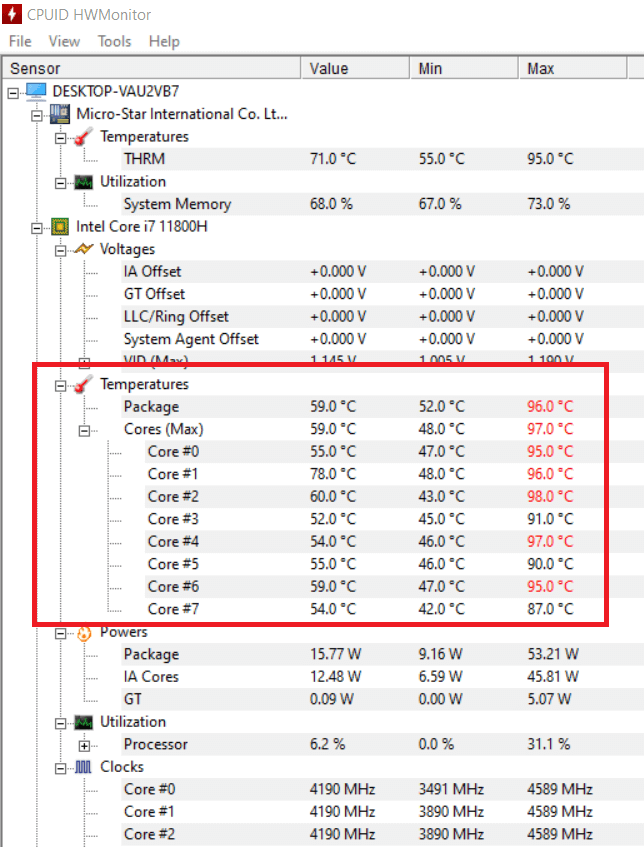
Monitor Cpu Temperature: A Comprehensive Guide
Are you tired of wondering why your computer is making strange noises or overheating? Do you want to understand how to monitor the temperature of your CPU (Central Processing Unit)? Look no further! In this article, we will guide you through the process of monitoring CPU temperature on Windows 10, macOS, and Linux.
Why Monitor Cpu Temperature?
Monitoring CPU temperature is essential for ensuring the health and longevity of your computer. High temperatures can cause damage to your CPU, motherboard, and other components, leading to crashes, shutdowns, and even permanent damage. By monitoring CPU temperature, you can identify potential issues before they become major problems.
Windows 10: Monitoring Cpu Temperature
On Windows 10, there are several ways to monitor CPU temperature. Here are a few methods:
1. Open Hardware Monitor
Open Hardware Monitor is a free application that allows you to monitor the temperatures of your CPU, GPU, motherboard, and hard drive. To download and install Open Hardware Monitor, follow these steps:
- Go to the official website of Open Hardware Monitor.
- Click on the “Download” button and select the version compatible with your operating system (32-bit or 64-bit).
- Run the installer and follow the prompts to complete the installation process.
2. Hwinfo
HWiNFO is another popular tool for monitoring CPU temperature on Windows 10. Here’s how to use it:
- Download and install HWiNFO from its official website.
- Launch HWiNFO and navigate to the “Sensors” tab.
- In the Sensors tab, you’ll see a list of available sensors, including the CPU temperature sensor.
- Click on the CPU temperature sensor to view the current temperature reading.
3. Other Solutions
If you’re not satisfied with Open Hardware Monitor or HWiNFO, there are other alternatives available:
- Core Temp: A lightweight application that displays the temperatures of each core in your CPU.
- Speccy: A free software that provides detailed information about your computer’s hardware, including CPU temperature.
- CPU-Z: Another program for operating systems Windows that provides detailed information not only on the CPU but also on everything else the hardware of the computer.
Macos: Monitoring Cpu Temperature
If you’re using a Mac, there are several ways to monitor CPU temperature:
1. Stats
Stats is a free application that allows you to monitor various system metrics, including CPU temperature. To download and install Stats, follow these steps:
- Go to the official website of Stats.
- Click on the “Download” button and select the version compatible with your Mac (Intel or Apple Silicon).
- Run the installer and follow the prompts to complete the installation process.
2. Istat Menus
IStat Menus is another popular tool for monitoring CPU temperature on macOS. Here’s how to use it:
- Download and install iStat Menus from its official website.
- Launch iStat Menus and navigate to the “Sensors” tab.
- In the Sensors tab, you’ll see a list of available sensors, including the CPU temperature sensor.
- Click on the CPU temperature sensor to view the current temperature reading.
3. Other Solutions
If you’re not satisfied with Stats or iStat Menus, there are other alternatives available:
- TG Pro: A free application that displays detailed information about your Mac’s hardware, including CPU temperature and GPU performance.
- XRG: A lightweight application that provides real-time system metrics, including CPU temperature.
Linux (Ubuntu): Monitoring Cpu Temperature
On Linux, you can monitor CPU temperature using various tools. Here are a few methods:
1. Glances
Glances is a tool for monitoring system resources, including CPU temperature. To install Glances on Ubuntu, follow these steps:
- Open the Terminal application.
- Run the command
sudo apt-get updateto update the package list. - Run the command
sudo apt-get install glancesto install Glances.
2. Other Solutions
If you’re not satisfied with Glances, there are other alternatives available:
- Conky: A lightweight application that displays system metrics, including CPU temperature.
- System Monitor: A graphical tool for monitoring system resources, including CPU temperature.
Conclusion
Monitoring CPU temperature is essential for ensuring the health and longevity of your computer. Whether you’re using Windows 10, macOS, or Linux, there are various tools available to help you monitor CPU temperature. Remember to choose a tool that suits your needs and follow the instructions provided in this guide to ensure accurate readings.
Faqs
- Q: What is The Ideal Cpu Temperature?
A: The ideal CPU temperature varies depending on the type of CPU, but generally ranges from 45°C to 60°C. - Q: How Often Should I Check my Cpu Temperature?
A: It’s recommended to check your CPU temperature regularly, especially during intense system usage or when running demanding applications. - Q: Can High Cpu Temperatures Cause Damage to Other Components?
A: Yes, high CPU temperatures can cause damage to other components, such as the motherboard and hard drive. - Q: Are There Any Free Tools Available For Monitoring Cpu Temperature?
A: Yes, many free tools are available for monitoring CPU temperature, including Open Hardware Monitor, HWiNFO, Stats, and iStat Menus. - Q: Can I Monitor Cpu Temperature on my Smartphone or Tablet?
A: Yes, there are various apps available for monitoring CPU temperature on smartphones and tablets.


