
How to Remove Microsoft Teams: A Step-by-step Guide
Are you tired of using Microsoft Teams? Do you want to uninstall it from your computer, smartphone, or tablet? Look no further! In this article, we will guide you through the process of removing Microsoft Teams from various devices.
Why Uninstall Microsoft Teams?
Before we dive into the step-by-step guide, let’s briefly discuss why you might want to uninstall Microsoft Teams. Maybe you’ve found a better alternative for your communication needs, or perhaps you’re no longer using it due to some issues. Whatever the reason, we’ll show you how to remove it from your device.
Uninstalling Microsoft Teams on Windows 10
If you’re using Windows 10, follow these steps:
- Click on the Start button (with the Windows logo) and type “Microsoft Teams” in the search bar.
- Right-click on the Microsoft Teams icon and select “Quit.”
- Go to the Settings app (click on the Start button and then click on the gear icon).
- Click on the “Apps” section.
- Search for “Microsoft Teams” in the list of installed apps.
- Click on the three dots next to Microsoft Teams and select “Uninstall.”
Uninstalling Microsoft Teams on Windows 7 or 8
If you’re using an older version of Windows, follow these steps:
- Click on the Start button (with the Windows logo) and click on the “Control Panel” option.
- Click on the “Programs and Features” section.
- Search for “Microsoft Teams” in the list of installed programs.
- Select Microsoft Teams and click on the “Uninstall” button.
Uninstalling Microsoft Teams on Mac
If you’re using a Mac, follow these steps:
- Go to the Applications folder.
- Find the Microsoft Teams icon.
- Drag the Microsoft Teams icon to the Trash.
- Empty the Trash.
Removing Microsoft Teams From Startup on Windows 10
If you want to remove Microsoft Teams from startup without uninstalling it, follow these steps:
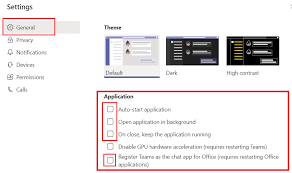
- Open Microsoft Teams and click on the three dots next to your profile picture.
- Select “Settings.”
- Go to the “General” section.
- Uncheck the box next to “Start Microsoft Teams automatically.”
Removing Microsoft Teams From Startup on Mac
If you want to remove Microsoft Teams from startup without uninstalling it, follow these steps:
- Open Microsoft Teams and click on the three dots next to your profile picture.
- Select “Preferences.”
- Go to the “General” section.
- Uncheck the box next to “Start Microsoft Teams at login.”
Removing Microsoft Teams From Your Smartphone or Tablet
If you want to remove Microsoft Teams from your smartphone or tablet, follow these steps:
- Open the Settings app on your device.
- Look for the “Apps” section (or something similar).
- Find the Microsoft Teams icon and click on it.
- Click on the “Uninstall” button.
Conclusion
Removing Microsoft Teams is a relatively simple process that can be completed in a few steps, depending on your device. By following this guide, you should be able to successfully uninstall Microsoft Teams from your computer, smartphone, or tablet.
Frequently Asked Questions (FAQs)
- Q: Can I Reinstall Microsoft Teams if I Need it Again?
A: Yes, you can download and install Microsoft Teams again from the official website. - Q: Will Uninstalling Microsoft Teams Delete All my Data?
A: No, uninstalling Microsoft Teams will not delete any of your data. However, if you want to erase all data associated with Microsoft Teams, follow the steps for removing it completely. - Q: Can I Remove Microsoft Teams From Startup Without Uninstalling It?
A: Yes, on both Windows 10 and Mac, you can remove Microsoft Teams from startup without uninstalling it by following the steps provided earlier.
I hope this article has been helpful in guiding you through the process of removing Microsoft Teams. If you have any further questions or concerns, feel free to ask!


