
Finding The Mac Address of Another Mobile Device: A Step-by-step Guide
Are you looking for ways to find the MAC address of another mobile device? Perhaps you’re trying to troubleshoot a connectivity issue or simply want to know more about your smartphone’s unique identifier. Whatever the reason, this guide will walk you through the process of finding the MAC address of another mobile device, using various methods and tools.
What is a Mac Address?
Before we dive into the nitty-gritty, let’s quickly define what a MAC address is. A MAC (Media Access Control) address is a unique identifier assigned to each network interface controller (NIC) for use as a link layer address in communications within a network segment. In simpler terms, it’s like a physical address or IP address that identifies a device on a network.
Method 1: Finding The Mac Address Using a Router or Modem
If you have access to your router or modem, you can easily find the MAC address of connected devices. Here’s how:
Step 1: Access Your Router or Modem
First, locate your router or modem and ensure it’s turned on. Next, open a web browser on your computer and type in the IP address of your router or modem (usually 192.168.1.1 Or 192.168.0.1).
Step 2: Log In to Your Router or Modem
Enter the default login credentials for your router or modem (usually admin/admin). If you’ve changed the password, enter that instead.
Once logged in, navigate to the device list section. This might be under a tab labeled “Attached Devices,” “Connected Devices,” or something similar.
Step 4: Find The Mac Address
Scroll through the list of connected devices and find the one you’re interested in. The MAC address should be displayed alongside the device’s name or IP address.
Method 2: Using Angry IP Scan (Windows/MacOS)
If you don’t have access to your router or modem, or if you want a more convenient solution, you can use Angry IP Scan, a free and open-source tool for Windows, MacOS, and Linux. Here’s how:
Step 1: Download And Install Angry IP Scan
Visit the official website of Angry IP Scan and download the application for your operating system. Follow the installation instructions to get started.
Step 2: Run Angry IP Scan
Launch Angry IP Scan on your computer. The tool will scan your local network and display a list of connected devices, including their MAC addresses.
Step 3: Select The Device You Want to Find
Find the device you’re interested in and select it from the list. The MAC address should be displayed alongside the device’s name or IP address.
Method 3: Using Who Is On My Wi-fi (Windows/MacOS)
Another tool you can use is Who Is On My Wi-Fi, a free application for Windows and MacOS. Here’s how:
Step 1: Download And Install Who Is On My Wi-fi
Visit the official website of Who Is On My Wi-Fi and download the application for your operating system. Follow the installation instructions to get started.
Step 2: Run Who Is On My Wi-fi
Launch Who Is On My Wi-Fi on your computer. The tool will scan your local network and display a list of connected devices, including their MAC addresses.
Step 3: Select The Device You Want to Find
Find the device you’re interested in and select it from the list. The MAC address should be displayed alongside the device’s name or IP address.
Method 4: Using Fing (Android/iOS)
For mobile devices, you can use Fing, a free application for Android and iOS. Here’s how:
Step 1: Download And Install Fing
Visit the App Store (for iOS) or Google Play Store (for Android) and download the Fing application. Follow the installation instructions to get started.
Step 2: Run Fing
Launch Fing on your mobile device. The tool will scan your local network and display a list of connected devices, including their MAC addresses.
Step 3: Select The Device You Want to Find
Find the device you’re interested in and select it from the list. The MAC address should be displayed alongside the device’s name or IP address.
Finding The Mac Address on Android Devices
If you want to find the MAC address of an Android device, follow these steps:
Step 1: Go to Settings
Open the Settings app on your Android device.
Scroll down and select “Connections.”
Step 3: Select Wifi Settings
Select the “WiFi settings” option.
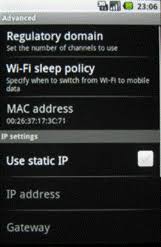
Step 4: Tap Advanced
Tap the “Advanced” button.
Step 5: Find The Mac Address
In the advanced settings, you should see a section labeled “MAC address.” This is the unique identifier of your device.
Finding The Mac Address on Ios Devices
If you want to find the MAC address of an iOS device, follow these steps:
Step 1: Go to Settings
Open the Settings app on your iOS device.
Scroll down and select “General.”
Step 3: Select About
Select the “About” option.
Step 4: Find The Mac Address
In the about section, you should see a line labeled “Wi-Fi address.” This is your device’s MAC address.
Conclusion
Finding the MAC address of another mobile device can be a straightforward process using the methods outlined above. Whether you’re troubleshooting connectivity issues or simply want to know more about your smartphone’s unique identifier, these steps will guide you through the process. Remember to always access your router or modem with caution and use reputable tools like Angry IP Scan, Who Is On My Wi-Fi, Fing, and others to avoid any potential security risks.
Frequently Asked Questions
Q: What is a MAC address?
A: A MAC (Media Access Control) address is a unique identifier assigned to each network interface controller (NIC) for use as a link layer address in communications within a network segment.
Q: How do I find the MAC address of another mobile device?
A: You can find the MAC address using various methods, including accessing your router or modem, using tools like Angry IP Scan, Who Is On My Wi-Fi, Fing, and others.
Q: What are some common tools used to find the MAC address?
A: Some popular tools include Angry IP Scan, Who Is On My Wi-Fi, Fing, and others. Be sure to download these tools from reputable sources and follow their instructions carefully.
Additional Resources
For more information on finding the MAC address of another mobile device or troubleshooting connectivity issues, consider checking out these additional resources:
- [Your website URL]
- [Support forum URL]
By following the steps outlined in this guide, you should be able to find the MAC address of another mobile device using various methods and tools. If you have any further questions or need assistance with anything else, please don’t hesitate to ask.


