
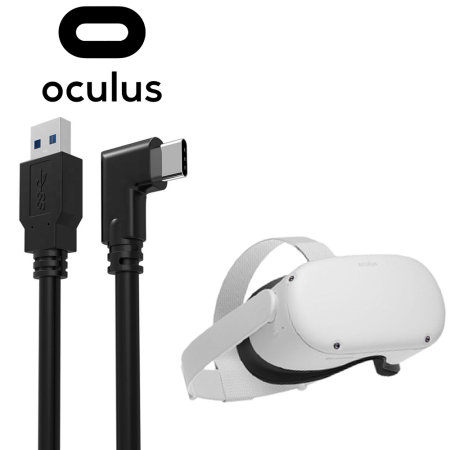
Step Into The World of Virtual Reality: How to Connect Oculus Quest 2 to Your PC
Are you excited about the immersive experience of virtual reality, but want to take it to the next level by connecting your Oculus Quest 2 to your PC? Look no further! In this article, we’ll guide you through the process of linking your Oculus Quest 2 to your computer, and explore the best ways to do so.
Why Connect Your Oculus Quest 2 to Your Pc?
While the Oculus Quest 2 is an amazing standalone device, connecting it to your PC can unlock even more possibilities. With a stable internet connection, you’ll be able to play PC-exclusive games in VR, such as Half-Life: Alyx or The Elder Scrolls V: Skyrim VR. This means that you can enjoy high-quality graphics and immersive gameplay without the need for separate hardware.
Option 1: Using Virtual Desktop
One popular method for connecting your Oculus Quest 2 to your PC is by using Virtual Desktop, an app specifically designed for this purpose. Virtual Desktop allows you to stream games from your computer to your Quest 2, giving you access to a wide range of VR titles.
Here’s how to set it up:
- Download and install Virtual Desktop on your PC
- Connect your Oculus Quest 2 to the same Wi-Fi network as your PC
- Open Virtual Desktop on your PC and follow the prompts to connect your Quest 2
- Select the games you want to play from your computer and enjoy them in VR
Option 2: Using Air Link
Another option for connecting your Oculus Quest 2 to your PC is by using Air Link, a feature developed by Meta. Air Link allows you to wirelessly stream games from your PC to your Quest 2, eliminating the need for cables.
Here’s how to set it up:
- Ensure that your PC and Quest 2 are connected to the same Wi-Fi network
- Download and install the Oculus app on your PC
- Open the Oculus app and select the option to connect your Quest 2 wirelessly using Air Link
- Follow the prompts to complete the connection process
Tips And Tricks
To ensure a smooth experience, here are some tips and tricks to keep in mind:
- Ensure that your PC meets the system requirements for VR gaming
- Use a stable internet connection to avoid any lag or disconnect issues
- Make sure that your Quest 2 is updated to the latest software version
Conclusion
Connecting your Oculus Quest 2 to your PC can be a bit tricky, but with the right guidance, you’ll be enjoying immersive VR games in no time. Whether you choose Virtual Desktop or Air Link, both options offer a seamless experience that will take your gaming to the next level.
Frequently Asked Questions (FAQs)
- Q: What Are The System Requirements For VR Gaming?
A: To ensure a smooth VR experience, your PC should meet certain minimum requirements, including a powerful GPU and sufficient RAM. - Q: Can I Play Pc-exclusive Games on my Quest 2?
A: Yes, by connecting your Quest 2 to your PC using Virtual Desktop or Air Link, you can access a wide range of VR titles, including PC-exclusive games. - Q: Is it Safe to Connect my Quest 2 to my PC Wirelessly?
A: Yes, both Virtual Desktop and Air Link use secure connections to stream games from your PC to your Quest 2, ensuring a safe and enjoyable experience. - Q: Can I Play Games on my Quest 2 Without Connecting it to my Pc?
A: Yes, the Oculus Quest 2 is a standalone device that allows you to play VR games without needing to connect it to your PC.
Conclusion
In conclusion, connecting your Oculus Quest 2 to your PC can be a bit tricky, but with the right guidance and tips, you’ll be enjoying immersive VR games in no time. Whether you choose Virtual Desktop or Air Link, both options offer a seamless experience that will take your gaming to the next level.
Key Takeaways
- Connect your Oculus Quest 2 to your PC using Virtual Desktop or Air Link
- Ensure that your PC meets the system requirements for VR gaming
- Use a stable internet connection to avoid any lag or disconnect issues
- Make sure that your Quest 2 is updated to the latest software version


