
How to Disable Adblock on Different Browsers And Devices
Are you tired of seeing ads everywhere online? Well, disabling AdBlock might be the solution for you! However, if you’re using it to block annoying ads, you might want to reconsider your decision. In this article, we’ll explore how to disable AdBlock on different browsers and devices.
What is Adblock?
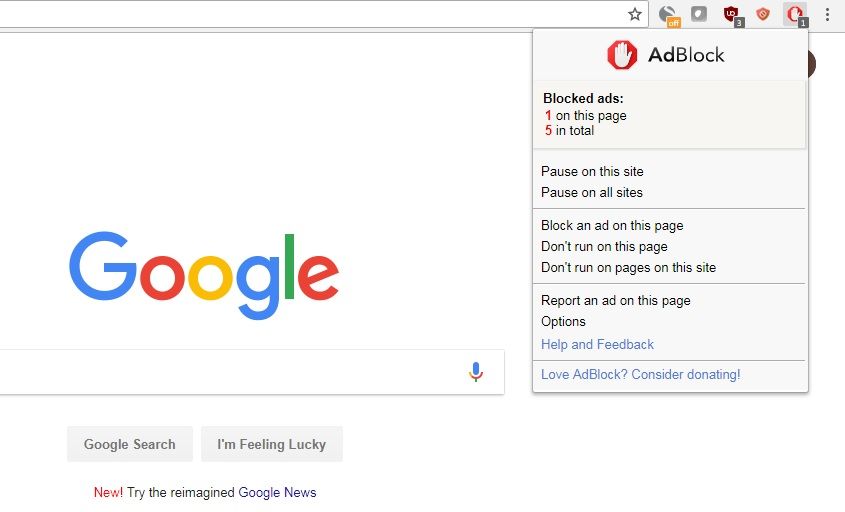
AdBlock is a popular browser extension that helps you block online advertisements. It’s available for most browsers, including Google Chrome, Mozilla Firefox, Microsoft Edge, and more. However, as we’ll see later, disabling AdBlock can have consequences on your browsing experience.
Why Disable Adblock?
Before we dive into the steps to disable AdBlock, let’s talk about why you might want to do so:
- You’re tired of seeing ads everywhere online.
- You want to support websites and content creators by allowing them to show ads.
- You’re experiencing issues with AdBlock blocking certain content or features.
How to Disable Adblock on Different Browsers
Now, let’s get to the steps!
Google Chrome:
- Open Google Chrome and click on the three vertical dots in the top right corner.
- Click on “More tools” and then select “Extensions.”
- Find the AdBlock extension and toggle off the switch next to it.
Mozilla Firefox:
- Open Mozilla Firefox and click on the three horizontal lines in the top right corner.
- Click on “Add-ons” and then select “Extensions.”
- Find the AdBlock extension and toggle off the switch next to it.
Microsoft Edge:
- Open Microsoft Edge and click on the three dots in the top right corner.
- Click on “Settings” and then select “Advanced settings.”
- Scroll down and find the AdBlock extension, and toggle off the switch next to it.
Internet Explorer:
- Open Internet Explorer and click on the gear icon in the top right corner.
- Select “Manage add-ons” from the menu.
- Find the AdBlock extension and disable it by toggling off the switch next to it.
Opera:
- Open Opera and click on the three horizontal lines in the top left corner.
- Click on “Settings” and then select “Advanced settings.”
- Scroll down and find the AdBlock extension, and toggle off the switch next to it.
Safari (on Mac):
- Open Safari and click on the gear icon in the top right corner.
- Select “Preferences” from the menu.
- Click on the “Extensions” tab and find the AdBlock extension.
- Toggle off the switch next to it to disable it.
Adblock on Android Devices:
- Open your device’s settings app.
- Scroll down and select “Apps.”
- Find the AdBlock app and toggle off the switch next to it to disable it.
Disabling Adblock on Ios Devices (iPhone/iPad):
- Open Safari and click on the three dots in the top right corner.
- Select “Settings” from the menu.
- Scroll down and find the “Content Blockers” section.
- Toggle off the switch next to AdBlock to disable it.
What Happens When I Disable Adblock?
When you disable AdBlock, you’ll start seeing ads again on websites that normally have them blocked. However, keep in mind that some websites might still block your ad blockers even if you’ve disabled AdBlock!
Conclusion:
Disabling AdBlock can be a simple process, but it’s essential to understand the implications of doing so. If you’re tired of seeing ads everywhere online, consider supporting websites and content creators by allowing them to show ads.
Frequently Asked Questions (FAQs):
- Q: What happens when I disable AdBlock?
- A: You’ll start seeing ads again on websites that normally have them blocked.
- Q: Will disabling AdBlock affect my browsing experience?
- A: Yes, some websites might still block your ad blockers even if you’ve disabled AdBlock.
- Q: Can I disable AdBlock only for certain websites?
- A: Yes, most browsers allow you to disable AdBlock for specific websites or domains.
I hope this helps! If you have any further questions, feel free to ask.


