
How to Conceal Your Posts on Facebook: A Step-by-step Guide
Are you tired of sharing your personal thoughts and experiences with all your friends on Facebook? Do you want to keep certain posts private, visible only to a select few? You’re not alone! In this article, we’ll show you how to conceal your posts on Facebook using both mobile devices (smartphones and tablets) and computers.
Why Conceal Posts on Facebook?
There are many reasons why you might want to hide some of your Facebook posts from certain friends or followers. Perhaps you’re sharing something personal or sensitive, and you don’t want it to be seen by everyone. Maybe you’re just not feeling like sharing with the world right now! Whatever the reason, we’ve got you covered.
Concealing Posts on Mobile Devices (Smartphones And Tablets)
If you use a smartphone or tablet to access Facebook, here’s how you can conceal posts:
- Open The Facebook App: Find the Facebook icon on your home screen and tap it to open the app.
- Tap on “What’s on Your Mind?”: This will take you to the compose post page.
- Add Your Text or Media: Type out your thoughts, add some images or videos, or share a link.
- Choose Who Can See Your Post: Tap on the “Friends” option (it looks like a small group of people) and then tap on the “Select friends” button below it.
- Add Specific Friends to See Your Post: From this screen, you can add individual friends or select groups of friends who will be able to see your post.
- Tap “Share”: Once you’ve selected who can see your post, tap the “Share” button to publish it.
Concealing Posts on Computers
If you’re using a computer to access Facebook, here’s how you can conceal posts:
- Log in to Your Facebook Account: Go to the Facebook website and sign in with your credentials.
- Click on “What’s on Your Mind?”: This will take you to the compose post page.
- Add Your Text or Media: Type out your thoughts, add some images or videos, or share a link.
- Choose Who Can See Your Post: Click on the “Friends” option (it looks like a small group of people) and then click on the “Select friends” button below it.
- Add Specific Friends to See Your Post: From this screen, you can add individual friends or select groups of friends who will be able to see your post.
- Click “Post”: Once you’ve selected who can see your post, click the “Post” button to publish it.
Modifying a Post’s Privacy Settings
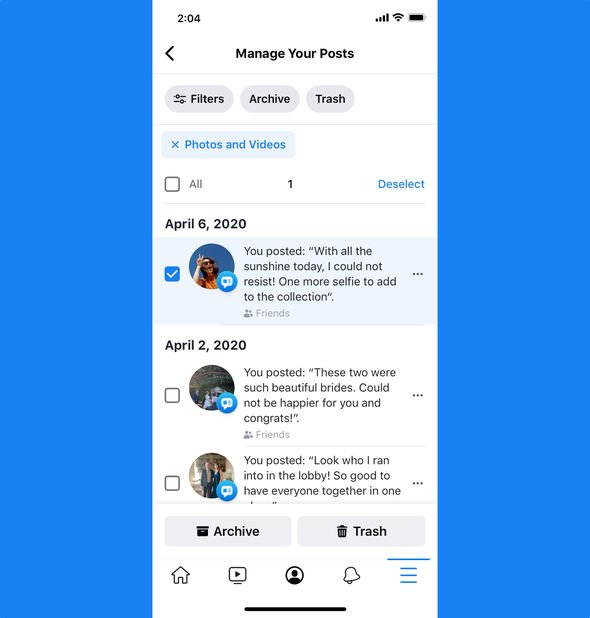
If you’ve already posted something on Facebook and want to change its privacy settings, here’s how you can do that:
- Open The Facebook App or Website: Find the post you want to modify and tap or click on it.
- Tap or Click on The Three Dots: This will open a menu with several options. Tap or click on “Edit Post.”
- Choose Who Can See Your Post: From this screen, you can select new friends or groups of friends who will be able to see your post.
- Save Changes: Once you’ve selected new people to see your post, tap or click the “Save” button to apply the changes.
Using Facebook’s List Restrictions
Facebook also allows you to create a list of restrictions for specific posts. Here’s how:
- Open The Facebook App or Website: Find the post you want to restrict and tap or click on it.
- Tap or Click on The Three Dots: This will open a menu with several options. Tap or click on “Edit Post.”
- Choose Who Can See Your Post: From this screen, select the “Friends” option (it looks like a small group of people) and then tap or click on “Select friends.”
- Add Specific Friends to The Restriction List: From this screen, you can add individual friends or select groups of friends who will not be able to see your post.
- Save Changes: Once you’ve added friends to the restriction list, tap or click the “Save” button to apply the changes.
Conclusion
Concealing posts on Facebook is a simple process that allows you to control who sees what you share. By following these step-by-step guides for mobile devices and computers, you can keep certain posts private while still sharing other content with your friends and followers.
Frequently Asked Questions (FAQs)
- Q: Why do I Want to Conceal my Facebook Posts?
A: There are many reasons why you might want to conceal your Facebook posts! Perhaps you’re sharing something personal or sensitive, or maybe you just don’t feel like sharing with the world right now. - Q: How do I Access The Post Settings on Mobile Devices?
A: On mobile devices, tap on the “Friends” option (it looks like a small group of people) and then tap on the “Select friends” button below it to access post settings. - Q: Can I Conceal Posts Already Published on Facebook?
A: Yes! If you’ve already posted something and want to change its privacy settings, follow our guide for modifying a post’s privacy settings. - Q: What is Facebook’s List Restrictions Feature?
A: Facebook’s List Restrictions feature allows you to create a list of friends who will not be able to see specific posts. - Q: How do I Use The List Restrictions Feature?
A: To use the List Restrictions feature, go to the post settings menu and select “Select friends” to add friends to the restriction list. - Q: Can I Conceal All my Facebook Posts at Once?
A: Yes! If you want to conceal all your Facebook posts, you can create a blanket restriction for future posts by going to your account settings and selecting “Restrict” under “Account Settings.”


