
How to Personalize Your Android Device: A Step-by-step Guide
Are you tired of having a bland-looking smartphone or tablet? Do you want to make it truly yours, reflecting your personality and style? Look no further! In this article, we’ll show you how to personalize your Android device with the perfect backgrounds, wallpapers, and more.
Why Personalize Your Android Device?
Before we dive into the nitty-gritty of personalization, let’s talk about why it matters. A personalized device is not just aesthetically pleasing; it also helps you stay organized and focused. By customizing your home screens, notifications, and other settings, you can create a unique experience that suits your needs and preferences.
Step 1: Choose The Right App
The first step to personalizing your Android device is to choose the right app. There are many great options available, each with its own strengths and weaknesses. Some popular choices include:
- Fivewallpapers: A simple yet effective app that allows you to apply different wallpapers to each home screen.
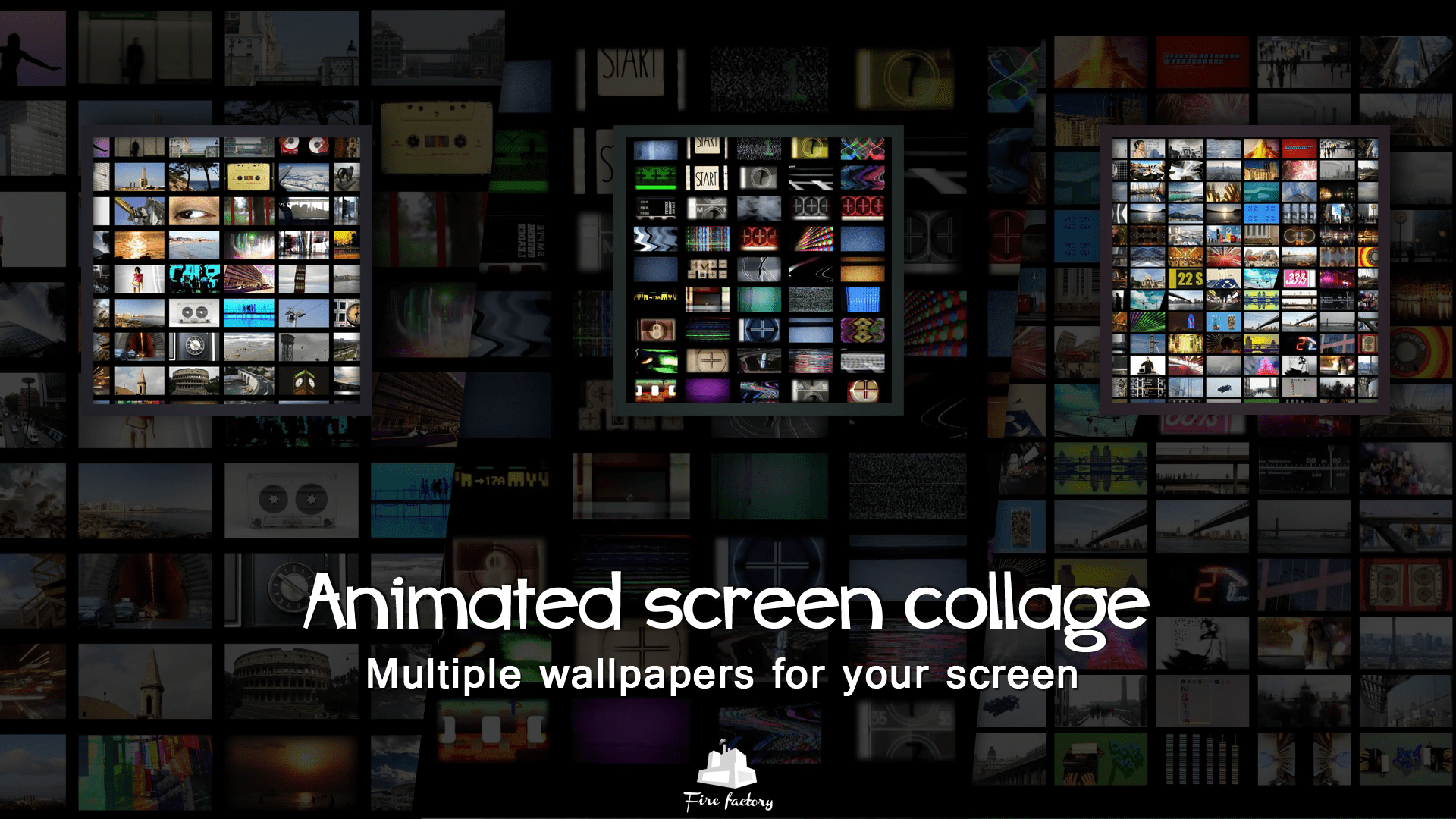
- Multipicture Live Wallpaper: A more advanced app that enables you to create a slideshow of images on your lock screen or home screen.
Step 2: Select Your Wallpapers
Once you’ve chosen an app, it’s time to select your wallpapers. You can use photos from your gallery, download new ones from the internet, or even take pictures with your camera. When choosing wallpapers, consider the following factors:
- Resolution: Make sure your wallpapers are high-resolution and will look great on your device.
- Style: Select wallpapers that reflect your personality and style.
- Theme: Choose wallpapers that fit a particular theme, such as nature, abstract, or cityscapes.
Step 3: Customize Your Home Screens
Now that you have your wallpapers, it’s time to customize your home screens. This is where the magic happens! You can add widgets, shortcuts, and other elements to create a unique experience. When customizing your home screens, consider the following:
- Layout: Experiment with different layouts and arrangements of icons and widgets.
- Color Scheme: Choose a color scheme that reflects your personality and style.
- Fonts: Select fonts that are easy to read and consistent throughout your device.
Step 4: Add More Personalization Touches
To take your personalization to the next level, consider adding more touches such as:
- Lock Screen Wallpaper: Change your lock screen wallpaper to a different image or design.
- Notification Shades: Customize your notification shades with different colors and designs.
- System Sounds: Choose system sounds that fit your personality and style.
Tips And Tricks
Here are some additional tips and tricks to help you get the most out of personalizing your Android device:
- Experiment With Different Apps: Try out different apps and features to find what works best for you.
- Save Your Settings: Make sure to save your customizations so that they’re preserved across restarts.
- Join a Community: Join online communities or forums to share tips, tricks, and inspiration with other Android users.
Conclusion
Personalizing your Android device is a fun and creative process. By following these steps and tips, you can create a unique experience that reflects your personality and style. Remember to experiment, be patient, and have fun!
Frequently Asked Questions (FAQs)
- Q: How do I Change my Wallpaper on Android?
A: To change your wallpaper on Android, open the Settings app, select “Display,” and then choose “Wallpaper.” - Q: Can I Use a Custom Wallpaper on my Lock Screen?
A: Yes! You can use a custom wallpaper on your lock screen by opening the Settings app, selecting “Lock screen,” and choosing “Wallpaper.” - Q: How do I Add Widgets to my Home Screens?
A: To add widgets to your home screens, long-press on an empty area of the screen, select the “+” icon, and then choose a widget. - Q: Can I Customize The Color Scheme of my Android Device?
A: Yes! You can customize the color scheme of your Android device by opening the Settings app, selecting “Display,” and choosing “Color scheme.” - Q: How do I Save my Customizations Across Restarts?
A: To save your customizations across restarts, make sure to save them in a secure location, such as Google Drive or Dropbox. - Q: Can I Use Different Wallpapers For Each Home Screen?
A: Yes! You can use different wallpapers for each home screen by using an app like FiveWallpapers or MultiPicture Live Wallpaper. - Q: How do I Change The System Sounds on my Android Device?
A: To change the system sounds on your Android device, open the Settings app, select “Sounds,” and then choose a new sound scheme.
Additional Resources
For more information on personalizing your Android device, check out these additional resources:
- Android Central: A comprehensive guide to customizing your Android device.
- Xda Developers: A community-driven forum for discussing Android customization and development.
- Google Play Store: Browse the Google Play Store for apps and tools to help you personalize your Android device.


