
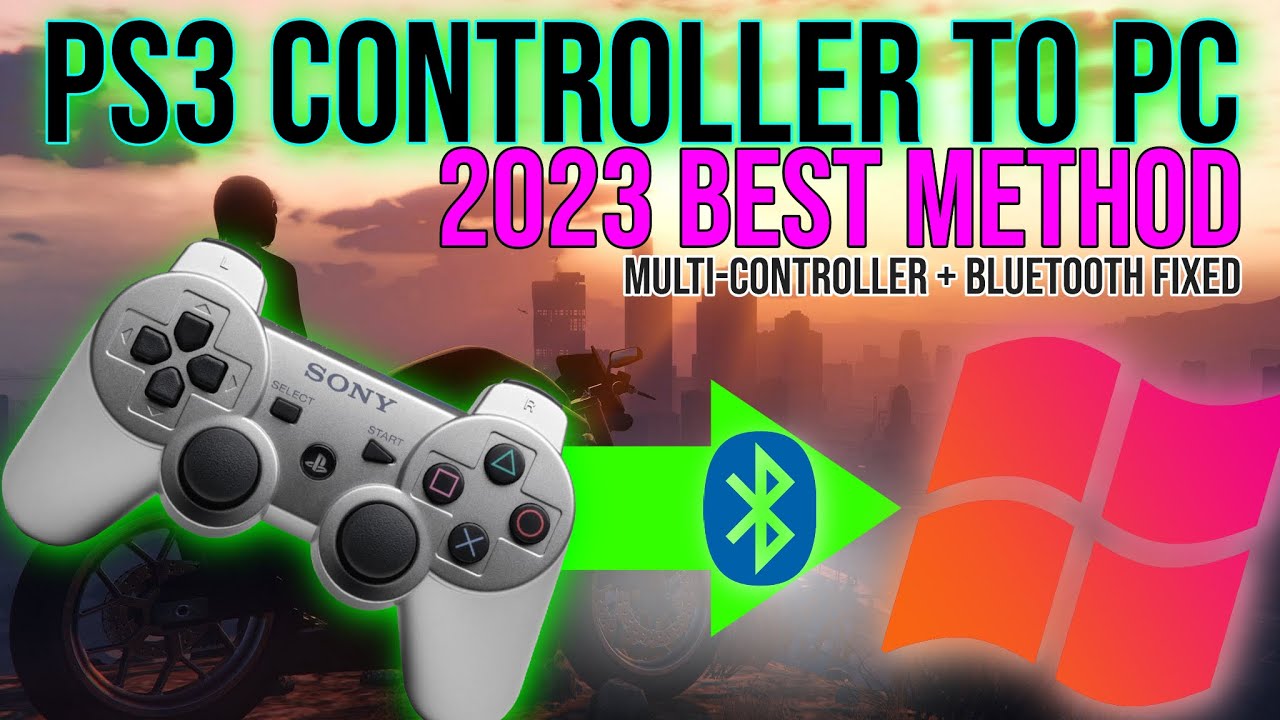
How to Use a Ps3 Joystick on PC or Mac: A Step-by-step Guide
Are you an avid gamer looking to use your PlayStation 3 (PS3) joystick on your computer? Look no further! In this article, we will guide you through the process of connecting and using your PS3 joystick on both Windows PC and macOS.
Why Use a Ps3 Joystick on PC or Mac?
Using a PS3 joystick on your PC or Mac can enhance your gaming experience. The joystick’s precise controls and ergonomic design make it an excellent choice for gamers who want to play games that require quick reflexes and accurate movements.
Preliminary Operations: What You Need to Get Started
Before you begin, ensure you have the following:
- A PS3 joystick (you can use either a wired or wireless model)
- A PC or Mac with a USB port
- A Mini-USB cable (for wired connections)
- The ScpToolkit software (available for free on GitHub)
Using Your Ps3 Joystick on Windows PC
- Download And Install Scptoolkit: Head to the GitHub page, click on the “Assets” section, and download the latest version of ScpToolkit.
- Install The Driver: Run the installer, follow the prompts, and select “Yes, Next, and Install.”
- Connect Your Ps3 Joystick: Physically connect your joystick using the Mini-USB cable. Make sure it’s securely plugged in to avoid any issues during the installation process.
- Select The Correct Device: In the ScpToolkit setup window, select the “Install DualShock 3 driver” option and choose the correct device (PlayStation 3).
- Configure Your Joystick: You can now configure your joystick settings, such as button mapping and sensitivity.
Using Your Ps3 Joystick on Mac
- Disconnect Your Ps3: Make sure your PS3 is turned off to avoid any unexpected issues during the setup process.
- Enable Bluetooth: Go to System Preferences > Bluetooth and ensure it’s enabled.
- Connect Your Ps3 Joystick: Physically connect your joystick using the Mini-USB cable.
- Select The Correct Device: On your Mac, go to System Preferences > Bluetooth and select “PLAYSTATION(R)3 Controller”.
- Configure Your Joystick: You can now configure your joystick settings, such as button mapping and sensitivity.
Troubleshooting Tips
- If you’re experiencing issues with your PS3 joystick not being recognized by ScpToolkit or your Mac, try restarting your computer.
- Ensure that your PS3 joystick is properly connected to the Mini-USB cable and that it’s securely plugged into your PC or Mac.
- If you’re having trouble configuring your joystick settings, refer to the official ScpToolkit documentation or online forums for assistance.
Conclusion
Using a PS3 joystick on your PC or Mac can elevate your gaming experience. By following these step-by-step guides, you’ll be able to connect and configure your joystick in no time. Remember to troubleshoot any issues that may arise, and don’t hesitate to reach out for help if needed.
Frequently Asked Questions (FAQs)
- Q: What is Scptoolkit?
A: ScpToolkit is a free software that allows you to connect and use your PS3 joystick on PC or Mac. - Q: Do I Need a Mini-usb Cable For my Ps3 Joystick?
A: Yes, if you’re using a wired connection, you’ll need a Mini-USB cable. - Q: Can I Use my Ps4 Controller With Scptoolkit?
A: While ScpToolkit is primarily designed for PS3 controllers, it can also work with PS4 controllers under certain conditions. - Q: How do I Configure my Joystick Settings?
A: You can configure your joystick settings using the ScpToolkit software or through the built-in game settings. - Q: Can I Use my Ps3 Joystick on Multiple Devices at Once?
A: Yes, you can use your PS3 joystick on multiple devices as long as they are connected to the same computer or network. - Q: What if I’m Experiencing Issues With my Joystick Not Being Recognized by Scptoolkit or my Mac?
A: Try restarting your computer and ensuring that your joystick is properly connected to the Mini-USB cable. - Q: Can I Use my Ps3 Joystick For Gaming on Other Platforms Like Xbox or Nintendo Switch?
A: While ScpToolkit is primarily designed for PC and Mac, you can experiment with using your PS3 joystick on other platforms, but compatibility may vary.
Note: The information provided in this article is accurate to the best of our knowledge. However, we cannot guarantee that it will work for every individual or situation.


