
Finding Your Windows 10 Product Key: A Step-by-step Guide
Are you looking for a way to find your Windows 10 product key? Look no further! In this article, we will guide you through the various methods to recover your product key, including using the Command Prompt, PowerShell, and other third-party tools.
What is a Product Key?
Before we dive into the methods, let’s first understand what a product key is. A product key, also known as a serial number or activation code, is a unique 25-character code that identifies your copy of Windows 10. It’s required during the installation process and serves to authenticate your operating system.
Method 1: Finding Your Product Key Using The Command Prompt
The first method we’ll explore is using the Command Prompt. This method involves using the wmic command to retrieve your product key.
- Open the Command Prompt as an administrator by searching for “cmd” in the Start menu and right-clicking on the result to select “Run as administrator.”
- Type the following command and press Enter:
Wmic path SoftwareLicensingService get OA3xOriginalProductKey - Wait a few seconds, and your product key will be displayed below the command.
Method 2: Finding Your Product Key Using Powershell
The second method is using PowerShell. This involves using the Get-WmiObject cmdlet to retrieve your product key.
- Open PowerShell as an administrator by searching for “PowerShell” in the Start menu and right-clicking on the result to select “Run as administrator.”
- Type the following command and press Enter:
Get-WmiObject -query 'select * from SoftwareLicensingService' | Select-Object -ExpandProperty OA3xOriginalProductKey - Wait a few seconds, and your product key will be displayed below the command.
Method 3: Finding Your Product Key in The Registry
The third method is by searching for your product key in the Windows Registry. This involves using the Registry Editor to navigate to the correct location and retrieve your product key.
- Open the Registry Editor by typing “regedit” in the Start menu.
- Navigate to the following location:
HKEY_LOCAL_MACHINE > SOFTWARE > Microsoft > Windows NT > Current Version - Look for the value labeled “DigitalProductId” under this location. This will contain your encrypted product key.
Other Methods to Find Your Product Key
If you’ve purchased a new computer with Windows 10 pre-installed, you may find your product key on a sticker attached to the computer or on a certificate included in the packaging. Alternatively, if you’ve purchased a copy of Windows 10 from an authorized retailer, you can find the product key on a card or label inside the packaging.
Third-party Tools to Find Your Product Key
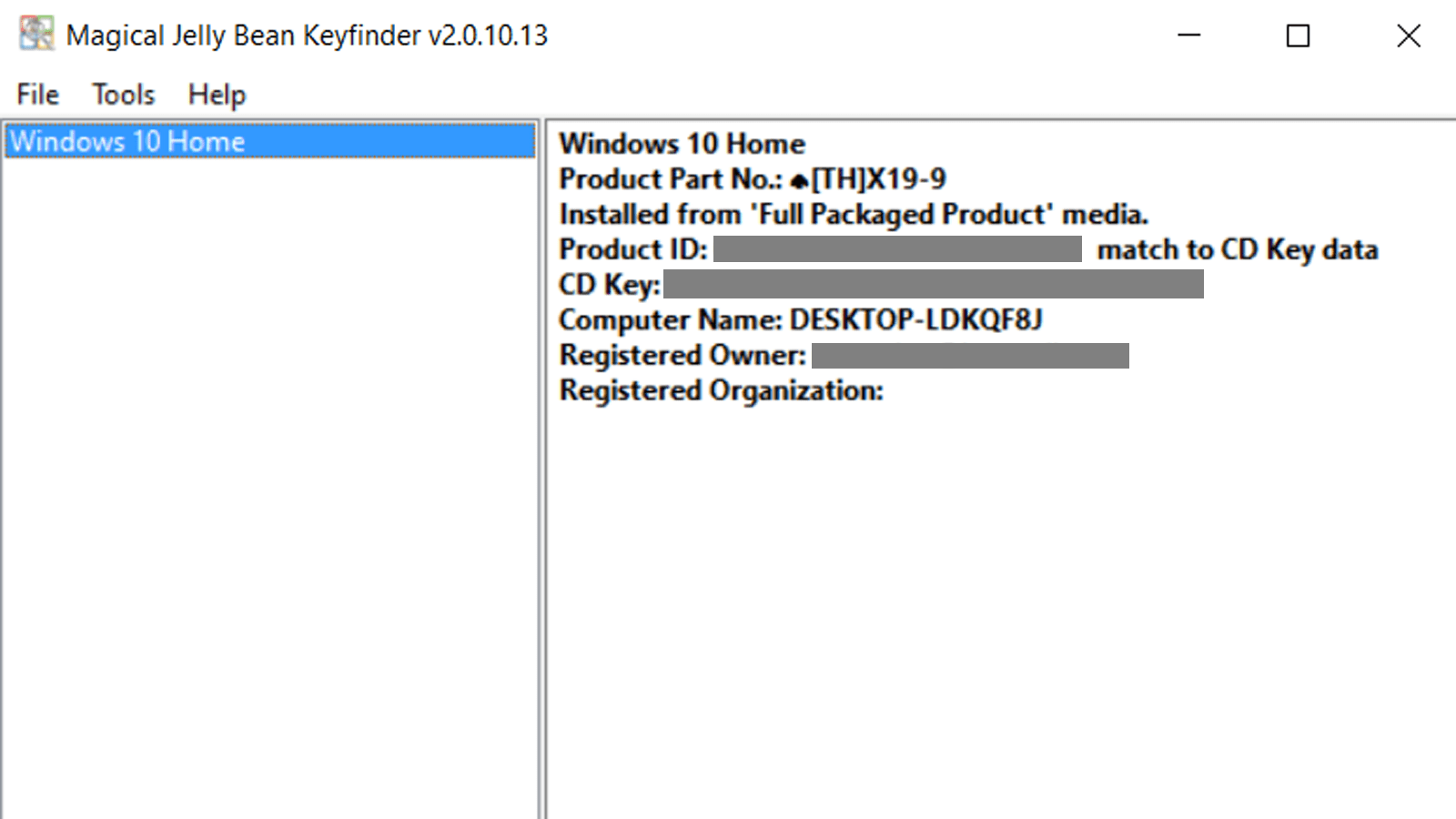
If none of the above methods work for you, there are several third-party tools available that can help you recover your product key. Some popular options include:
- Nirsoft Produkey: A free tool that can retrieve your product key from various locations.
- Lazesoft Windows Key Finder: A free tool that can find and display your product key.
- Sterjo Key Finder: A free tool that can find and display your product key.
Conclusion
Finding your Windows 10 product key is a relatively straightforward process. By using the methods outlined in this article, you should be able to recover your product key and activate your operating system. If none of these methods work for you, consider seeking assistance from Microsoft or a third-party support service.
Frequently Asked Questions (FAQs)
- What is a Product Key?
A product key, also known as a serial number or activation code, is a unique 25-character code that identifies your copy of Windows 10.
- How do I Find my Product Key?
You can use the Command Prompt, PowerShell, or third-party tools like NirSoft ProduKey to retrieve your product key.
- What if I’ve Lost my Product Key?
If you’ve lost your product key, you may need to purchase a new copy of Windows 10 or contact Microsoft for assistance.
- Can I Use my Product Key on Multiple Computers?
No, your product key is specific to one computer and cannot be used on multiple devices without activation.
- How do I Activate my Windows 10 Using The Command Prompt?
To activate your Windows 10 using the Command Prompt, type the following command: Slmgr /ipk <product_key>
- Can I Use a Product Key From an Older Version of Windows?
No, you cannot use a product key from an older version of Windows to activate your Windows 10.
- What if I’m Using a Pirated Copy of Windows 10?
Using a pirated copy of Windows 10 is against Microsoft’s terms and conditions and can result in penalties.
- Can I Recover my Product Key From a Backup?
Yes, you may be able to recover your product key from a backup of your operating system.


