
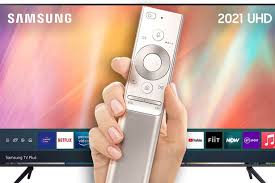
How to Remove Samsung TV Plus From Your Television
Are you tired of having unwanted channels on your Samsung TV? Do you want to know how to remove Samsung TV Plus from your television? Look no further! In this article, we will guide you through the process of removing Samsung TV Plus from your TV.
What is Samsung TV Plus?
Samsung TV Plus is a streaming service that offers a wide range of channels on demand. It’s available on all Samsung Smart TVs released since 2016 and also comes pre-installed on some smartphones. The service allows users to watch various types of content, including entertainment, news, music, and sports.
Why Would You Want to Remove Samsung TV Plus?
While Samsung TV Plus offers a lot of benefits, there are situations where you might want to remove it from your TV. For example:
- If you find the channels offered by Samsung TV Plus to be uninteresting or irrelevant to your viewing preferences.
- If you’re experiencing technical issues with the service that can’t be resolved by following troubleshooting steps.
How to Remove Samsung TV Plus
Removing Samsung TV Plus is a relatively straightforward process, and we’ll guide you through it step-by-step.
Step 1: Press The Home Button
Press the Home button on your remote control to go back to the main menu of your TV.
Step 2: Select The Settings Option
Select the Settings option from the menu. This will take you to a new page where you can configure various settings for your TV.
Step 3: Scroll Down to The Samsung TV Plus Section
Scroll down to the Samsung TV Plus section in the menu. You might need to navigate through several sub-menus to find it.
Step 4: Select The Disable Option
Once you’ve found the Samsung TV Plus section, select the Disable option. This will disable the service on your TV.
How to Delete Channels From Samsung TV Plus
If disabling the entire service doesn’t work for you, you can try deleting individual channels from Samsung TV Plus.
Step 1: Go Back to The Main Menu
Go back to the main menu of your TV by pressing the Home button.
Step 2: Select The Samsung TV Plus Icon
Select the Samsung TV Plus icon in the menu. This will take you to a new page where you can manage channels for the service.
Step 3: Select The List Channels Option
Select the List Channels option from the Samsung TV Plus menu. This will show you all the channels currently available on your TV.
Step 4: Select The Delete Channel Option
Once you’ve found a channel that you want to delete, select the Delete Channel option. Confirm that you want to delete the channel by selecting the Yes option.
How to Reset Your Smart Hub And TV
If removing Samsung TV Plus doesn’t work for you, or if you’re experiencing technical issues with your TV, you might need to reset your Smart Hub and TV.
Step 1: Press The Home Button
Press the Home button on your remote control to go back to the main menu of your TV.
Step 2: Select The Settings Option
Select the Settings option from the menu. This will take you to a new page where you can configure various settings for your TV.
Step 3: Go to Support > Autodiagnosi > Ripristina Smart Hub
Go to Support > Autodiagnosi > Ripristina Smart Hub in the menu. Confirm that you want to reset the Smart Hub by selecting the Yes option.
Step 4: Go to Settings > Support > Autodiagnosi > Reset
Once you’ve reset your Smart Hub, go back to Settings > Support > Autodiagnosi > Reset and select the Reset option. This will restore your TV to its factory settings.
Conclusion
Removing Samsung TV Plus from your TV is a relatively straightforward process that involves disabling or deleting channels from the service. If you’re experiencing technical issues with your TV, you might need to reset your Smart Hub and TV. By following these steps, you should be able to remove Samsung TV Plus from your television.
Faqs
- How do I Disable Samsung TV Plus on my Tv?
To disable Samsung TV Plus on your TV, go back to the main menu, select the Settings option, scroll down to the Samsung TV Plus section, and select the Disable option.
- How do I Delete Channels From Samsung TV Plus?
To delete channels from Samsung TV Plus, go back to the main menu, select the Samsung TV Plus icon, select the List Channels option, find a channel that you want to delete, and select the Delete Channel option.
- What Happens When I Reset my Smart Hub And Tv?
Resetting your Smart Hub and TV will restore it to its factory settings, which means that all apps and data on your device will be erased.
- Why do I Need to Reset my Smart Hub And Tv?
You might need to reset your Smart Hub and TV if you’re experiencing technical issues with the service or if you want to restore your device to its original state.
- How do I Reset my Samsung Tv?
To reset your Samsung TV, go back to Settings > Support > Autodiagnosi > Reset and select the Reset option. Confirm that you want to reset the device by selecting the Yes option.
- What Are The Benefits of Removing Samsung TV Plus From my Tv?
Removing Samsung TV Plus from your TV can help resolve technical issues with the service, improve performance, and give you more control over what channels appear on your TV.
- Can I Reinstall Samsung TV Plus After Disabling It?
Yes, you can reinstall Samsung TV Plus on your TV by going back to Settings > Support > Autodiagnosi > Ripristina Smart Hub and selecting the Yes option.
- How do I Prevent Unwanted Channels From Appearing on my TV Again?
To prevent unwanted channels from appearing on your TV again, make sure that you disable any suspicious apps or services that might be contributing to the issue.


