
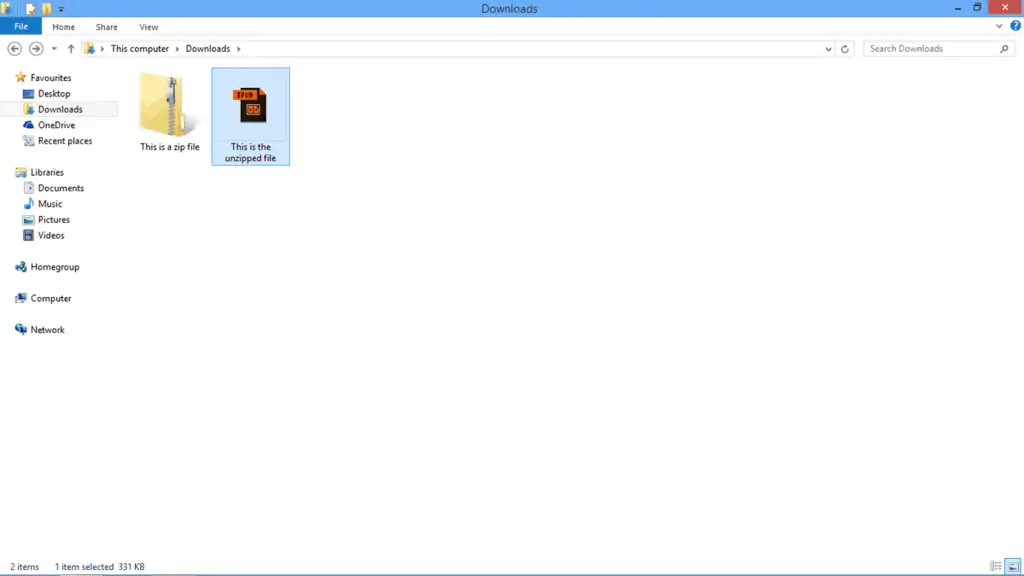
How to Unzip a File: A Step-by-step Guide
Are you struggling to extract files from compressed formats? Look no further! In this article, we will guide you through the process of unzipping files on various platforms, including PC, Mac, Linux, Android, and iOS.
What is Unzipping?
Unzipping refers to the process of extracting files from a compressed format, such as ZIP or RAR. This allows you to access individual files within the compressed folder without having to decompress the entire archive.
How to Unzip a File on PC (Windows)
On Windows, you can use the built-in utility called “File Explorer” to unzip files.
- Double-click on the ZIP file icon.
- Click on the “Extract all” button in the top-right corner of the window.
- Select the location where you want to extract the files and click “Extract”.
Alternatively, you can use a third-party app like 7-Zip or WinRAR.
- Download and install 7-Zip or WinRAR from their official websites.
- Right-click on the ZIP file icon and select “Open with” > “7-Zip” or “WinRAR”.
- Follow the prompts to extract the files.
Other Solutions For Unzipping Files on PC
If you prefer not to use 7-Zip or WinRAR, there are other solutions available:
- Windows File Explorer: This utility can also be used to unzip files by right-clicking on the ZIP file icon and selecting “Extract all”.
- Winzip: A popular third-party app that offers additional features beyond basic unzipping.
- Unzip.Me: An online service that allows you to unzip files without installing any software.
How to Unzip a File on Mac
On Mac, you can use the built-in utility called “Finder” to unzip files.
- Double-click on the ZIP file icon.
- Click on the “Extract” button in the top-right corner of the window.
- Select the location where you want to extract the files and click “Extract”.
Alternatively, you can use a third-party app like iZip or Keka.
- Download and install iZip or Keka from their official websites.
- Right-click on the ZIP file icon and select “Open with” > “iZip” or “Keka”.
- Follow the prompts to extract the files.
Other Solutions For Unzipping Files on Mac
If you prefer not to use iZip or Keka, there are other solutions available:
- Finder: This utility can also be used to unzip files by right-clicking on the ZIP file icon and selecting “Extract all”.
- Unzip.Me: An online service that allows you to unzip files without installing any software.
How to Unzip a File on Linux
On Linux, you can use the built-in utility called “File Explorer” or a terminal command to unzip files.
- Open the Terminal app and navigate to the directory containing the ZIP file.
- Use the command
unzip yourfile.Zipto extract the files.
Alternatively, you can use a third-party app like File Roller.
- Download and install File Roller from its official website.
- Right-click on the ZIP file icon and select “Open with” > “File Roller”.
- Follow the prompts to extract the files.
Other Solutions For Unzipping Files on Linux
If you prefer not to use File Roller, there are other solutions available:
- File Explorer: This utility can also be used to unzip files by right-clicking on the ZIP file icon and selecting “Extract all”.
- Unzip.Me: An online service that allows you to unzip files without installing any software.
How to Unzip a File Online
If you prefer not to install any software or use a specific app, there are online services available for unzipping files:
- Ezyzip: A free online service that allows you to unzip ZIP and other compressed file formats.
- Estrattore di File: An online service provided by 123apps that supports various compressed file formats.
- Cloudconvert: A universal converter that can convert between different file formats, including decompression.
Other Solutions For Unzipping Files Online
If you prefer not to use ezyZip or CloudConvert, there are other solutions available:
- Unzip.Me: An online service that allows you to unzip files without installing any software.
- Filezip: A free online service provided by File.Io that supports ZIP and RAR file formats.
How to Unzip a File on Android
On Android devices, you can use the built-in utility called “Files” or an app like WinZip to unzip files.
- Download and install WinZip from its official website.
- Open the WinZip app and select the ZIP file icon.
- Tap on the “Extract” button to extract the files.
Alternatively, you can use the Files app:
- Open the Files app.
- Navigate to the directory containing the ZIP file.
- Select the ZIP file icon and tap on the “Extract” button.
Other Solutions For Unzipping Files on Android
If you prefer not to use WinZip or the Files app, there are other solutions available:
- File Explorer: This utility can also be used to unzip files by right-clicking on the ZIP file icon and selecting “Extract all”.
- Unzip.Me: An online service that allows you to unzip files without installing any software.
How to Unzip a File on Ios
On iOS devices, you can use the built-in utility called “Files” or an app like iZip to unzip files.
- Download and install iZip from its official website.
- Open the iZip app and select the ZIP file icon.
- Tap on the “Extract” button to extract the files.
Alternatively, you can use the Files app:
- Open the Files app.
- Navigate to the directory containing the ZIP file.
- Select the ZIP file icon and tap on the “Decompress” button.
Other Solutions For Unzipping Files on Ios
If you prefer not to use iZip or the Files app, there are other solutions available:
- Files: This utility can also be used to unzip files by right-clicking on the ZIP file icon and selecting “Extract all”.
- Unzip.Me: An online service that allows you to unzip files without installing any software.
Conclusion
In conclusion, unzipping files is a straightforward process on various platforms, including PC, Mac, Linux, Android, and iOS. By using built-in utilities or third-party apps, you can easily extract files from compressed formats and access individual files within the compressed folder.


