
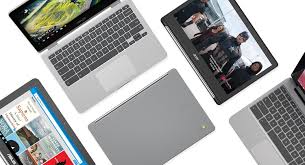
Installing Apps on Acer Chromebook: A Step-by-step Guide
Are you tired of the hassle and frustration that comes with installing apps on your Windows laptop? Look no further! In this article, we’ll take you through a step-by-step guide on how to install apps on your Acer Chromebook.
Why Choose a Chromebook?
Chromebooks have been gaining popularity in recent years due to their speed, security, and simplicity. They are perfect for those who want a hassle-free computing experience without breaking the bank. With a Chromebook, you can access all your favorite Google apps, such as Gmail, Google Drive, and Google Docs, directly from the browser.
Installing Web Apps on Chrome OS
One of the best features of Chrome OS is its ability to run web apps seamlessly. You can install web apps from the Chrome Web Store, which offers a wide range of productivity, communication, entertainment, and creative apps. To install a web app, follow these simple steps:
- Open the Chrome Web Store by clicking on the Launcher icon or typing chrome://Extensions in the address bar.
- Search for the web app you want to install using the search bar at the top of the page.
- Click on the “Add to Chrome” button next to the web app’s name.
- Confirm that you want to add the web app by clicking on the “Add” button.
Installing Android Apps on Chrome OS
Chrome OS also supports Android apps, which can be installed from the Google Play Store. To install an Android app, follow these steps:
- Open the Google Play Store by clicking on the Launcher icon or typing play.Google.Com in the address bar.
- Search for the Android app you want to install using the search bar at the top of the page.
- Click on the “Install” button next to the app’s name.
- Confirm that you want to install the app by clicking on the “Install” button.
Managing Apps on Chrome OS
Once you’ve installed an app, you can manage it from the Launcher or the app itself. Here are some tips:
- To access all your installed apps, click on the Launcher icon and look for the “Apps” section.
- To open an app, simply click on its icon in the Launcher.
- To close an app, click on the “X” button next to the app’s name in the taskbar.
Best Apps For Chrome OS
So, which apps are worth installing on your Acer Chromebook? Here are some of our top picks:
- Productivity: Google Docs, Microsoft Word Online, Google Sheets
- Communication: Gmail, Google Meet, Skype
- Entertainment: Spotify, YouTube, Netflix
- Creative: Canva, Adobe Photoshop Express
Frequently Asked Questions
Q: Can I install apps on my Chromebook?
A: Yes, you can install web apps and Android apps from the Chrome Web Store and Google Play Store respectively.
Q: How do I manage installed apps on my Chromebook?
A: You can access all your installed apps from the Launcher or by clicking on the “Apps” section in the taskbar.
Q: Can I run multiple instances of an app on my Chromebook?
A: Yes, you can run multiple instances of an app by clicking on the “X” button next to the app’s name and selecting the “Open a new window” option.
Conclusion
Installing apps on your Acer Chromebook is easy and straightforward. With this guide, you should be able to install web apps and Android apps with ease. Remember to explore the Chrome Web Store and Google Play Store for more apps and features that can enhance your computing experience.
Best Apps For Chrome OS (continued)
- Photo editing: Google Photos, Adobe Lightroom
- Video editing: Clipchamp, Kinemaster
- Illustrations and design: Canva, Adobe Creative Cloud Express
Safety Features on Chrome OS
Chromebooks have built-in safety features that protect you from malware and viruses. You can also install antivirus software to enhance security.
Final Tips
- Make sure to update your Chromebook regularly to ensure the latest security patches and features.
- Explore the Chrome Web Store and Google Play Store for more apps and features that can enhance your computing experience.
- Don’t hesitate to reach out if you have any questions or need further assistance.


