
How to Connect a Wireless Mouse Without Usb
Are you looking for a way to connect your wireless mouse to your computer, smartphone, or tablet without using a USB cable? Well, you’ve come to the right place! In this article, we’ll guide you through the process of connecting a wireless mouse to various devices without using a USB cable.
What You Need to Know
Before we dive into the instructions, it’s essential to understand that most modern computers, smartphones, and tablets have built-in Bluetooth capabilities. This means you can connect your wireless mouse to these devices using Bluetooth technology. However, not all wireless mice are created equal. Some may require a USB adapter or a special receiver to work.
Connecting a Wireless Mouse to a Computer (Windows/Mac)
If you’re using a Windows or Mac computer, connecting a wireless mouse is relatively straightforward. Here’s how:
For Windows Users
- Enable Bluetooth: If your computer has Bluetooth enabled, make sure it’s turned on. You can check by looking for the Bluetooth icon in the system tray (usually located near the clock).
- Pair The Mouse: Press and hold the mouse’s power button until the LED light starts blinking. This indicates that the mouse is ready to pair.
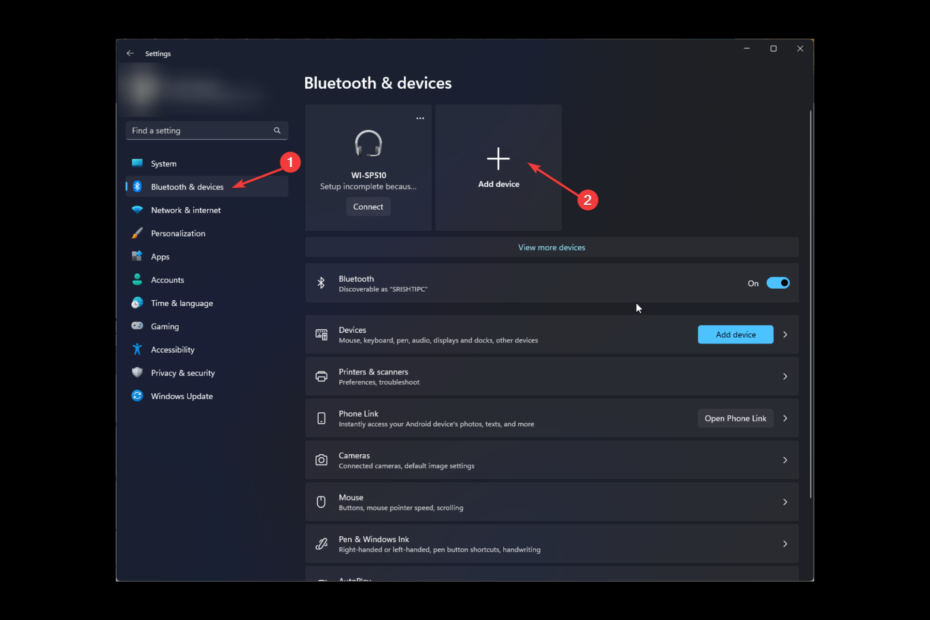
- Connect Via Bluetooth: Open the Settings app, click on “Devices,” and select “Bluetooth.” Click on “Add device” and follow the prompts to connect your mouse.
For Mac Users
- Enable Bluetooth: Go to System Preferences > Bluetooth and make sure it’s turned on.
- Pair The Mouse: Press and hold the mouse’s power button until the LED light starts blinking.
- Connect Via Bluetooth: Select “Add device” from the Bluetooth menu, and follow the prompts to connect your mouse.
Connecting a Wireless Mouse to a Smartphone or Tablet (Android/iOS)
If you’re using an Android or iOS device, connecting a wireless mouse is similarly straightforward:
For Android Users
- Enable Bluetooth: Go to Settings > Connections > Bluetooth.
- Pair The Mouse: Press and hold the mouse’s power button until the LED light starts blinking.
- Connect Via Bluetooth: Select “Add device” from the Bluetooth menu, and follow the prompts to connect your mouse.
For Ios Users
- Enable Bluetooth: Go to Settings > Bluetooth.
- Pair The Mouse: Press and hold the mouse’s power button until the LED light starts blinking.
- Connect Via Bluetooth: Select “Add device” from the Bluetooth menu, and follow the prompts to connect your mouse.
Tips And Tricks
- Make sure your wireless mouse is fully charged before attempting to pair it with your device.
- If you’re using a USB adapter or special receiver, ensure it’s properly plugged in and configured on your device.
- Some wireless mice may have specific settings or software that need to be installed on your device. Check the manufacturer’s instructions for more information.
Conclusion
Connecting a wireless mouse without a USB cable is relatively easy and straightforward. By following these steps and tips, you should be able to get your wireless mouse up and running on various devices in no time.
Frequently Asked Questions (FAQs)
- Q: What if my Device Doesn’t Have Built-in Bluetooth?
A: You may need to purchase a USB adapter or special receiver to connect your wireless mouse. - Q: Why Isn’t my Wireless Mouse Connecting to my Device?
A: Ensure that your wireless mouse is fully charged and try pairing it again. If issues persist, consult the manufacturer’s instructions. - Q: Can I Use a Wireless Mouse With my Ipad or Iphone?
A: Yes! Wireless mice are compatible with iPads and iPhones running iOS 13.4 Or later. - Q: How do I Troubleshoot Bluetooth Connectivity Issues?
A: Try restarting your device, ensuring that your wireless mouse is fully charged, and checking for any software updates on your device.
Conclusion
We hope this article has helped you understand how to connect a wireless mouse without using a USB cable. Remember to follow the instructions carefully, and don’t hesitate to reach out if you have any further questions or concerns!


