
Overclocking Your Monitor: Unlocking Higher Refresh Rates
Are you tired of mediocre gaming experiences? Do you want to take your gaming sessions to the next level without breaking the bank? Look no further than overclocking your monitor! In this article, we’ll delve into the world of monitor overclocking, exploring its benefits, potential risks, and step-by-step guides for NVIDIA and AMD graphics cards.
What is Monitor Overclocking?
Monitor overclocking involves increasing the refresh rate of your monitor beyond its factory-set limit. This can result in a smoother, more fluid gaming experience, especially for gamers who demand high frame rates. By overclocking your monitor, you can unlock higher refresh rates, making it ideal for fast-paced games and competitive titles.
Benefits of Monitor Overclocking
- Improved Gaming Experience: Overclocking your monitor can lead to a more immersive gaming experience, with smoother motion and reduced screen tearing.
- Increased Frame Rates: Higher refresh rates mean you’ll enjoy faster frame rates, making it ideal for demanding games that require quick reflexes.
- Enhanced Visuals: Overclocked monitors often display better visuals, with improved color accuracy and reduced ghosting.
Potential Risks of Monitor Overclocking
- Monitor Damage: Overclocking can put additional stress on your monitor, potentially leading to damage or shortened lifespan.
- System Instability: Increased refresh rates may cause system instability or crashes, especially if you’re pushing your hardware too hard.
- Cable Limitations: Old cables might not support higher refresh rates, so be sure to check your cable specifications before overclocking.
Overclocking Your Monitor With Nvidia Graphics Cards
- Update Your Drivers: Ensure your NVIDIA drivers are up-to-date for optimal performance.
- Access The Nvidia Control Panel: Right-click on an empty desktop area and select “NVIDIA Control Panel.”
- Adjust Refresh Rate: Click on “Display” > “Change resolution” and select a higher refresh rate (e.G., 144Hz or 240Hz).
- Test Your Monitor: Run a stress test to ensure your monitor can handle the increased refresh rate.
Overclocking Your Monitor With Amd Graphics Cards
- Update Your Drivers: Ensure your AMD drivers are up-to-date for optimal performance.
- Access The Amd Radeon Settings: Right-click on an empty desktop area and select “AMD Radeon Settings.”
- Adjust Refresh Rate: Click on “Display” > “Change resolution” and select a higher refresh rate (e.G., 144Hz or 240Hz).
- Test Your Monitor: Run a stress test to ensure your monitor can handle the increased refresh rate.
Software Programs For Overclocking Monitors
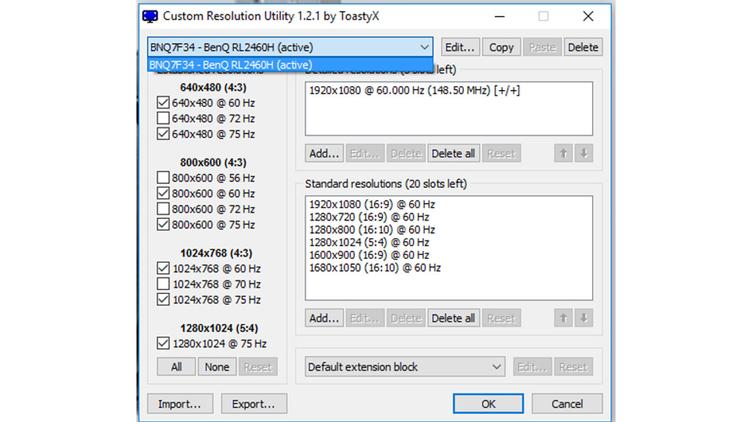
- Custom Resolution Utility (CRU): A free, user-friendly program that allows you to adjust resolution and refresh rates.
- Easyres: A simple-to-use app for Mac users to adjust resolution and refresh rates.
Conclusion
Monitor overclocking can be a game-changer for gamers seeking higher frame rates and improved visuals. However, it’s essential to weigh the benefits against potential risks, such as monitor damage or system instability. Follow our step-by-step guides for NVIDIA and AMD graphics cards, and use software programs like CRU or EasyRes to unlock your monitor’s full potential.
Frequently Asked Questions (FAQs)
- Q: Is Monitor Overclocking Safe?
A: Monitor overclocking can be safe if done correctly, but it may put additional stress on your monitor. - Q: Can I Overclock my Monitor With Any Graphics Card?
A: Yes, you can overclock your monitor with both NVIDIA and AMD graphics cards using the respective control panels or software programs. - Q: Will Overclocking my Monitor Void Its Warranty?
A: It’s unlikely that overclocking your monitor will void its warranty, but be sure to check your manufacturer’s policy before attempting overclocking. - Q: Can I Return to my Original Refresh Rate if I Encounter Issues?
A: Yes, most monitors and graphics cards allow you to revert to their factory-set settings if you experience any problems with overclocking. - Q: Will Monitor Overclocking Improve my Gaming Performance?
A: Monitor overclocking can improve your gaming experience by providing smoother motion and higher frame rates, but it won’t necessarily boost your overall system performance. - Q: Can I Overclock my Monitor on a Mac?
A: Yes, you can use software programs like EasyRes to adjust resolution and refresh rates on a Mac. - Q: Will Monitor Overclocking Affect my Monitor’s Lifespan?
A: Monitor overclocking may put additional stress on your monitor, potentially shortening its lifespan if done excessively or without proper care. - Q: Can I Use Any Cables For Overclocking?
A: No, it’s essential to check the specifications of your cables before attempting overclocking, as old cables might not support higher refresh rates.


