
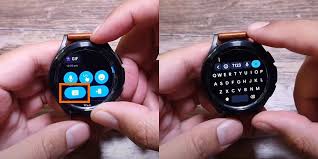
How to Install Whatsapp on Smartwatch: A Comprehensive Guide
Are you tired of missing important messages from friends and family while using your smartwatch? Do you want to stay connected without having to constantly check your phone? Look no further! In this article, we’ll guide you through the process of installing WhatsApp on your smartwatch, ensuring that you never miss a message again.
Introduction
Installing WhatsApp on your smartwatch is a relatively straightforward process. However, it’s essential to understand that there isn’t an official version of WhatsApp for smartwatches. Instead, we’ll focus on setting up your smartwatch to receive notifications and respond to messages from the comfort of your wrist.
Method 1: Android Smartwatch
If you have an Android smartwatch, you can follow these steps:
Step 1: Connect Your Smartwatch to Your Phone
Ensure that your smartwatch is connected to your phone via Bluetooth. You should see a prompt on your smartwatch asking you to connect it to your phone.
Step 2: Open The Wear OS App
On your phone, open the Wear OS app and follow the prompts to connect your smartwatch.
Step 3: Enable Whatsapp Notifications
In the Wear OS app, navigate to Settings > Apps & notifications > WhatsApp. Ensure that the toggle for “Notifications” is enabled.
Step 4: Receive And Respond to Messages
With WhatsApp notifications enabled on your smartwatch, you’ll receive messages as usual. You can respond using voice dictation or by typing a message directly on your smartwatch.
Method 2: Apple Watch
If you have an Apple Watch, the process is slightly different:
Step 1: Connect Your Apple Watch to Your Phone
Make sure that your Apple Watch is connected to your iPhone. You should see a prompt on your watch asking you to connect it to your phone.
Step 2: Enable Whatsapp Notifications on Your Iphone
On your iPhone, navigate to Settings > Notifications > WhatsApp. Ensure that the toggle for “Notifications” is enabled.
Step 3: Access Whatsapp on Your Apple Watch
To access WhatsApp directly on your Apple Watch, you can use the WatchChat 2 app. This will allow you to send and receive messages without needing to check your phone.
Method 3: Other Smartwatch Brands
For smartwatches from brands other than Android or Apple, the process may vary. However, in most cases, you’ll need to:
- Connect your smartwatch to your phone using Bluetooth
- Enable notifications for WhatsApp on your phone
- Configure your smartwatch to receive and display WhatsApp notifications
Conclusion
Installing WhatsApp on your smartwatch is a straightforward process that requires some basic setup. By following the steps outlined above, you’ll be able to stay connected with friends and family while using your smartwatch.
Frequently Asked Questions (FAQs)
Q: Do I need an official version of WhatsApp for my smartwatch?
A: No, there isn’t an official version of WhatsApp for smartwatches. However, you can set up your smartwatch to receive notifications and respond to messages from the comfort of your wrist.
Q: How do I enable WhatsApp notifications on my Android smartwatch?
A: On your Wear OS app, navigate to Settings > Apps & notifications > WhatsApp, then ensure that the toggle for “Notifications” is enabled.
Q: Can I use WatchChat 2 to access WhatsApp directly on my Apple Watch?
A: Yes, you can use the WatchChat 2 app to send and receive messages without needing to check your phone.
Q: How do I configure my smartwatch to receive and display WhatsApp notifications?
A: The process may vary depending on your smartwatch brand. However, in most cases, you’ll need to connect your smartwatch to your phone using Bluetooth, enable notifications for WhatsApp on your phone, and configure your smartwatch to receive and display WhatsApp notifications.
Q: Can I respond to messages directly from my smartwatch?
A: Yes, with some smartwatches, you can respond to messages using voice dictation or by typing a message directly on your smartwatch.


