
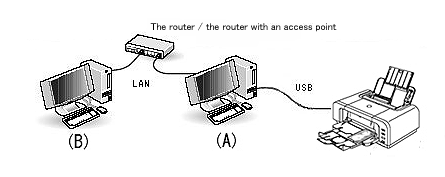
Sharing a Printer: A Comprehensive Guide
Are you tired of juggling multiple printers and trying to share one among your computers? Look no further! In this article, we’ll guide you through the process of sharing a printer between two or more PCs, using various methods such as USB, router Wi-Fi, and Windows 10.
Why Share a Printer?
Sharing a printer can be incredibly convenient, especially in homes with multiple family members or in offices where space is limited. By sharing one printer, you can save money on purchasing separate printers for each device, reduce clutter, and enjoy the benefits of a single print management system.
Method 1: Sharing a Printer Via Usb
To share a printer using USB, follow these steps:
- Install The Printer Driver: Install the printer driver on the computer that will serve as the server (the computer connected to the printer).
- Configure The Printer Sharing: Configure the printer sharing settings on the server computer by going to Control Panel > Devices and Printers > Add a device.
- Share The Printer: Share the printer with other computers on the network by right-clicking on the printer icon and selecting “Share”.
- Connect Other Computers: Connect other computers to the shared printer by installing the printer driver and adding the shared printer.
Method 2: Sharing a Printer Via Router Wi-fi
To share a printer using your router’s Wi-Fi, follow these steps:
- Configure Your Printer: Configure your printer to connect to the router’s Wi-Fi network.
- Access The Router’s Administration Panel: Access the router’s administration panel and configure the printer as a shared device.
- Connect Other Devices: Connect other devices to the shared printer by configuring their settings to connect to the same Wi-Fi network.
Method 3: Sharing a Printer on Windows 10
To share a printer on Windows 10, follow these steps:
- Install The Printer Driver: Install the printer driver on the computer that will serve as the server (the computer connected to the printer).
- Configure The Printer Sharing: Configure the printer sharing settings on the server computer by going to Settings > Devices > Printers & scanners.
- Share The Printer: Share the printer with other computers on the network by right-clicking on the printer icon and selecting “Share”.
- Connect Other Computers: Connect other computers to the shared printer by installing the printer driver and adding the shared printer.
Tips And Tricks
- Make sure to configure the printer sharing settings correctly to avoid any issues.
- Use a wired connection for stable printing performance.
- Update your router’s firmware to ensure smooth connectivity.
- Configure your printer to connect to the Wi-Fi network manually, if necessary.
Conclusion
Sharing a printer can be an incredibly convenient and cost-effective solution for homes and offices alike. By following these methods and tips, you can enjoy seamless printing across multiple devices without breaking the bank or cluttering your space.
Frequently Asked Questions (FAQs)
Q: How do I share a printer between two computers?
A: You can share a printer using USB by installing the printer driver on both computers and configuring the printer sharing settings.
Q: Can I share a printer wirelessly using my router’s Wi-Fi?
A: Yes, you can share a printer wirelessly using your router’s Wi-Fi network by configuring the printer to connect to the same network and accessing the router’s administration panel to configure the shared device.
Q: How do I share a printer on Windows 10?
A: To share a printer on Windows 10, install the printer driver on the computer that will serve as the server (the computer connected to the printer), configure the printer sharing settings, and share the printer with other computers on the network.
Q: What are some tips for smooth printing performance?
A: Use a wired connection, update your router’s firmware, and configure your printer to connect to the Wi-Fi network manually if necessary.
Q: Can I print from multiple devices at once?
A: Yes, you can print from multiple devices simultaneously by configuring the shared printer correctly and updating your router’s firmware for smooth connectivity.
Q: How do I resolve printing issues?
A: Troubleshoot printing issues by checking the printer’s connection to the Wi-Fi network, updating the printer driver on all connected devices, and ensuring that the shared printer is configured correctly.


