
Installing Ios Beta: A Step-by-step Guide
Are you ready to experience the latest features of Apple’s operating system before they’re released to the public? Installing iOS beta is a great way to get a sneak peek at what’s new, but it can be a bit tricky if you don’t know where to start. Don’t worry, we’ve got you covered!
What You Need to Know
Before we dive into the instructions, let’s quickly cover some basics.
IOS beta versions are not the same as public releases. They’re preliminary versions of the operating system that Apple uses for testing and feedback from developers like yourself. There are typically three phases:
- Developer Beta: This is the earliest phase where only registered developers can install the beta version.
- Public Beta: Once the developer beta has been tested, a public beta is released to anyone with an iPhone or iPad.
- Final Release: The final release is when the new iOS version is made available to all users.
Installing Ios Public Beta
To install the public beta of iOS, follow these steps:
- Sign Up For The Beta Program: Go to beta.Apple.Com and tap on the “Sign Up” button.
- Agree to The Terms: Read through the terms and conditions, then tap on the “Agree” button.
- Enroll Your Device: Tap on the “Enroll your iOS device” link, then follow the instructions to set up your device for beta testing.
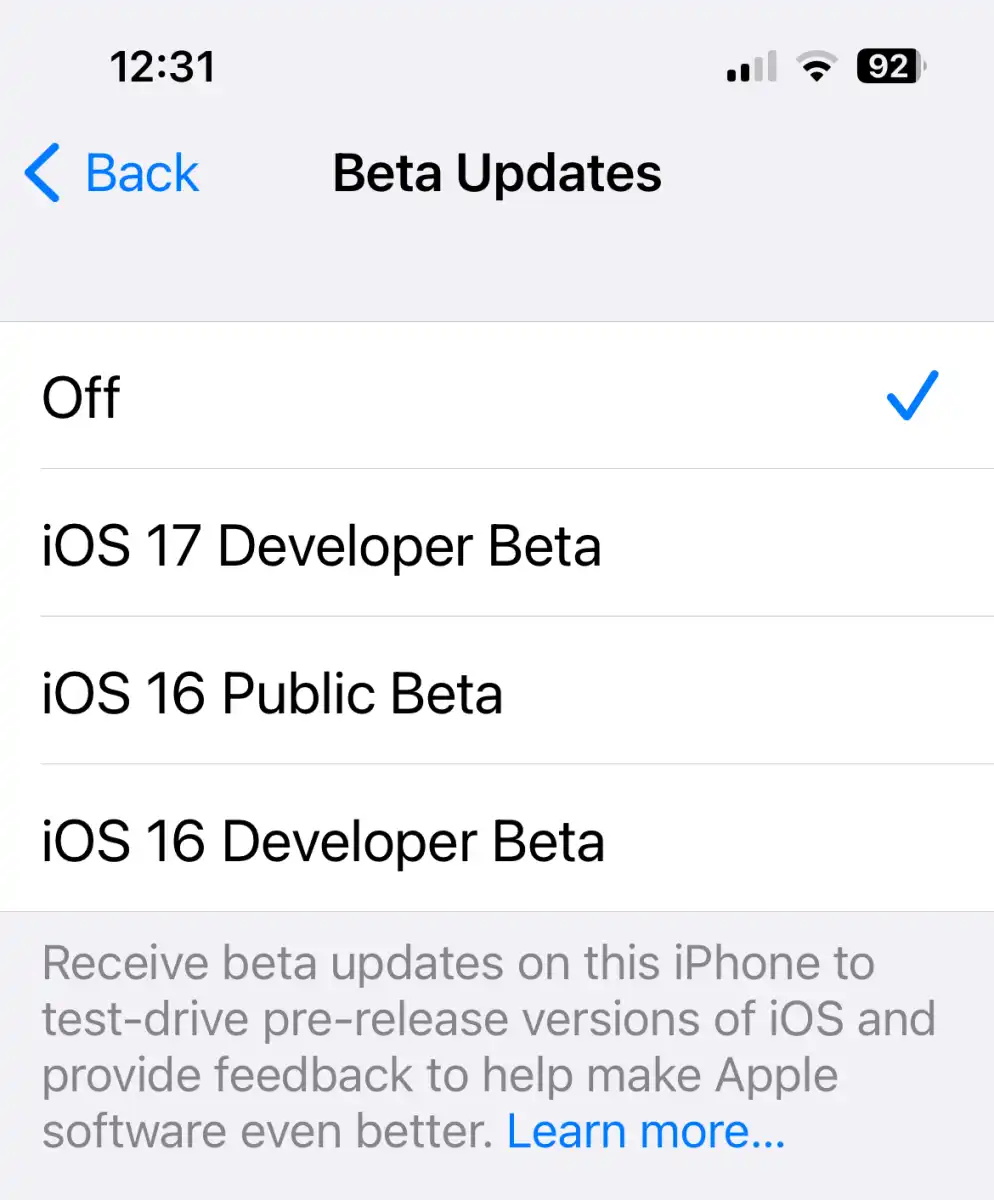
- Update Your Iphone or Ipad: Open the Settings app, go to General > Update software, and tap on the “Beta Updates” section.
- Tap on The Beta Version: Select the latest public beta version of iOS that you want to install.
Installing Ios Developer Beta
If you’re a registered developer, follow these steps:
- Enroll in The Developer Program: Go to developer.Apple.Com and sign up for the Apple Developer Program.
- Download The Developer Profile: Download the developer profile from the Apple Developer website.
- Install The Beta Version: Follow the same steps as above, but select the latest developer beta version of iOS.
Troubleshooting And Faqs
- What happens if I encounter problems while installing iOS beta?
- If you experience any issues during installation, try restarting your device or contact Apple support for assistance.
- Can I install iOS beta on my iPad?
- Yes, the process is identical to installing iOS beta on an iPhone.
- How do I uninstall iOS beta?
- See our separate tutorial on how to remove iOS beta from your device.
Additional Tips And Tricks
Before you start installing iOS beta, make sure you:
- Backup Your Device: Take a backup of your iPhone or iPad to ensure that your data is safe in case something goes wrong.
- Use a Secondary Device: Apple recommends installing the public beta version on a secondary device to avoid any potential issues.
Conclusion
Installing iOS beta is a great way to get ahead of the curve and experience new features before they’re released to the general public. Just remember to follow the instructions carefully, and don’t hesitate to contact Apple support if you encounter any problems along the way.
Frequently Asked Questions (FAQs)
- Q: What is Ios Beta?
A: IOS beta is a preliminary version of Apple’s operating system that’s used for testing and feedback from developers. - Q: Can I Install Ios Beta on my Ipad?
A: Yes, the process is identical to installing iOS beta on an iPhone. - Q: How do I Uninstall Ios Beta?
A: See our separate tutorial on how to remove iOS beta from your device. - Q: What Happens if I Encounter Problems While Installing Ios Beta?
A: If you experience any issues during installation, try restarting your device or contact Apple support for assistance. - Q: Can I Install Ios Beta on Multiple Devices?
A: Yes, but make sure each device is set up with its own unique developer profile. - Q: How do I Update my Iphone or Ipad to The Latest Public Beta Version of Ios?
A: Open the Settings app, go to General > Update software, and tap on the “Beta Updates” section. - Q: What’s The Difference Between Installing The Public Beta And Developer Beta Versions of Ios?
A: The public beta is released to anyone with an iPhone or iPad, while the developer beta is only available to registered developers.
Call to Action
If you have any questions or need further assistance, don’t hesitate to reach out. Stay tuned for more tutorials and guides on how to make the most of your iOS experience!


