
How to Update Snapchat: A Step-by-step Guide
Are you wondering how to update Snapchat on your Android or iOS device? Look no further! In this article, we’ll guide you through the process of updating Snapchat, as well as sharing some additional tips and tricks to get the most out of this popular social media app.
What’s New in The Latest Update?
Before we dive into the update process, let’s talk about what’s new in the latest version of Snapchat. The latest update brings several new features, including improved camera capabilities, enhanced chat functionality, and a refreshed user interface. But don’t worry if you’re not sure what these changes mean – we’ll cover them in more detail below.
Updating Snapchat on Android
To update Snapchat on your Android device, follow these simple steps:
Step 1: Check For Updates
- Open the Google Play Store app on your device.
- Tap on the menu icon (three horizontal lines) and select “My apps & games.”
- Scroll through the list of installed apps to find Snapchat.
- If an update is available, tap on the “Update” button.
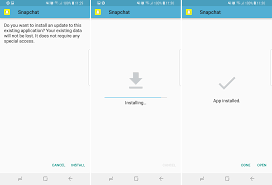
Step 2: Download And Install
- Once you’ve tapped on the “Update” button, the app will begin downloading and installing the latest version.
- Wait for the installation process to complete – this should only take a few seconds.
- Tap on the Snapchat icon to open the app and start using it.
Step 3: Enable Automatic Updates
- To ensure you always have the latest version of Snapchat, enable automatic updates by following these steps:
- Open the Google Play Store app.
- Tap on your profile picture in the top-right corner.
- Select “Settings” from the menu.
- Scroll down to the “Auto-update apps” section and toggle the switch to “On.”
Updating Snapchat on Ios
To update Snapchat on your iPhone or iPad, follow these simple steps:
Step 1: Check For Updates
- Open the App Store app on your device.
- Tap on the menu icon (three horizontal lines) and select “Today.”
- Scroll down to the “Updates” section and look for Snapchat.
- If an update is available, tap on the “Update” button.
Step 2: Download And Install
- Once you’ve tapped on the “Update” button, the app will begin downloading and installing the latest version.
- Wait for the installation process to complete – this should only take a few seconds.
- Tap on the Snapchat icon to open the app and start using it.
Step 3: Enable Automatic Updates
- To ensure you always have the latest version of Snapchat, enable automatic updates by following these steps:
- Open the App Store app.
- Tap on your profile picture in the top-right corner.
- Select “Settings” from the menu.
- Scroll down to the “Updates” section and toggle the switch next to “Update apps automatically” to “On.”
Updating Your Position on Snapchat
If you’re wondering how to update your position on Snapchat, don’t worry – it’s a simple process. Here’s what you need to do:
- Open the Snapchat app.
- Tap on the map icon in the bottom-right corner.
- If your Bitmoji is not showing up on the map, tap on the icon and select “Active voice position/Consent” to allow Snapchat to access your location.
Tips And Tricks
Here are some additional tips and tricks to get the most out of Snapchat:
- Use Snap Map: Snap Map is a feature that allows you to see where your friends are located in real-time. To use it, tap on the map icon in the bottom-right corner.
- Share Your Location: If you want to share your location with specific friends or groups, follow these steps:
- Open the Snapchat app.
- Tap on the chat icon and select the friend or group you want to share your location with.
- Tap on the “Share my location” button.
Conclusion
Updating Snapchat is a straightforward process that can be completed in just a few minutes. By following the steps outlined above, you’ll have the latest version of the app installed on your Android or iOS device. And don’t forget to enable automatic updates to ensure you always have access to the latest features and improvements!
Frequently Asked Questions
Here are some frequently asked questions related to updating Snapchat:
- Q: How do I Update Snapchat?
A: To update Snapchat, follow the steps outlined above for your Android or iOS device. - Q: What’s New in The Latest Update?
A: The latest update brings several new features, including improved camera capabilities and enhanced chat functionality. - Q: Can I Enable Automatic Updates on Snapchat?
A: Yes, you can enable automatic updates by following the steps outlined above for your Android or iOS device.


