
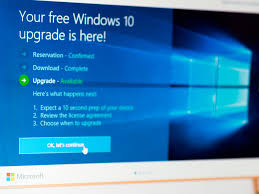
How to Update Your Computer to Windows 10: A Step-by-step Guide
Are you tired of using an outdated operating system? Do you want to experience the latest features and improvements that Windows 10 has to offer? Look no further! In this article, we will guide you through the process of updating your computer to Windows 10.
Is Your Computer Compatible With Windows 10?
Before we dive into the update process, it’s essential to check if your computer meets the minimum requirements for running Windows 10. The system requirements are as follows:
- Processor: 1 GHz or faster
- RAM: 1 GB (32-bit) or 2 GB (64-bit)
- Hard disk space: 16 GB (32-bit) or 32 GB (64-bit)
- Graphics card: DirectX 9 or later with WDDM 1.0
You can check your computer’s specifications by clicking on the Start button, right-clicking on Computer, and selecting Properties.
Backing Up Your Data
Before updating to Windows 10, it’s crucial to back up all your important files and programs. You can use an external hard drive or a USB flash drive to store your data. Alternatively, you can use a backup program like Acronis True Image or EaseUS Todo Backup.
Buying a License For Windows 10
If you don’t have a valid license for Windows 10, you’ll need to purchase one from Microsoft’s official website or a authorized retailer. The current prices are:
- Windows 10 Home: €145
- Windows 10 Pro: €259
Make sure to buy a genuine license to avoid any issues with activation.
Updating to Windows 10 Without Losing Data
If you want to update to Windows 10 without losing any data or programs, you can follow these steps:
- Go to Microsoft’s official website and download the Media Creation Tool.
- Run the tool and select the option to upgrade to Windows 10.
- Follow the prompts to complete the update process.
Updating to Windows 10 With a Clean Installation
If you want to perform a clean installation of Windows 10, you’ll need to erase all data on your computer’s hard drive. This is not recommended unless you’re sure that you won’t lose any important files.
- Download the ISO file for Windows 10 from Microsoft’s website.
- Create a bootable USB drive or DVD using the ISO file.
- Boot from the USB drive or DVD and follow the prompts to install Windows 10.
What to Do if The Update Process Fails
If the update process fails, don’t worry! You can try restarting your computer and attempting the update again. If you’re still experiencing issues, you may need to seek help from a professional.
Conclusion
Updating to Windows 10 is a relatively straightforward process that requires some planning and preparation. By following these steps, you’ll be able to enjoy the latest features and improvements that Windows 10 has to offer.
Frequently Asked Questions
Q: What are the system requirements for running Windows 10?
A: The minimum requirements are a 1 GHz processor, 1 GB (32-bit) or 2 GB (64-bit) RAM, 16 GB (32-bit) or 32 GB (64-bit) hard disk space, and a DirectX 9 or later graphics card.
Q: Do I need to back up my data before updating to Windows 10?
A: Yes, it’s essential to back up all your important files and programs before performing the update.
Q: Can I install Windows 10 without losing any data?
A: Yes, you can perform an in-place upgrade to Windows 10 without losing any data or programs.
Q: What are the prices for a license of Windows 10?
A: The current prices are €145 for Windows 10 Home and €259 for Windows 10 Pro.
Q: How do I create a bootable USB drive or DVD for installing Windows 10?
A: You can use the Media Creation Tool to create a bootable USB drive or DVD.
Q: What should I do if the update process fails?
A: Try restarting your computer and attempting the update again. If you’re still experiencing issues, seek help from a professional.


