
How to Delete All Chats on Messenger: A Step-by-step Guide
Are you tired of having too many conversations in your Facebook Messenger app? Do you want to clean up your chat history and delete unwanted chats? Look no further! In this article, we’ll show you how to delete all chats on Messenger, whether you’re using an Android or iOS device.
Why Delete Chats on Messenger?
Deleting chats on Messenger can be useful for several reasons. Maybe you’ve had a disagreement with someone and want to clear out the conversation history. Or perhaps you’ve realized that you no longer need to stay in touch with certain contacts. Whatever your reason, deleting unwanted chats can help declutter your messaging app and make it easier to manage your conversations.
How to Delete Chats on Messenger: A Step-by-step Guide
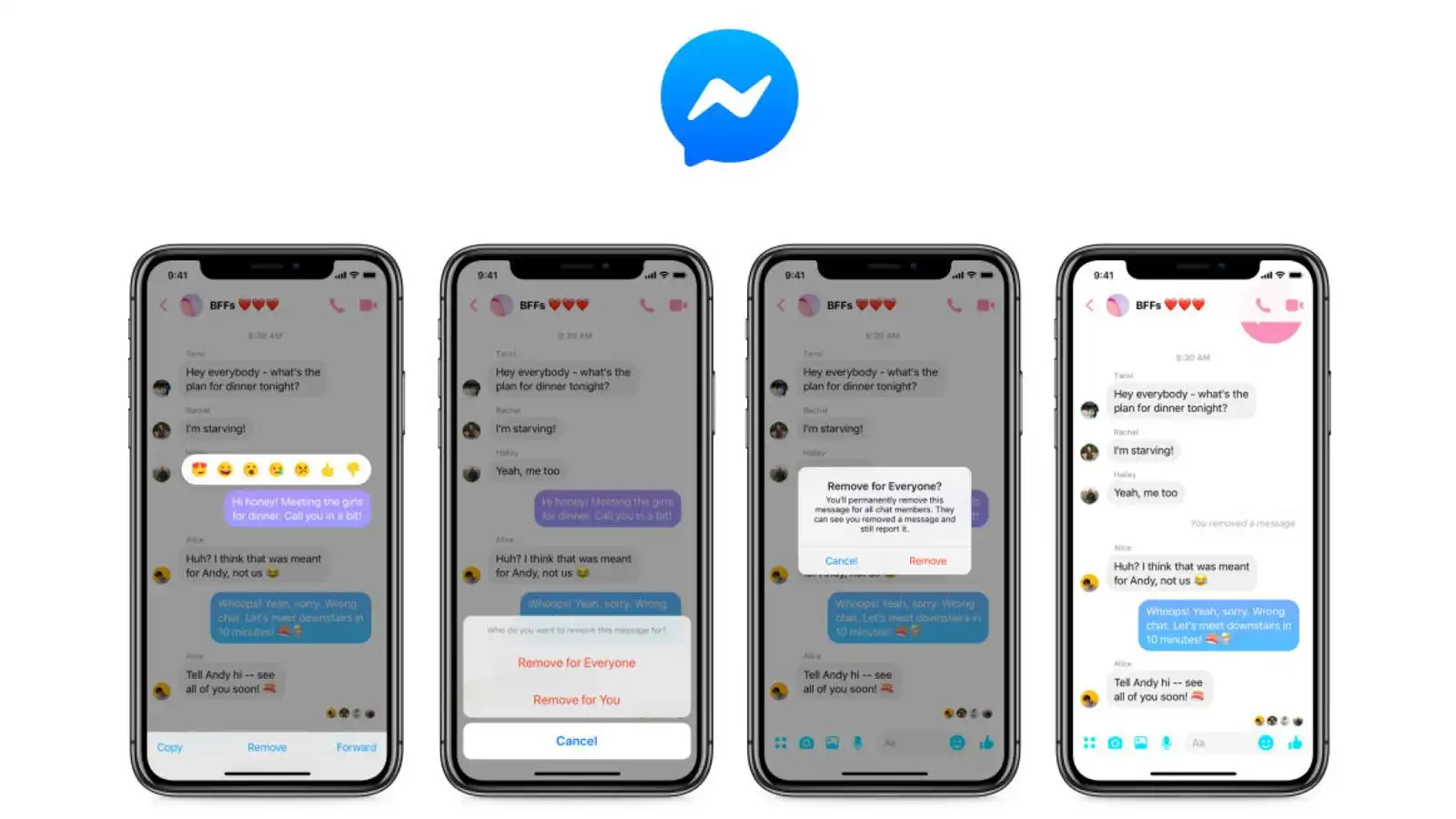
Deleting chats on Messenger is a straightforward process that can be done using either an Android or iOS device. Here’s how:
Deleting Chats on Android
- Open the Messenger app on your Android device.
- Tap on the conversation you want to delete from the chat list.
- Long press on the conversation until a menu appears.
- Select “Delete” and confirm that you want to delete the conversation.
Alternatively, you can also delete a chat by tapping on the three dots at the top right corner of the conversation window, then selecting “Delete”.
Deleting Chats on Ios
- Open the Messenger app on your iOS device.
- Tap on the conversation you want to delete from the chat list.
- Long press on the conversation until a menu appears.
- Select “Delete” and confirm that you want to delete the conversation.
Alternatively, you can also delete a chat by tapping on the conversation, then selecting “More” at the bottom of the screen, followed by “Delete”.
Deleting Chats on Pc
You can also delete chats on Messenger using your computer. Here’s how:
- Open the Messenger website and log in to your account.
- Click on the chat you want to delete from the conversation list.
- Click on the three dots at the top right corner of the chat window, then select “Delete”.
Alternatively, you can also delete a chat by clicking on the conversation, then selecting “More” at the bottom of the screen, followed by “Delete”.
How to Delete Multiple Chats at Once
If you want to delete multiple chats at once, you can do so by using the “Select All” feature. Here’s how:
- Open the Messenger app and go to the chat list.
- Tap on the “Select All” button (usually represented by a checkbox icon).
- Select all the conversations you want to delete from the chat list.
- Tap on the “Delete” button to confirm that you want to delete the selected chats.
How to Delete Archived Chats
Archived chats are chats that have been saved for future reference. If you want to delete archived chats, follow these steps:
- Open the Messenger app and go to the chat list.
- Tap on the “Archive” button (usually represented by a cloud icon).
- Select the conversations you want to delete from the archive list.
- Tap on the “Delete” button to confirm that you want to delete the selected chats.
How to Delete Temporary Messages
Temporary messages are messages that have been deleted automatically after they’ve been read by both parties. If you want to delete temporary messages, follow these steps:
- Open the Messenger app and go to a chat conversation.
- Tap on the three dots at the top right corner of the chat window, then select “Settings”.
- Toggle off the switch next to “Temporary Messages” to disable this feature.
Conclusion
Deleting chats on Messenger can be useful for cleaning up your messaging history and decluttering your app. Whether you’re using an Android or iOS device, the process is straightforward and can be completed in a few simple steps. We hope this guide has been helpful!


