
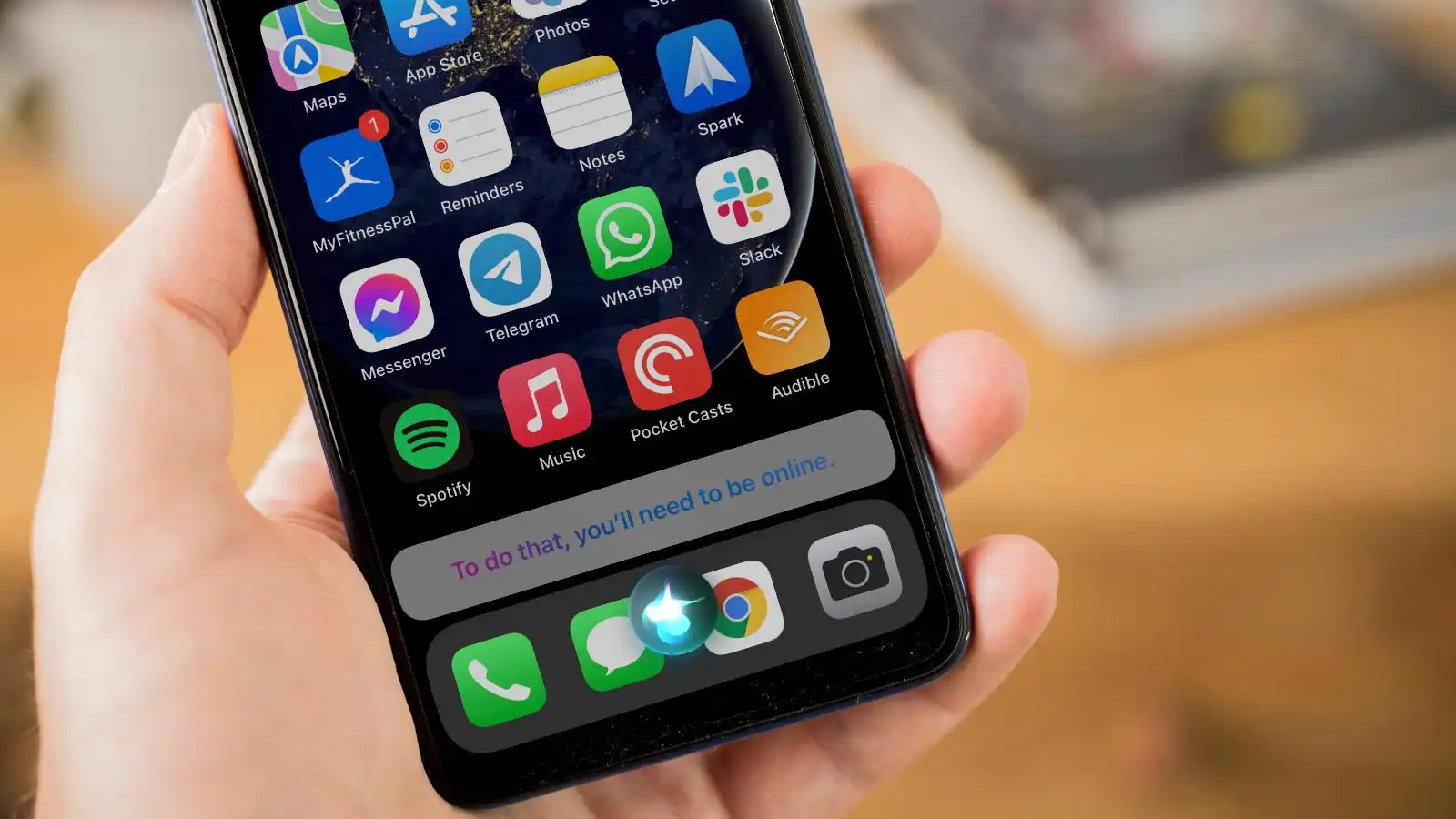
Mastering Siri: A Comprehensive Guide to Using Apple’s Intelligent Assistant
Are you ready to unlock the full potential of your Apple device? Look no further than this comprehensive guide on how to use Siri, Apple’s intelligent assistant.
What is Siri?
Siri is a virtual assistant developed by Apple that can perform various tasks, from answering questions and sending messages to making calls and controlling smart home devices. With Siri, you can access information, set reminders, and even have fun with jokes and games.
Using Siri on Iphone
To use Siri on your iPhone, simply hold down the side button (on iPhone models with Face ID) or the Home button (on other iPhone models). When prompted, say “Hey Siri” to activate the assistant. You can then ask Siri a question, send a message, or perform any of the numerous tasks that Siri is capable of.
Tips And Tricks For Using Siri on Iphone
- To use Siri without holding down the side button or Home button, go to Settings > Siri & Search > Allow “Hey Siri” and set it to ON.
- You can also ask Siri to complete tasks using voice commands, such as sending a message or making a call.
- If you have multiple contacts with similar names, Siri will prompt you to choose which one you mean.
Using Siri With Airpods
To use Siri with your AirPods, simply hold down the side button on either earbud. When prompted, say “Hey Siri” to activate the assistant. You can then ask Siri a question or perform any of the numerous tasks that Siri is capable of.
Tips And Tricks For Using Siri With Airpods
- Make sure you have updated your AirPods software to the latest version.
- If you have multiple contacts with similar names, Siri will prompt you to choose which one you mean.
- You can also ask Siri to complete tasks using voice commands, such as sending a message or making a call.
Using Siri on Apple Watch
To use Siri on your Apple Watch, simply press and hold the Digital Crown. When prompted, say “Hey Siri” to activate the assistant. You can then ask Siri a question or perform any of the numerous tasks that Siri is capable of.
Tips And Tricks For Using Siri on Apple Watch
- Make sure you have updated your Apple Watch software to the latest version.
- If you have multiple contacts with similar names, Siri will prompt you to choose which one you mean.
- You can also ask Siri to complete tasks using voice commands, such as sending a message or making a call.
Using Siri on Mac
To use Siri on your Mac, simply go to System Preferences > Siri and select “Ask Siri” from the menu. When prompted, say “Hey Siri” to activate the assistant. You can then ask Siri a question or perform any of the numerous tasks that Siri is capable of.
Tips And Tricks For Using Siri on Mac
- Make sure you have updated your Mac software to the latest version.
- If you have multiple contacts with similar names, Siri will prompt you to choose which one you mean.
- You can also ask Siri to complete tasks using voice commands, such as sending a message or making a call.
Using Siri on Apple TV
To use Siri on your Apple TV, simply go to Settings > General and select “Siri” from the menu. When prompted, say “Hey Siri” to activate the assistant. You can then ask Siri a question or perform any of the numerous tasks that Siri is capable of.
Tips And Tricks For Using Siri on Apple TV
- Make sure you have updated your Apple TV software to the latest version.
- If you have multiple contacts with similar names, Siri will prompt you to choose which one you mean.
- You can also ask Siri to complete tasks using voice commands, such as sending a message or making a call.
Conclusion
Siri is an incredibly powerful tool that can make your life easier and more convenient. Whether you’re using it on your iPhone, AirPods, Apple Watch, Mac, or Apple TV, the possibilities are endless. With these tips and tricks, you’ll be able to unlock the full potential of Siri and enjoy a more streamlined and enjoyable user experience.
Frequently Asked Questions (FAQs)
- What Can I do With Siri?
You can use Siri to perform various tasks, such as sending messages, making calls, setting reminders, getting directions, and more.
- How do I Activate Siri on my Iphone?
To activate Siri on your iPhone, hold down the side button (on iPhone models with Face ID) or the Home button (on other iPhone models).
- Can I Use Siri Without Holding Down The Side Button or Home Button?
Yes, you can ask Siri to be activated by voice command.
- How do I Activate Siri on my Apple Watch?
To activate Siri on your Apple Watch, press and hold the Digital Crown.
- Can I Use Siri on my Mac?
Yes, you can use Siri on your Mac by going to System Preferences > Siri and selecting “Ask Siri” from the menu.
- How do I Update my Apple Device Software For The Latest Version of Siri?
To update your Apple device software, go to Settings > General > Software Update (on iPhone or iPad) or System Preferences > Software Update (on Mac).
- Can I Use Siri With Multiple Contacts With Similar Names?
Yes, Siri will prompt you to choose which contact you mean if you have multiple contacts with similar names.
- Can I Ask Siri to Complete Tasks Using Voice Commands?
Yes, you can ask Siri to complete tasks using voice commands, such as sending a message or making a call.
- How do I Share Recordings Audio With Apple For Enhanced Services of Siri And Dictation?
To share recordings audio with Apple, go to Settings > Siri & Search > Share Audio Recordings (on iPhone or iPad) or System Preferences > Siri > Share Audio Recordings (on Mac).


