
How to Reactivate Audio on Your Pc: A Step-by-step Guide
Are you tired of dealing with a silent computer? Do you want to know how to reactivate audio on your Windows 11 or Windows 10 PC? Look no further! In this article, we’ll guide you through the process of troubleshooting and resolving audio issues on your computer.
Understanding Audio Issues on Your PC
Audio problems can arise from various sources, including:
- Deactivated audio drivers
- Disabled audio services
- Faulty or malfunctioning sound cards
- Outdated audio drivers
In this article, we’ll walk you through the steps to diagnose and resolve these issues. By following our guide, you should be able to reactivate audio on your Windows 11 or Windows 10 PC.
Step 1: Check Volume Levels
Before diving into more complex troubleshooting, let’s start with the basics. Ensure that the volume level is not set too low or muted. On Windows 11:
- Click on the volume icon in the system tray (bottom right corner)
- Select “Open Sound mixer”
- In the Sound mixer window, check if any applications have their audio muted
- Adjust the volume levels as needed
Step 2: Control The Sound Card
If you’re using an external sound card or earphones, ensure they are properly connected and recognized by your computer. On Windows 11:
- Click on the volume icon in the system tray (bottom right corner)
- Select “Open Sound mixer”
- In the Sound mixer window, select the device you want to use as output
- Check if any devices are disabled or muted
Step 3: Control Audio Services
Windows has a built-in audio service that might be causing issues. On Windows 11:
- Press the Windows key + R to open the Run dialog box
- Type “services.Msc” and press Enter
- In the Services window, find the “Audio Service” (Windows Audio)
- If it’s disabled or stopped, right-click on it and select “Start”
- Set the startup type to “Automatic”
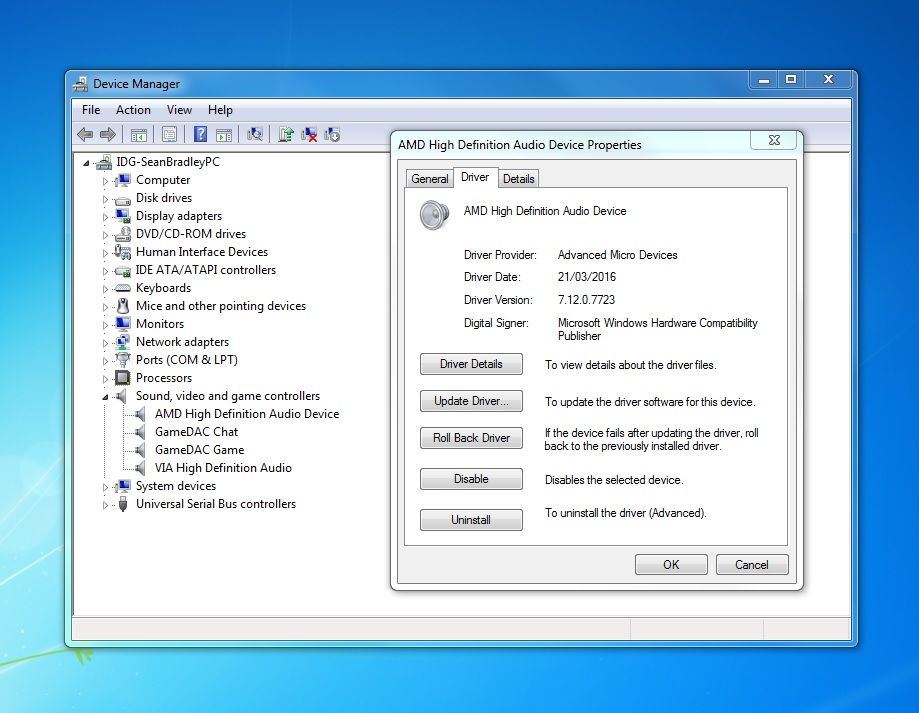
Step 4: Update Audio Drivers
Outdated audio drivers can cause compatibility issues. On Windows 11:
- Click on the Start button
- Type “Device Manager” and press Enter
- In the Device Manager window, expand the “Sound, video and game controllers” section
- Right-click on your sound card and select “Update driver”
- Follow the prompts to search for and install any available updates
Step 5: Check For Conflicting Applications
Sometimes, conflicting applications can cause audio issues. On Windows 11:
- Press the Windows key + R to open the Run dialog box
- Type “msconfig” and press Enter
- In the System Configuration window, click on the “Services” tab
- Look for any services related to audio or sound that might be causing conflicts
Step 6: Reset Audio Settings
If none of the above steps resolve the issue, it’s time to reset your audio settings. On Windows 11:
- Press the Windows key + I to open the Settings app
- Click on “System” and then “Sound”
- Select the “Reset” button under the “Sound” section
Macos Troubleshooting
If you’re using a Mac, follow these steps to troubleshoot audio issues:
- Check volume levels by clicking on the volume icon in the menu bar
- Reset audio settings by going to System Preferences > Sound and clicking on the “Reset” button
Conclusion
Resolving audio issues on your Windows 11 or Windows 10 PC can be a straightforward process. By following these steps, you should be able to diagnose and fix common audio problems.
Frequently Asked Questions (FAQs)
- Why is my Computer’s Audio Not Working?
- Audio issues can arise from various sources, including deactivated audio drivers, disabled audio services, faulty or malfunctioning sound cards, or outdated audio drivers.
- How do I Reset Audio Settings on Windows 11?
- Go to Settings > System > Sound and click on the “Reset” button.
- What is The Difference Between a Sound Card And an Audio Driver?
- A sound card is a hardware component that handles audio output, while an audio driver is software that manages audio input/output functions.
- How do I Troubleshoot Audio Issues on Macos?
- Check volume levels by clicking on the volume icon in the menu bar and reset audio settings by going to System Preferences > Sound and clicking on the “Reset” button.
We hope this guide has been helpful!


