
How to Transfer Files on a Memory Card (SD)
Are you looking for ways to transfer files from your computer to a memory card (SD)? Look no further! In this article, we will guide you through the process of transferring files onto a memory card using various devices.
Introduction
Transferring files from one device to another can be a bit tricky, especially when it comes to memory cards. However, with the right steps and knowledge, it’s easy to transfer files from your computer or phone to a memory card. In this article, we will explore how to transfer files on a memory card using various devices.
Understanding Memory Card Formats
Before we dive into the process of transferring files, let’s talk about the different formats that memory cards come in. The most common format is FAT32, which has limitations when it comes to file size and fragmentation. ExFAT is another popular format that overcomes these limitations but may not be compatible with older devices. NTFS is a proprietary format for Windows users.
Choosing The Right Format
When choosing the right format, consider your device’s compatibility and the type of files you plan to transfer. If you need to transfer large files or use your memory card across multiple platforms, exFAT may be the best choice. For smaller files and older devices, FAT32 is a good option.
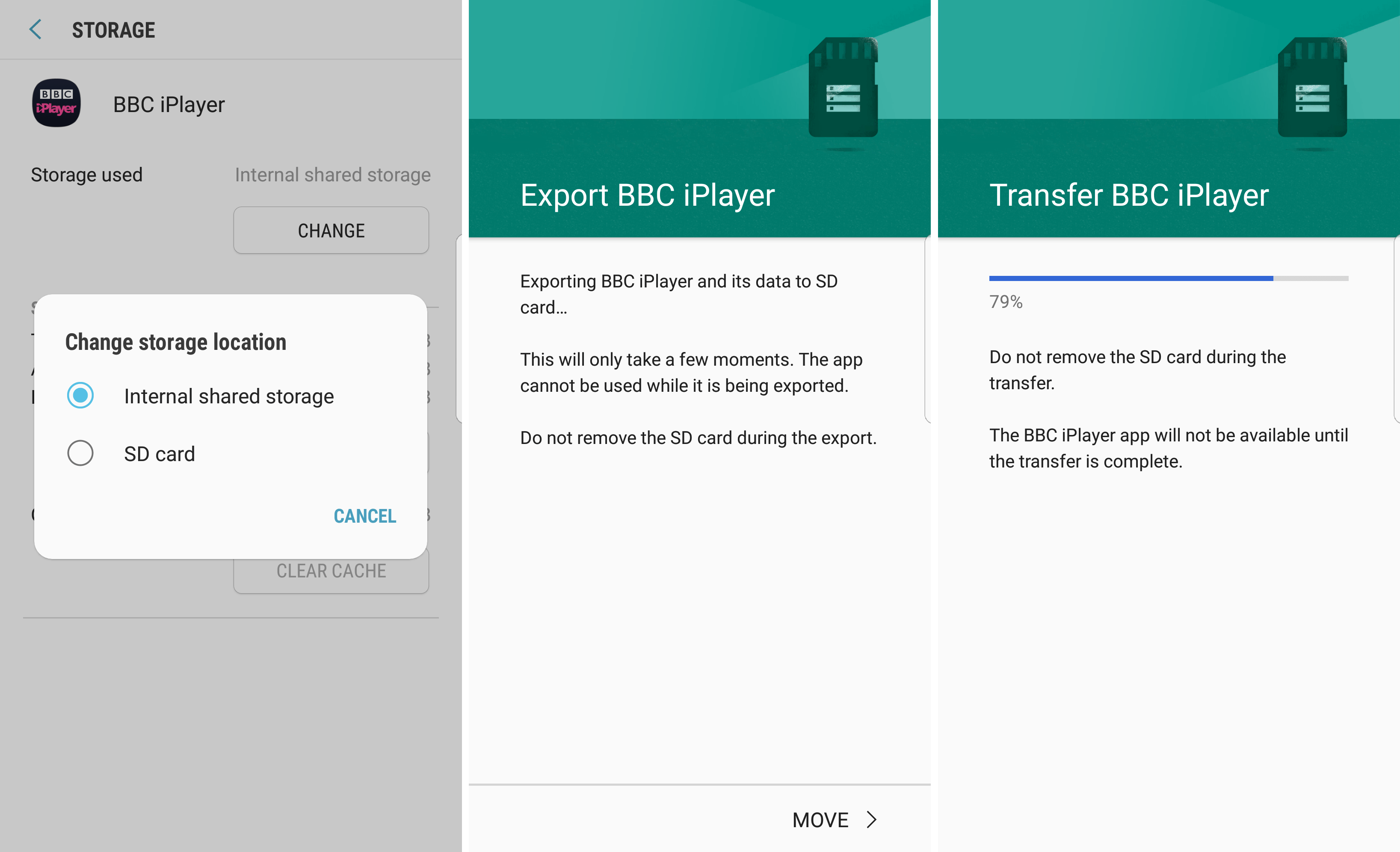
Transferring Files on Android Devices
If you have an Android device, transferring files from your phone or tablet to a memory card is relatively easy. Here’s how:
- Insert the microSD card into your device.
- Open the File Manager app (such as Google Files).
- Tap on the menu icon and select “Memory” or “Internal Storage.”
- Choose the files you want to transfer and tap on the “Share” button.
- Select the microSD card as the destination.
Transferring Files on Samsung Devices
If you have a Samsung device, transferring files from your phone or tablet to a memory card is similar to Android devices:
- Insert the microSD card into your device.
- Open the File app (pre-installed).
- Tap on the icon of the folder.
- Select the files you want to transfer and tap on the “Share” button.
- Choose the microSD card as the destination.
Transferring Files on Xiaomi Devices
If you have a Xiaomi device, transferring files from your phone or tablet to a memory card is also relatively easy:
- Insert the microSD card into your device.
- Open the File Manager app (pre-installed).
- Tap on the icon of the folder.
- Select the files you want to transfer and tap on the “Share” button.
- Choose the microSD card as the destination.
Transferring Files on Huawei Devices
If you have a Huawei device, transferring files from your phone or tablet to a memory card is similar to Android devices:
- Insert the microSD card into your device.
- Open the File Manager app (pre-installed).
- Tap on the icon of the folder.
- Select the files you want to transfer and tap on the “Share” button.
- Choose the microSD card as the destination.
Transferring Files on Iphone And Ipad Devices
Unfortunately, Apple devices do not support directly transferring files from a memory card to their internal storage. However, there is a workaround:
- Purchase an adapter that converts your microSD card into a USB-C or Lightning connector.
- Connect the adapter to your computer or phone using a USB cable.
- Open the File app on your device and select the files you want to transfer.
Transferring Files on Computer Devices
If you need to transfer files from your computer to a memory card, here’s how:
- Insert the memory card into your computer’s SD reader or use an external USB adapter.
- Open the File Explorer app (Windows) or Finder (macOS).
- Select the files you want to transfer and drag them to the memory card.
Conclusion
Transferring files from one device to another can be a bit tricky, but with the right steps and knowledge, it’s easy to get started. Whether you have an Android device, Samsung phone, Xiaomi tablet, Huawei smartphone, or Apple iPhone, there are ways to transfer your files onto a memory card.
Frequently Asked Questions (FAQs)
Here are some answers to frequently asked questions about transferring files from one device to another:
-
Q: What Format Should I Choose For my Memory Card?
A: Choose FAT32 if you need to transfer small files and use older devices, or exFAT for larger files across multiple platforms.
2. Q: Can I Transfer Large Files Onto a Memory Card?A: Yes, exFAT is designed for transferring large files, but be aware that this format may not be compatible with all devices.
3. Q: How do I Transfer Files From my Phone to a Memory Card?A: Use the File Manager app on your device and select the files you want to transfer. Choose the microSD card as the destination.
4. Q: Can I Use an External Adapter to Connect my Memory Card to my Computer?A: Yes, purchase an adapter that converts your microSD card into a USB-C or Lightning connector, then connect it to your device using a USB cable.
Note: This article is intended for informational purposes only. Always check the compatibility of your devices and memory cards before attempting any file transfers.


