
How to File Messages on Whatsapp
Are you tired of having a cluttered WhatsApp conversation list? Do you often find yourself searching for a specific message, only to have it buried under hundreds of others? You’re not alone! Many people struggle with managing their WhatsApp conversations, but there is a simple solution: Filing messages. In this article, we’ll show you how to file messages on WhatsApp on both Android and iPhone devices, as well as on your computer.
Why File Messages on Whatsapp?
Filing messages on WhatsApp can be extremely helpful in keeping your conversation list organized. By categorizing conversations, you can easily find the ones that matter most to you. Additionally, filing messages can also help protect sensitive information by separating it from other conversations. Whether you want to file a specific message or an entire conversation, we’ve got you covered.
Filing Messages on Whatsapp on Android
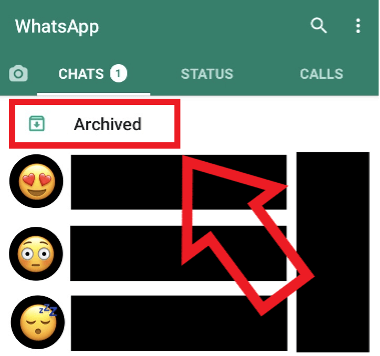
To file messages on WhatsApp on your Android device, follow these steps:
- Open the WhatsApp app and navigate to the conversation list.
- Tap and hold on the conversation you want to file.
- Select the “Archive” option from the menu that appears.
- To unarchive a conversation, simply go back to the archived conversations list and select the one you want to restore.
Alternatively, if you want to file multiple conversations at once:
- Open the WhatsApp app and navigate to the conversation list.
- Select the conversations you want to file by tapping on them.
- Tap the three dots in the top right corner of the screen and select “More” from the menu.
- Choose the “Archive” option.
Filing Messages on Whatsapp on Iphone
To file messages on WhatsApp on your iPhone, follow these steps:
- Open the WhatsApp app and navigate to the conversation list.
- Swipe left on the conversation you want to file.
- Select the “File” option from the menu that appears.
- To unfile a conversation, simply go back to the filed conversations list and select the one you want to restore.
Alternatively, if you want to file multiple conversations at once:
- Open the WhatsApp app and navigate to the conversation list.
- Tap and hold on each conversation you want to file.
- Select the “File” option from the menu that appears.
- Choose the “File all chats” option.
Filing Messages on Whatsapp on Computer
To file messages on WhatsApp on your computer, follow these steps:
- Open WhatsApp Web in your browser.
- Navigate to the conversation list.
- Click on the three dots in the top right corner of the screen and select “More” from the menu.
- Choose the “File chat” option.
Note that filing messages on WhatsApp on a computer is not as straightforward as it is on mobile devices, but we’ll cover more details below.
Saving All Messages on Whatsapp
Want to save all your WhatsApp conversations for future reference? You can do this by creating a backup of your conversations. This process is easy and straightforward, and we’ve got a separate guide on how to save messages on WhatsApp.
Saving Vocal Messages on Whatsapp
If you’ve recorded audio messages or voice notes on WhatsApp, you can also save them for later use. We’ll cover more details on saving vocal messages on WhatsApp in our separate tutorial.
Saving Messages on Whatsapp When Switching Phones
Are you planning to switch phones? Don’t worry; you can still save your WhatsApp conversations and transfer them to the new device. We’ve got a comprehensive guide on how to transfer WhatsApp conversations between devices, including Android-to-iPhone and vice versa transfers.
How to Save Whatsapp Conversations on Computer
While filing messages on WhatsApp on computer is not as straightforward as it is on mobile devices, you can still save your conversations by creating a backup. Here’s how:
- Open WhatsApp Web in your browser.
- Navigate to the conversation list.
- Click on the three dots in the top right corner of the screen and select “More” from the menu.
- Choose the “Backup chats” option.
Tips And Tricks
- To prevent conversations from being automatically unfiled, you can set a preference in the WhatsApp settings.
- If you’re using an iPhone or Android device, you can file messages by long-pressing on the conversation and selecting the “File” option.
- Filing messages on WhatsApp does not delete them; it simply moves them to a separate list.
Conclusion
Filing messages on WhatsApp is a simple yet effective way to keep your conversations organized. Whether you’re using an Android or iPhone device, or even saving messages on computer, we’ve covered all the bases. With these steps and tips, you’ll be able to manage your WhatsApp conversations like a pro!
Faqs:
- Q: How do I file messages on WhatsApp?
A: To file messages on WhatsApp on Android, tap and hold on the conversation and select “Archive”. On iPhone, swipe left on the conversation and select “File”. - Q: Can I file multiple conversations at once?
A: Yes! On both Android and iPhone devices, you can file multiple conversations by selecting them in the list. - Q: How do I unfile a conversation?
A: Simply go back to the filed conversations list and select the one you want to restore. - Q: Can I save all my WhatsApp messages for future reference?
A: Yes! You can create a backup of your conversations by following our guide on saving messages on WhatsApp. - Q: How do I transfer WhatsApp conversations between devices?
A: We’ve got a comprehensive guide on how to transfer WhatsApp conversations, including Android-to-iPhone and vice versa transfers.
Hope this helps!


