
How to Uninstall Mcafee: A Step-by-step Guide
Are you tired of using McAfee antivirus software? Do you want to uninstall it from your Windows or Mac computer? Look no further! In this article, we will guide you through the process of uninstalling McAfee step by step.
Why Uninstall Mcafee?
Before we dive into the uninstallation process, let’s take a look at why you might want to uninstall McAfee. Some common reasons include:
- You’ve upgraded to a newer antivirus software and want to switch
- You’re experiencing issues with McAfee’s performance or functionality
- You simply don’t like using McAfee anymore
Whatever your reason, we’ll show you how to uninstall McAfee safely and effectively.
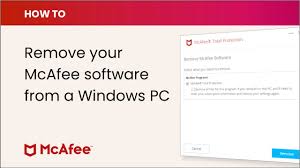
Uninstalling Mcafee on Windows
If you’re using a Windows computer, follow these steps to uninstall McAfee:
- Open The Control Panel: Click on Start and select Control Panel.
- Select Programs And Features: In the Control Panel, click on Programs and Features (in Windows 10/11) or Uninstall a program (in Windows 7 and 8.X).
- Find Mcafee: Look for McAfee Total Protection or other McAfee software in the list of installed programs.
- Uninstall Mcafee: Select McAfee and click on the Uninstall button to begin the uninstallation process.
Using The Mcafee Removal Tool
If you’re experiencing issues with the standard uninstallation procedure, you can use the McAfee Removal Tool. This tool is specifically designed for removing McAfee software when the standard method fails.
- Download The Removal Tool: Go to the McAfee website and download the removal tool.
- Run The Removal Tool: Double-click on the downloaded file and follow the instructions to run the removal tool.
Uninstalling Mcafee on Mac
If you’re using a Mac, follow these steps to uninstall McAfee:
- Open The Applications Folder: Find the Finder icon in the Dock or Launchpad.
- Find Mcafee Internet Security: Look for the McAfee Internet Security program in the Applications folder.
- Uninstall Mcafee: Drag the McAfee Internet Security icon to the Trash and empty the Trash.
Alternative Antivirus Software
If you’re looking for alternative antivirus software, we recommend checking out our article on free antivirus software. We’ve got a list of top-rated free antivirus programs that can protect your computer from malware and viruses.
Conclusion
Uninstalling McAfee is a relatively straightforward process, but it’s essential to be cautious when removing software from your computer. Make sure you follow the steps carefully to avoid any issues with your operating system or other installed software.
We hope this article has helped you uninstall McAfee successfully. If you have any further questions or concerns, feel free to ask in the comments below.
Frequently Asked Questions
Here are some additional questions and answers about uninstalling McAfee:
- Q: Can I Still Use my Computer While Uninstalling Mcafee?
A: Yes, it’s safe to use your computer while uninstalling McAfee. - Q: Will Uninstalling Mcafee Remove All Its Components?
A: Yes, the uninstallation process will remove all McAfee software and components from your computer. - Q: Can I Reinstall Mcafee After Uninstalling It?
A: Yes, you can reinstall McAfee if you change your mind or need to use it again.
Hope this article helps you uninstall McAfee successfully!


