
The Ultimate Guide to Disabling Ask Toolbar
Are you tired of seeing unwanted ads and pop-ups on your browser? Do you want to regain control over your browsing experience? Look no further! In this comprehensive guide, we’ll walk you through the step-by-step process of disabling Ask toolbar from various browsers, including Windows, macOS, Google Chrome, and Firefox.
What is Ask Toolbar?
Ask toolbar is a software application that integrates with popular web browsers to provide users with search results and other features. While it may seem harmless at first glance, many antivirus programs consider it a “dannoso” (harmful) software due to its tendency to display unwanted ads and modify browser settings without permission.
Why Disable Ask Toolbar?
Disabling Ask toolbar can significantly improve your browsing experience by reducing the number of unwanted ads and pop-ups you see. Additionally, removing this toolbar can help prevent potential security issues and ensure that your browser runs smoothly.
Disabling Ask Toolbar on Windows
To disable Ask toolbar on a Windows PC, follow these steps:
- Open Control Panel: Press the Windows key + X to open the Start menu, then click on “Control Panel.”
- Programs And Features: In the Control Panel, click on “Programs and Features” (or “Add or Remove Programs” in older versions of Windows).
- Find Ask Toolbar: Look for the Ask toolbar entry in the list of installed programs.
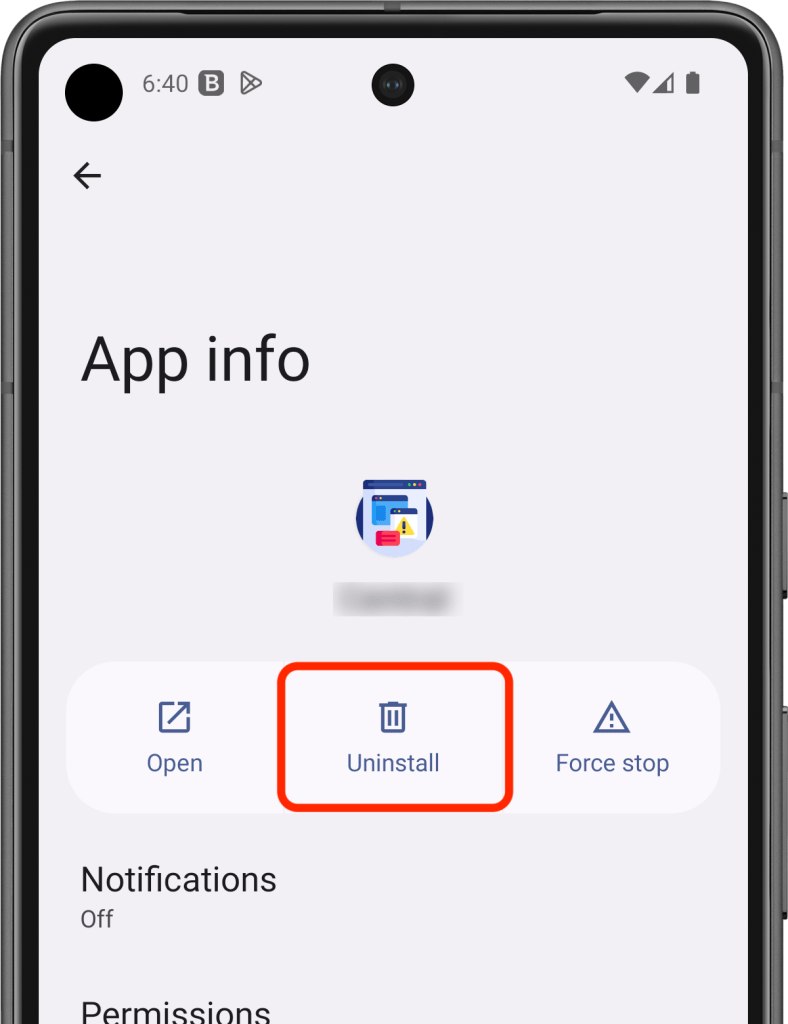
- Uninstall Ask Toolbar: Click on the Uninstall button to remove the software.
- Remove Remaining Files: If prompted, confirm that you want to delete all files associated with Ask toolbar.
Disabling Ask Toolbar on Macos
On a Mac, disabling Ask toolbar is relatively straightforward:
- Open Safari: Launch the default web browser, Safari.
- Preferences: Click on “Safari” in the top menu bar and select “Preferences.”
- General Tab: In the General tab, look for the search engine dropdown menu.
- Change Search Engine: Select a different search engine, such as Google or Bing.
- Remove Ask Toolbar: If you see any remaining references to Ask toolbar, click on it and choose the option to delete.
Disabling Ask Toolbar in Google Chrome
To disable Ask toolbar in Google Chrome:
- Open Google Chrome: Launch the browser and type chrome://Extensions/ into the address bar.
- Extensions Page: This will open a new page with all installed extensions.
- Find Ask Toolbar: Search for the Ask toolbar extension.
- Remove Extension: Click on the “Remove” button to uninstall the extension.
- Change Default Search Engine: Go back to the main settings page and change the default search engine to something else.
Disabling Ask Toolbar in Firefox
In Mozilla Firefox:
- Open Firefox Menu: Click on the three horizontal lines (≡) in the top right corner of the browser.
- More Tools: Select “Add-ons” from the menu.
- Extensions Tab: Switch to the Extensions tab.
- Find Ask Toolbar: Search for the Ask toolbar extension.
- Disable Extension: Click on the “Disable” button.
Conclusion
Disabling Ask toolbar is a simple process that can greatly improve your browsing experience. By following these steps, you can remove unwanted ads and pop-ups from your browser and ensure that it runs smoothly. Remember to always be cautious when installing software or extensions, as they may have unintended consequences on your system.
Step-by-step Guide:
- Open Control Panel (Windows) or Safari Preferences (macOS)
- Find Ask Toolbar in the list of installed programs or browser settings
- Uninstall/remove Ask Toolbar
- Change Default Search Engine to a different provider
- Check For Remaining Files and remove them if necessary
Tips And Variations:
- If you’re unable to find the Ask toolbar in your browser settings, try using a third-party uninstaller tool.
- Be cautious when removing extensions or software, as this may affect other applications or system functions.
- Always confirm any changes before proceeding.


