
How to Add a Widget on Iphone: A Step-by-step Guide
Are you looking to enhance your iPhone experience by adding widgets? Look no further! In this article, we will guide you through the process of adding widgets on your iPhone, covering various types such as photo, news, and weather.
Why Add Widgets on Iphone?
Adding widgets on your iPhone can be a great way to personalize your home screen and make it more functional. With widgets, you can quickly access important information, such as photos, news, and weather forecasts. This can help you stay organized and up-to-date without having to constantly check apps.
Understanding Widgets on Iphone
Before we dive into the process of adding widgets, let’s understand what they are. A widget is an extension of an app that provides a specific function or feature. On your iPhone, you can find various types of widgets, including:
- Photo widgets: Display your favorite photos
- News widgets: Show news articles and updates
- Weather widgets: Provide weather forecasts and conditions
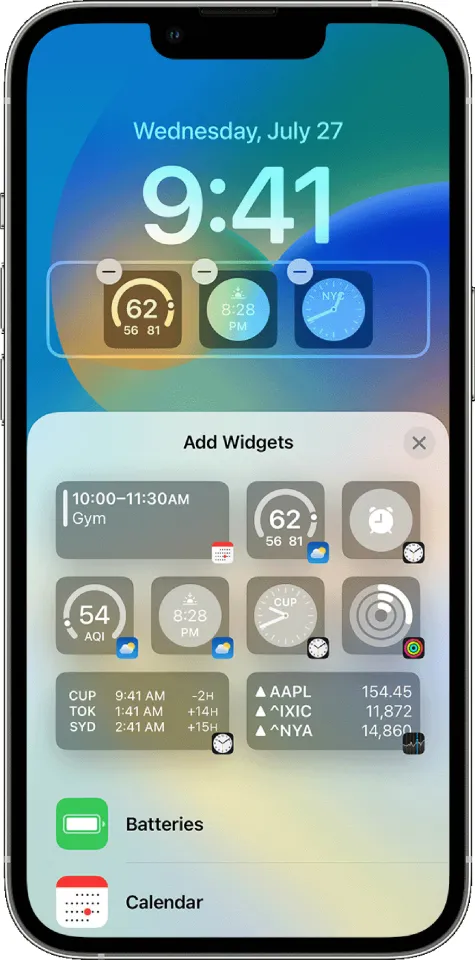
Adding Widgets on Iphone
To add a widget on your iPhone, follow these steps:
- Access The Home Screen: Tap and hold on an empty area of the home screen until the icons start to jiggle.
- Tap The “+” Icon: Tap the “+” icon in the top-right corner of the screen.
- Search For Widgets: Type “Widgets” in the search bar at the top of the screen.
- Choose a Widget: Select the type of widget you want to add, such as Photo, News, or Weather.
- Customize The Widget: Choose the appearance and layout of the widget.
Adding Photo Widgets on Iphone
To add a photo widget on your iPhone:
- Access The Home Screen: Tap and hold on an empty area of the home screen until the icons start to jiggle.
- Tap The “+” Icon: Tap the “+” icon in the top-right corner of the screen.
- Search For Photo Widget: Type “Photo Widget” in the search bar at the top of the screen.
- Choose a Photo Widget: Select a photo widget, such as Photos or Photo Widget: Simple.
- Customize The Photo Widget: Choose the appearance and layout of the widget.
Adding News Widgets on Iphone
To add a news widget on your iPhone:
- Access The Home Screen: Tap and hold on an empty area of the home screen until the icons start to jiggle.
- Tap The “+” Icon: Tap the “+” icon in the top-right corner of the screen.
- Search For News Widget: Type “News Widget” in the search bar at the top of the screen.
- Choose a News Widget: Select a news widget, such as News or Google News.
- Customize The News Widget: Choose the appearance and layout of the widget.
Adding Weather Widgets on Iphone
To add a weather widget on your iPhone:
- Access The Home Screen: Tap and hold on an empty area of the home screen until the icons start to jiggle.
- Tap The “+” Icon: Tap the “+” icon in the top-right corner of the screen.
- Search For Weather Widget: Type “Weather Widget” in the search bar at the top of the screen.
- Choose a Weather Widget: Select a weather widget, such as Weather or Meteo & Radar.
- Customize The Weather Widget: Choose the appearance and layout of the widget.
Other Available Widgets on Iphone
In addition to photo, news, and weather widgets, there are numerous other types of widgets available on your iPhone, including:
- Batteries: Displays battery levels
- Calendar: Shows upcoming events
- File: Allows you to access files quickly
- Music: Enables quick access to music albums and playlists
- Grades: Permits you to set up a folder for grades and access them quickly
- Clock: Displays schedules for various cities
- Reminder: Allows you to access reminder lists
- TV: Is dedicated to Apple TV+ users, enabling them to resume discontinued content or view upcoming shows
Using Widgetsmith
Widgetsmith is a free app available in the App Store that enables you to create and customize your own widgets. To use Widgetsmith:
- Download And Install Widgetsmith: Download and install the app from the App Store.
- Access Widgetsmith: Open the app and select an option, such as Add Small Widget or Add Medium Widget.
- Customize The Widget: Choose a category, style, and layout for your widget.
- Save The Widget: Save the widget to your home screen.
Conclusion
Adding widgets on your iPhone can be a great way to personalize your home screen and make it more functional. With various types of widgets available, you can choose the ones that suit your needs best. Remember to customize your widgets according to your preferences for an enhanced user experience.
Frequently Asked Questions (FAQs)
- Q: What Are Widgets on Iphone?
A: Widgets are extensions of apps that provide specific functions or features. - Q: How do I Add a Widget on my Iphone?
A: Tap and hold on an empty area of the home screen, tap the “+” icon, search for the desired widget, and customize it as needed. - Q: What Types of Widgets Are Available on Iphone?
A: Photo, news, weather, batteries, calendar, file, music, grades, clock, reminder, TV, and more. - Q: Can I Create my Own Widget Using Widgetsmith?
A: Yes, Widgetsmith enables you to create and customize your own widgets. - Q: How do I Add a Widget to The Today Screen on Iphone?
A: Tap and hold on an empty area of the home screen, tap the “+” icon, search for the desired widget, and customize it as needed. - Q: Can I Personalize my Widgets on Iphone?
A: Yes, you can customize your widgets according to your preferences. - Q: Are There Any Limitations to Adding Widgets on Iphone?
A: No, there are no limitations to adding widgets on iPhone; however, some widgets may have specific requirements or restrictions.
References
- Apple Support
- Widgetsmith App Store Page


