
Are you tired of dealing with the inconvenience of a separate decoder for your Sky subscription? Do you want to enjoy seamless access to on-demand services and keep your system up-to-date with just one device? Look no further! In this article, we’ll guide you through the process of connecting My Sky to Internet, making it easier than ever to stay entertained and connected.
Pre-requisites
Before we dive into the details, let’s cover some essential information. Not everyone is familiar with the concept of connecting a decoder to the internet, so it’s crucial to understand if your My Sky decoder has built-in Wi-Fi connectivity or not. If it does, you’re in luck! The process will be relatively straightforward. However, if your decoder doesn’t have this feature, don’t worry; we’ll cover alternative solutions as well.
How to Connect My Sky to Internet With Wi-fi
If your My Sky decoder is equipped with built-in Wi-Fi connectivity, connecting it to the internet is a breeze. Follow these simple steps:
- Turn on your My Sky decoder and wait for the system to boot up.
- Access the menu by pressing the ‘?’ button on your remote control. Navigate to the ‘Settings’ section using the directional arrows.
- Select the option labeled ‘My Sky’ and press OK.
- Choose the ‘Wi-Fi integrated’ option from the menu. Ensure that the toggle switch is set to ON if it’s not already.
- Select the network you want to connect to from the list of available networks.
That’s it! If everything goes smoothly, your My Sky decoder should now be connected to the internet via Wi-Fi.
How to Connect My Sky to Internet With a Cable
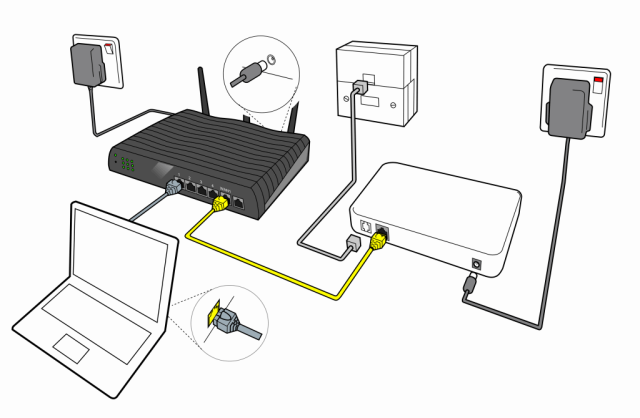
If your My Sky decoder doesn’t have built-in Wi-Fi connectivity or is too far away from the router, don’t worry; we’ve got you covered. You can establish a connection using an Ethernet cable instead.
- Purchase an Ethernet cable long enough to connect your My Sky decoder to the router.
- Plug one end of the cable into the router’s Ethernet port and the other end into the My Sky decoder’s Ethernet port.
- Turn on your My Sky decoder and wait for it to boot up.
- Access the menu by pressing the ‘?’ button on your remote control. Navigate to the ‘Settings’ > ‘#Configure’ > ‘Net’ section.
The process is almost identical to connecting via Wi-Fi, but you’ll need to select the option labeled ‘Connect with cable Ethernet’ instead.
How to Connect My Sky to Internet With The Sky Link
Another alternative solution is to use a device called the Sky Link. This device adds wireless functionality to your My Sky decoder, which can then be connected to the internet using Wi-Fi or an Ethernet cable.
- Purchase a Sky Link device and connect it to your My Sky decoder using an Ethernet cable.
- Follow the same steps as connecting via Wi-Fi or Ethernet to establish the connection.
How to Connect My Sky to Internet With Powerline Adapters
Lastly, you can use Powerline adapters to create a network between devices without the need for cables. These adapters work by transmitting internet signals through your home’s electrical wiring.
- Purchase two Powerline adapters and place them near the router and My Sky decoder.
- Connect one adapter to the router and the other to the My Sky decoder using an Ethernet cable.
- Follow the same steps as connecting via Wi-Fi or Ethernet to establish the connection.
How to Connect My Sky HD to Internet
If you have a My Sky HD decoder, the process is similar but with some additional steps for updating your system. Here’s what you need to do:
- Turn on your My Sky HD decoder and wait for it to boot up.
- Access the menu by pressing the ‘?’ button on your remote control. Navigate to the ‘Settings’ > ‘#Configure’ section.
- Select the option labeled ‘Connect in Wi-Fi’ if you want to establish a wireless connection or ‘Connect with cable Ethernet’ if using an Ethernet cable.
Conclusion
Connecting My Sky to Internet is now easier than ever, thanks to our step-by-step guide. Whether you prefer to use Wi-Fi, Ethernet, the Sky Link device, or Powerline adapters, we’ve covered all your bases. Don’t let outdated systems hold you back – take control of your entertainment and stay connected with just one device!


