
How to Download Subtitles For Movies And TV Series: A Comprehensive Guide
Are you tired of watching movies and TV series in a language that’s not your own? Do you struggle to understand the dialogue and lose interest in the story? Don’t worry, we’ve got you covered! In this article, we’ll show you how to download subtitles for movies and TV series using various online services and software.
The Problem With Subtitles on Streaming Platforms
Streaming platforms like Netflix, Amazon Prime, and Hulu often don’t provide subtitles for all their content. Even when they do, the quality of the subtitles can be poor or non-existent. This is where our guide comes in – to help you download high-quality subtitles for your favorite movies and TV series.
Method 1: Using Online Subtitle Services
There are several online services that offer free subtitle downloads. Here are a few:
- Opensubtitles: This is one of the most popular online subtitle services, with a vast collection of subtitles in multiple languages.
- Addic7ed: Another well-known service, Addic7ed offers high-quality subtitles for movies and TV series.
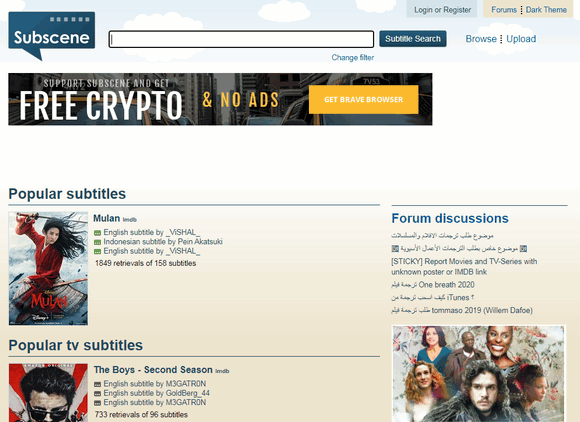
- Subscene: This service provides free subtitles for movies and TV series, with a user-friendly interface.
To use these services, simply search for the movie or TV series you want to download subtitles for. Select the language you prefer and click on the “Download” button. The subtitle file will be downloaded to your computer in a few seconds.
Method 2: Using Software to Download Subtitles
If you prefer not to rely on online services, you can use software to download subtitles directly from your computer. Here are a few options:
- Vlc Media Player: This popular media player has a built-in subtitle feature that allows you to search for and download subtitles for movies and TV series.
- Caption: A free software that enables you to search for and download subtitles for movies and TV series.
- Wondershare Filmora: A video editing software that also offers a subtitle feature, allowing you to add subtitles to your videos.
To use these software options, simply select the movie or TV series file you want to add subtitles to and click on the “Add Subtitle” button. Choose the language you prefer and select the desired subtitle format (e.G., SRT, ASS, etc.).
Method 3: Downloading Subtitles From Youtube
If you’ve found a video on YouTube that’s not in your preferred language, don’t worry! You can still download subtitles for it using the following method:
- Click on the three dots next to the “Share” button below the video player.
- Select the option “Open transcript” or “Display transcription”.
- Right-click on the transcript and select “Save as” to save the subtitle file to your computer.
Tips And Variations
Here are some additional tips and variations to keep in mind:
- Quality of Subtitles: When downloading subtitles, ensure that they’re in high quality and accurate. You can check the quality by reading reviews from other users or checking the timestamp.
- Subtitle Formats: Different subtitle software supports different formats (e.G., SRT, ASS, SSA). Make sure to choose a format compatible with your media player or editing software.
- Offline Access: If you want to watch movies and TV series offline without an internet connection, consider downloading subtitles beforehand.
Conclusion
Downloading subtitles for movies and TV series can greatly enhance your viewing experience. With the methods outlined in this article, you’ll be able to access high-quality subtitles from various online services or software on your computer. Whether you prefer online services like OpenSubtitles, Addic7ed, or Subscene, or software solutions such as VLC Media Player, Caption, or Wondershare Filmora, we’ve got you covered. Happy subtitle hunting!
Frequently Asked Questions (FAQs)
- Q: What’s the best way to download subtitles for movies and TV series?
- A: The best method depends on your personal preference and requirements. You can choose online services like OpenSubtitles, Addic7ed, or Subscene, or software solutions such as VLC Media Player, Caption, or Wondershare Filmora.
- Q: Can I download subtitles from YouTube?
- A: Yes, you can download subtitles from YouTube using the “Open transcript” or “Display transcription” feature. Save the subtitle file to your computer for offline access.
- Q: What’s the quality of subtitles on online services like OpenSubtitles and Addic7ed?
- A: The quality of subtitles on these services is generally high, but it may vary depending on the source and accuracy of the subtitles.
- Q: Can I use software to download subtitles directly from my computer?
- A: Yes, you can use software like VLC Media Player, Caption, or Wondershare Filmora to download subtitles for movies and TV series directly from your computer.
- Q: How do I ensure the quality of subtitles when downloading them?
- A: To ensure high-quality subtitles, check reviews from other users, read timestamp accuracy, and verify the source of the subtitle file.


