
How to Speed Up Utorrent: A Comprehensive Guide
Are you tired of waiting forever for your downloads to complete on uTorrent? Do you want to know the secret to making your downloads faster than ever before? Look no further! In this article, we will guide you through the process of speeding up uTorrent, step by step.
Understanding The Problem
Before we dive into the solution, let’s first understand what causes slow downloads on uTorrent. The primary reason is that the software uses a peer-to-peer (P2P) protocol to download files from other users’ computers. This means that the speed of your download depends on the number of seeders and leechers available for the file you’re trying to download.
The Solution: Speeding Up Utorrent
There are several ways to speed up uTorrent, and we’ll cover them all in this article. But before we begin, make sure you have the latest version of uTorrent installed on your computer.
Method 1: Optimizing Your Router Settings
To start speeding up uTorrent, you need to optimize your router settings. Here’s how:
- Access Your Router Settings: Open a web browser and type in
192.168.1.1(Or192.168.0.1) In the address bar. This will take you to your router’s settings page. - Enter Your Username And Password: Enter your username and password to access the settings page.
- Find The Advanced Configuration Section: Look for the advanced configuration section, usually found under a tab or menu labeled “Advanced” or “Expert Mode”.
- Create a New Rule: Click on the button to create a new rule, and then select the option to open a specific port (TCP).
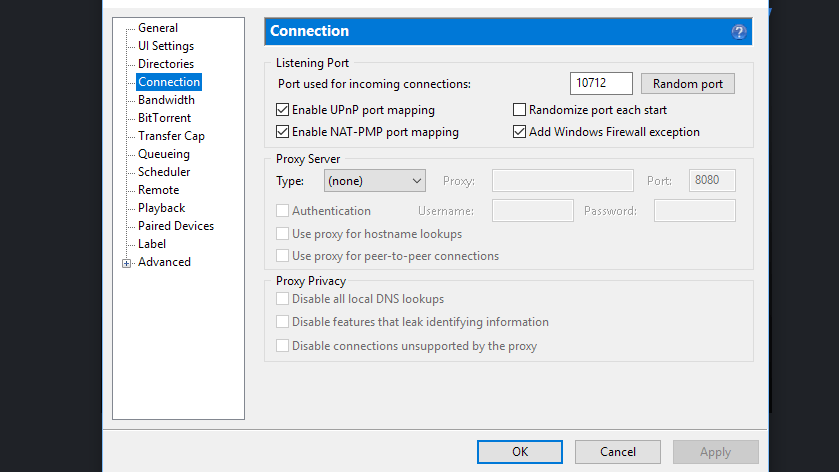
- Enter The Utorrent Port Number: Enter the TCP port number used by uTorrent, which is usually
8080. - Save Your Changes: Save your changes and restart your router.
Method 2: Optimizing Your Utorrent Settings
Now that you’ve optimized your router settings, it’s time to optimize your uTorrent settings:
- Open Utorrent: Open the uTorrent software on your computer.
- Click on Options: Click on the “Options” menu and select “Preferences”.
- Select The Connection Tab: Select the “Connection” tab from the preferences window.
- Adjust Your Bandwidth Settings: Adjust your bandwidth settings to prioritize your uTorrent downloads.
Method 3: Using a Vpn
Using a virtual private network (VPN) can also help speed up your uTorrent downloads:
- Choose a Reliable Vpn Provider: Choose a reliable VPN provider that supports BitTorrent traffic.
- Configure Your Vpn Settings: Configure your VPN settings to prioritize your uTorrent downloads.
Method 4: Optimizing Your System Settings
Finally, optimize your system settings to ensure smooth and fast downloads on uTorrent:
- Close Any Other Resource-intensive Programs: Close any other resource-intensive programs running on your computer.
- Update Your Operating System: Ensure you’re running the latest version of your operating system.
Conclusion
Speeding up uTorrent is easier than you think! By following these simple steps, you can optimize your router settings, uTorrent settings, and system settings to ensure fast and smooth downloads. Remember to choose a reliable VPN provider if you want to take your downloads to the next level!
Faqs
- Q: How do I Know Which Port Number to Use?
A: You can find the TCP port number used by uTorrent in the preferences window. - Q: Can I Use Multiple Vpn Providers at Once?
A: No, using multiple VPN providers at once is not recommended and may cause issues with your downloads. - Q: How do I Optimize my System Settings For Fast Downloads?
A: Close any other resource-intensive programs running on your computer and ensure you’re running the latest version of your operating system. - Q: Can I Use a Vpn if I’m Already Connected to a Network?
A: Yes, but ensure that your VPN provider supports BitTorrent traffic. - Q: Will Optimizing my Router Settings Affect Other Devices on my Network?
A: No, optimizing your router settings will only affect the uTorrent software running on your computer. - Q: How do I Know if my Vpn is Working Correctly?
A: Check that your VPN connection is stable and your downloads are faster than before. - Q: Can I Use a Different Version of Utorrent?
A: Yes, but ensure you’re using the latest version to take advantage of all features. - Q: Will Optimizing my System Settings Affect Other Programs Running on my Computer?
A: No, optimizing your system settings will only affect the uTorrent software and may not impact other programs running on your computer.
Table 1: Optimize Your Router Settings
| Step | Action |
|---|---|
| 1 | Access your router settings page |
| 2 | Enter your username and password |
| 3 | Find the advanced configuration section |
| 4 | Create a new rule to open a specific port (TCP) |
| 5 | Enter the uTorrent port number (8080) |
Table 2: Optimize Your Utorrent Settings
| Step | Action |
|---|---|
| 1 | Open the uTorrent software on your computer |
| 2 | Click on Options and select Preferences |
| 3 | Select the Connection tab from the preferences window |
| 4 | Adjust your bandwidth settings to prioritize uTorrent downloads |
_ Optimizing Your System Settings
| Step | Action |
|---|---|
| 1 | Close any other resource-intensive programs running on your computer |
| 2 | Update your operating system to ensure smooth and fast downloads |


