
Protecting Your Wireless Network: A Comprehensive Guide
As we increasingly rely on wireless networks for our daily internet needs, it’s essential to ensure that our connections are secure and protected from unauthorized access. In this article, we’ll explore the steps you can take to protect your wireless network using a safe and standard password.
Why Protect Your Wireless Network?
Your wireless network is like an open window in your home – anyone within range can access it without needing a key or password. This makes it vulnerable to hacking and unauthorized use. By protecting your wireless network with a secure password, you’ll be able to control who has access to your internet connection and prevent unwanted guests from using your bandwidth.
What You Need to Know About Wireless Network Security
Wireless networks operate on various frequencies, including 2.4 GHz and 5 GHz. To ensure maximum security, it’s recommended to use the WPA2-PSK algorithm for encryption. This protocol is considered the most secure option available today.
How to Change Your Wireless Network Password: A Step-by-step Guide
Changing your wireless network password is a straightforward process that requires minimal technical expertise. Here are the steps you can follow:
Step 1: Access The Router’s Administrative Panel
To change your wireless network password, you’ll need to access the administrative panel of your router. This can be done using a device connected to the same network as the router, either via a wired connection or wirelessly.
Step 2: Identify The Wireless Network Settings
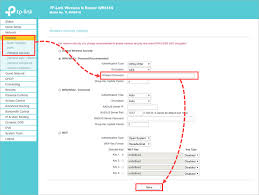
Once you’ve accessed the router’s administrative panel, locate the wireless network settings section. This is usually denoted by “Wireless,” “Wi-Fi,” or similar terms.
Step 3: Select The Wireless Network Name (SSID)
Select the name of your wireless network from the list provided in the settings menu. This will typically be displayed on a sticker or included in the router’s documentation.
Step 4: Change The Password
Look for the section that allows you to change the password and select it. Enter a new, strong password using a combination of uppercase letters, numbers, and special characters. Make sure to save the changes once complete.
Additional Tips
- Always use a strong password with at least 12 characters.
- Avoid using easily guessable information such as your name or birthdate.
- Regularly update your router’s firmware for optimal security.
- Consider enabling WPA2-PSK encryption for added protection.
Changing Your Wireless Network Password on Specific Router Brands
If you’re unsure about how to change your wireless network password, here are the steps for popular router brands:
Tim Modem Configuration
For TIM modems, follow these steps:
- Access the modem’s administrative panel.
- Select the “Wireless” option and choose the name of your network.
- Click on the “Access Point” section and select WPA2-PSK as the encryption method.
- Enter a new password in the corresponding field.
Vodafone Router Configuration
For Vodafone routers, follow these steps:
- Access the router’s administrative panel.
- Select the “Wi-Fi” option and choose the name of your network.
- Click on the “Protection” section and select WPA2 as the encryption method.
- Enter a new password in the corresponding field.
Windtre Router Configuration
For WINDTRE routers, follow these steps:
- Access the router’s administrative panel.
- Select the “Network” option and choose the name of your network.
- Click on the “Wireless” section and select WPA2-PSK as the encryption method.
- Enter a new password in the corresponding field.
Fastweb Router Configuration
For Fastweb routers, follow these steps:
- Access the router’s administrative panel.
- Select the “Wi-Fi” option and choose the name of your network.
- Click on the “Protection” section and select WPA2-PSK as the encryption method.
- Enter a new password in the corresponding field.
Fritz!box Router Configuration
For FRITZ!Box routers, follow these steps:
- Access the router’s administrative panel.
- Select the “Wi-Fi” option and choose the name of your network.
- Click on the “Security” section and select WPA2 as the encryption method.
- Enter a new password in the corresponding field.
Frequently Asked Questions (FAQs)
- Q: What is WPA2-PSK, and why should I use it?
A: WPA2-PSK is a secure encryption protocol that protects your wireless network from unauthorized access. - Q: How often should I change my wireless network password?
A: It’s recommended to change your password every 3-6 months for maximum security. - Q: Can I use the same password for all my devices and networks?
A: No, it’s highly advised against using the same password across multiple platforms. - Q: How can I protect myself from hacking and unauthorized access to my wireless network?
A: Regularly update your router’s firmware, use strong passwords, and enable WPA2-PSK encryption for optimal security.
Conclusion
Protecting your wireless network is crucial in today’s digital age. By following the steps outlined in this article, you can ensure that your internet connection remains secure and private. Remember to change your password regularly, update your router’s firmware, and use strong passwords with a combination of uppercase letters, numbers, and special characters. With these simple yet effective measures, you’ll be able to safeguard your wireless network from unauthorized access and enjoy the peace of mind that comes with knowing your connection is secure.


