
How to Transfer Vhs Tapes to Pc: A Step-by-step Guide
Are you tired of holding onto old VHS tapes, but don’t know how to transfer them to your computer? Look no further! In this article, we’ll guide you through the process of transferring VHS tapes to a PC.
What You Need to Get Started
Before you begin, make sure you have the following equipment:
- A VCR (Videocassette Recorder)
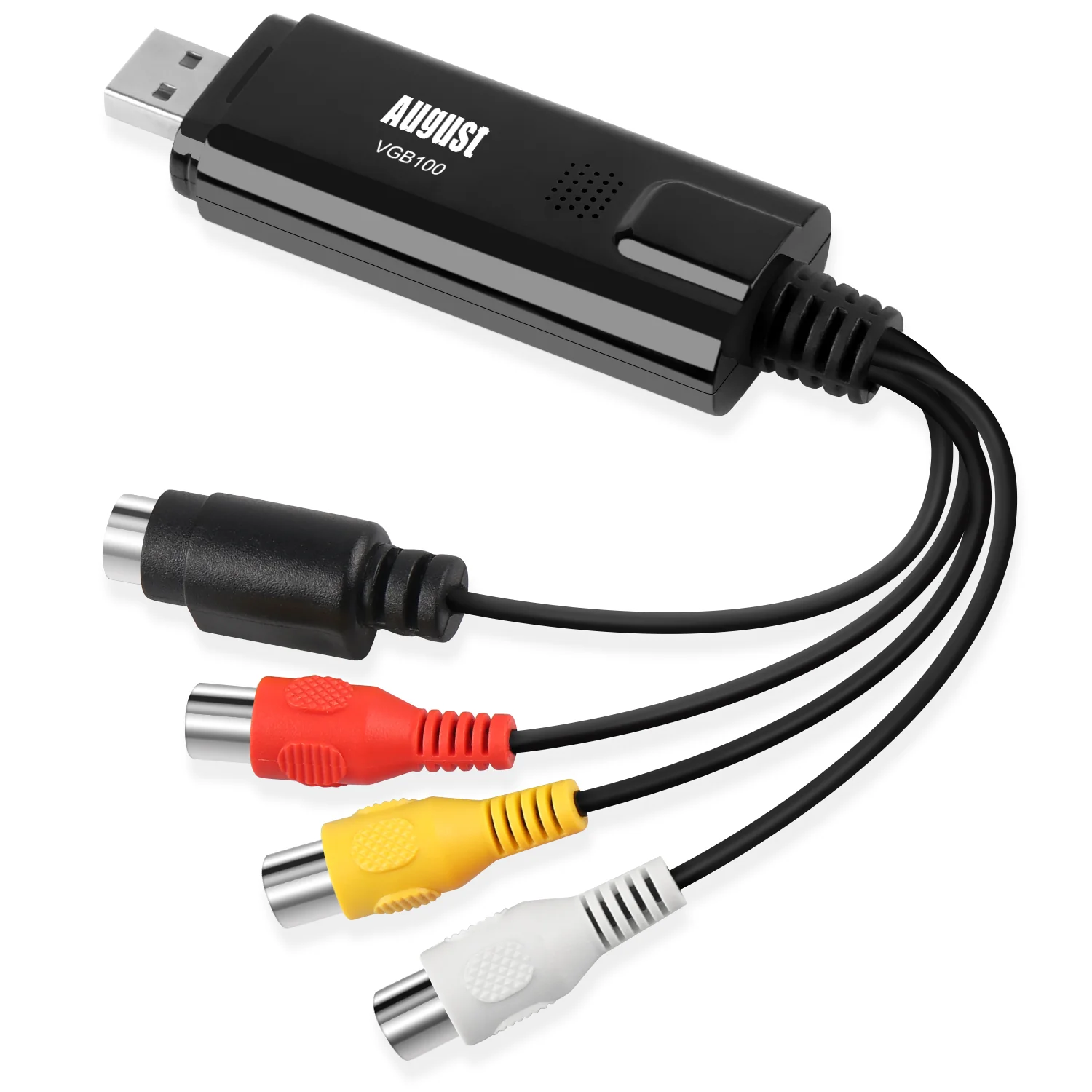
- A video grabber (also known as a capture card)
- A cable to connect the video grabber to your computer
- A software program for capturing and editing video
Step 1: Choose Your Video Grabber
There are several types of video grabbers available, ranging from low-cost external devices to high-end internal cards. For this article, we’ll focus on external devices.
Some popular options include:
- CSL – Grabber Video
- TechSide Video Grabber
- Rybozen USB 2.0 Audio/Video Converter
When selecting a video grabber, make sure it’s compatible with your operating system (Windows or macOS) and has good reviews from other users.
Step 2: Connect The Video Grabber to Your Computer
Connect the video grabber to your computer using a USB cable. Make sure the device is securely seated in the port.
Step 3: Install Software For Capturing And Editing Video
You’ll need software to capture and edit the video from your VHS tape. Some popular options include:
- OBS (Open Broadcasting Software)
- VHS to DVD converter
If you’re using a video grabber that comes with its own software, follow the instructions provided.
Step 4: Capture The Video
Insert the VHS tape into the VCR and play it. Open the software program on your computer and select the video grabber as the source device. Adjust any settings as needed to ensure optimal capture quality.
Step 5: Edit And Convert The Video
Once you’ve captured the video, you can edit and convert it using the software program. This may involve cutting out unwanted sections, adjusting brightness and contrast, or converting the file format.
Tips For Capturing High-quality Video
To get the best possible quality from your VHS tape, follow these tips:
- Use a high-quality video grabber
- Adjust the settings in the software program to optimize capture quality
- Play back the video on a separate monitor or TV to ensure it’s playing smoothly
Common Issues And Solutions
Some common issues you may encounter when transferring VHS tapes to PC include:
- Video not capturing properly: Check that the video grabber is securely connected to the computer, and that the software program is set up correctly.
- Audio not syncing with video: Adjust the audio settings in the software program or try re-capturing the video.
Conclusion
Transferring VHS tapes to PC can seem like a daunting task, but with the right equipment and software, it’s relatively straightforward. Remember to take your time, adjust any settings as needed, and enjoy your transferred videos!
Frequently Asked Questions (FAQs)
- What is The Best Video Grabber For Transferring Vhs Tapes?
- There are many great options available, but some popular choices include CSL – Grabber Video, TechSide Video Grabber, and Rybozen USB 2.0 Audio/Video Converter.
- How do I Capture High-quality Video From a Vhs Tape?
- Use a high-quality video grabber, adjust the settings in the software program to optimize capture quality, and play back the video on a separate monitor or TV to ensure it’s playing smoothly.
- What Software Programs Are Available For Capturing And Editing Video?
- Some popular options include OBS (Open Broadcasting Software), VHS to DVD converter, and Video to Video Converter.
- How do I Edit And Convert The Video?
- Once you’ve captured the video, you can edit and convert it using the software program. This may involve cutting out unwanted sections, adjusting brightness and contrast, or converting the file format.
- What Are Some Common Issues That May Arise During Transfer?
- Video not capturing properly: Check that the video grabber is securely connected to the computer, and that the software program is set up correctly.
- Audio not syncing with video: Adjust the audio settings in the software program or try re-capturing the video.


