
How to Customize Your Iphone Background: A Step-by-step Guide
Are you tired of the same old background on your iPhone? Do you want to personalize your device with a unique image or color? Look no further! In this article, we will guide you through the process of customizing your iPhone’s background, step by step.
Why Customize Your Iphone Background?
Customizing your iPhone background can be a fun and creative way to express yourself. With thousands of images available on the internet, you can choose one that reflects your personality, interests, or hobbies. Additionally, changing the background can also help to:
- Improve your productivity by creating a distraction-free environment
- Enhance your gaming experience with a customized background
- Showcase your creativity and individuality
Getting Started
To customize your iPhone background, you’ll need an iOS device running on iOS 16 or later. If your iPhone is older than that, don’t worry! We’ve got some alternative methods for you.
Method 1: Customizing The Home Screen Background
To change the background of your home screen, follow these steps:
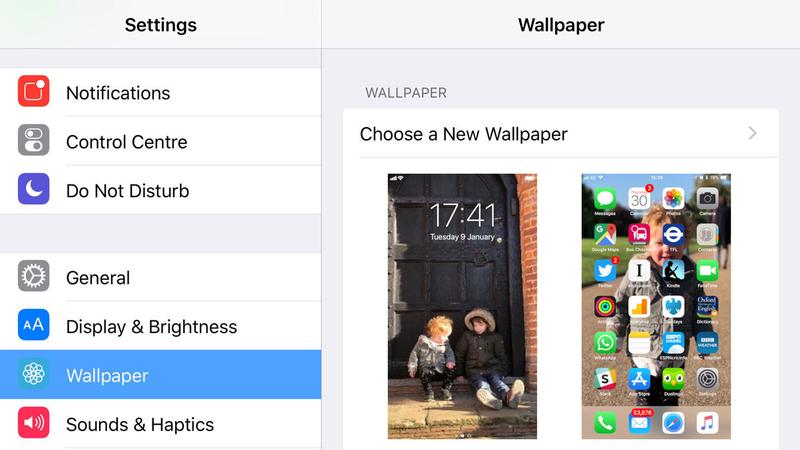
- Open Settings: Go to your Settings app and tap on “Wallpapers.”
- Add a New Wallpaper: Tap on “Add a New Wallpaper” and select an image from your gallery or choose a color.
- Select Your Image: Choose the image you want to use as your background, or pick a color if you prefer.
- Confirm Your Selection: Tap on “Add” to confirm your selection.
Method 2: Customizing The Lock Screen Background
To change the background of your lock screen, follow these steps:
- Open Settings: Go to your Settings app and tap on “Wallpapers.”
- Choose a New Wallpaper: Tap on “Choose a New Wallpaper” and select an image from your gallery or choose a color.
- Select Your Image: Choose the image you want to use as your background, or pick a color if you prefer.
- Confirm Your Selection: Tap on “Add” to confirm your selection.
Method 3: Customizing Whatsapp Background
To change the background of your WhatsApp chat screen, follow these steps:
- Open Whatsapp: Open the WhatsApp app and go to the Settings menu.
- Tap on Chats: Tap on the “Chats” option and then select “Chat Wallpaper.”
- Choose a New Wallpaper: Choose an image from your gallery or pick a color.
- Confirm Your Selection: Tap on “Save” to confirm your selection.
Method 4: Customizing Keyboard Background (iOS 14 And Later)
To change the background of your keyboard, follow these steps:
- Open Settings: Go to your Settings app and tap on “General.”
- Tap on Keyboard: Tap on the “Keyboard” option.
- Select a New Keyboard: Choose an alternative keyboard (such as Gboard) from the list.
- Customize Your Keyboard: Customize your new keyboard’s background by selecting a color or image.
Tips And Tricks
- You can also change the background of your home screen and lock screen simultaneously by going to Settings > Wallpaper > Add a New Wallpaper, and then selecting an image for both screens.
- If you’re using an older iPhone model, you might not have access to some of these features. Don’t worry! There are still ways to customize your device’s appearance.
Conclusion
Customizing your iPhone background is a simple yet fun way to personalize your device. With these step-by-step guides, you can easily change the background of your home screen, lock screen, WhatsApp chat screen, and even keyboard (if you’re using iOS 14 or later). So go ahead, get creative, and make your iPhone truly yours!
Frequently Asked Questions
- Q: Can I Change my Iphone’s Background if It’s Running on an Older Ios Version?
A: Unfortunately, no. The features mentioned in this article are only available on iOS 16 or later. - Q: How do I Customize The Background of my Whatsapp Chat Screen?
A: To customize the background of your WhatsApp chat screen, follow the steps outlined in Method 3 above. - Q: Can I Change The Background of my Keyboard if I’m Using an Older Iphone Model?
A: Unfortunately, no. The feature to change the keyboard’s background is only available on iOS 14 or later.
References
- Apple Support (2022). Customize your Home screen wallpaper.
- WhatsApp Help Center (2022). Change your chat wallpaper.
- Gboard Help Center (2022). Change your keyboard background.
Note: This article is based on publicly available information and is intended for informational purposes only.


