
Accessing Netflix on a New Device: A Step-by-step Guide
Are you excited to watch your favorite shows and movies on Netflix, but not sure how to access it on a new device? Look no further! In this article, we will guide you through the process of accessing Netflix on various devices, including TVs, computers, smartphones, and tablets.
What Devices Are Compatible With Netflix?
Before we dive into the step-by-step guide, let’s take a look at which devices are compatible with Netflix. You can access Netflix on:
- Smart TVs (e.G., LG, Samsung, Sony)
- Computers (Windows 10/11, macOS)
- Smartphones (Android, iPhone/iPad)
- Tablets (Android, iPad)
Limitations And Considerations
While Netflix is accessible on various devices, there are some limitations and considerations to keep in mind:
- With the Basic plan, you can only access Netflix on one device at a time.
- The Standard plan allows you to access Netflix on two devices simultaneously.
- The Premium plan enables you to watch Netflix on up to four devices at once.
Accessing Netflix on TV
To access Netflix on your Smart TV, follow these steps:
- Select The App: Using your TV remote, go to the app store and select the Netflix icon.
- Launch The App: Click or tap the Netflix icon to launch the app.
- Sign In: Enter your Netflix account credentials (email and password) using the virtual keyboard on your TV screen.
- Access Your Profile: Once signed in, select your profile from the available options.
Accessing Netflix on Computer
To access Netflix on your computer:
- Open a Web Browser: Use any web browser (e.G., Chrome, Firefox, Microsoft Edge) to navigate to the official Netflix website.
- Click “Sign In”: Click the “Sign In” button and enter your account credentials (email and password).
- Access Your Profile: Once signed in, select your profile from the available options.
Accessing Netflix on Smartphone or Tablet
To access Netflix on your smartphone or tablet:
- Download The App: Download the Netflix app from the Google Play Store (for Android devices) or the Apple App Store (for iOS devices).
- Launch The App: Open the Netflix app and enter your account credentials (email and password).
- Access Your Profile: Once signed in, select your profile from the available options.
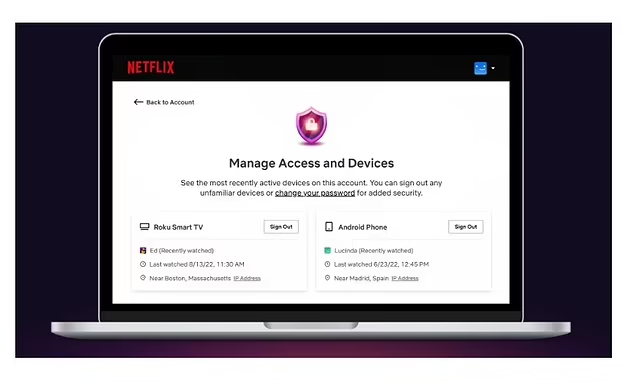
Managing Devices Connected to Netflix
Now that you know how to access Netflix on various devices, let’s talk about managing devices connected to your Netflix account:
- Access Account Settings: On your computer or smartphone/tablet, navigate to the Netflix website or app and click/select “Account.”
- Safety And Privacy: Scroll down to the “Safety and Privacy” section.
- Disconnect Devices: Click the “Go out of all devices” button to disconnect all devices associated with your account.
Conclusion
Accessing Netflix on a new device is easier than you think! By following these step-by-step guides, you can enjoy your favorite shows and movies on various devices. Remember to manage your devices connected to your Netflix account by regularly reviewing the list of associated devices.
Frequently Asked Questions (FAQs)
- Q: Can I Access Netflix on Multiple Devices at Once?
A: Yes, with a Premium plan, you can watch Netflix on up to four devices simultaneously. - Q: How do I Manage my Account And Connected Devices?
A: To manage your account and connected devices, navigate to the “Account” section in the Netflix app or website. - Q: Can I Access Netflix on a New Device Without Signing In?
A: No, you need to sign in with your Netflix account credentials (email and password) to access the service on a new device. - Q: How Many Devices Can I Connect to my Netflix Account?
A: There is no limit to the number of devices you can connect to your Netflix account; however, there are limitations based on your subscription plan. - Q: Can I Disconnect All Devices Associated With my Account?
A: Yes, you can click the “Go out of all devices” button in the Safety and Privacy section to disconnect all devices connected to your Netflix account. - Q: What Happens if I Try to Access Netflix on a New Device Without Signing In?
A: You will be asked to sign in with your Netflix account credentials (email and password) before accessing the service. - Q: Can I Use Netflix on Multiple Platforms Simultaneously?
A: Yes, you can watch Netflix on different devices at the same time as long as you have a Premium plan. - Q: How do I Update my Netflix App to Ensure It’s Working Properly?
Note: The above FAQs are based on general information and might not cover all possible scenarios or specific device configurations.


