
How to Update Paypal: A Step-by-step Guide
Are you looking to update your PayPal account? Whether it’s updating a payment card, modifying personal data, or adding new contacts, this guide has got you covered.
In this article, we’ll walk you through the process of updating various aspects of your PayPal account, including:
- Updating a payment card
- Modifying personal data
- Adding new contacts
- Updating phone numbers
Why Update Your Paypal Account?
Before we dive into the step-by-step guide, let’s quickly discuss why it’s essential to update your PayPal account.
Updating your PayPal account ensures that all your financial information is up-to-date and accurate. This can help prevent any potential issues with payments or transactions. Moreover, updating your account also helps you maintain a secure online presence by ensuring that only authorized individuals have access to your account.
How to Update Your Payment Card
If you need to update your payment card on PayPal, follow these simple steps:
Step 1: Access The Paypal Website
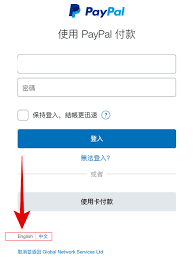
- Go to the PayPal website and log in to your account using your email address and password.
- Click on the “Account” button at the top right corner of the page.
Step 2: Select The “Wallet” Option
- In the menu, select the “Wallet” option.
- From the dropdown list, choose the payment card you want to update.
Step 3: Update Your Payment Card Information
- Enter your new payment card details in the required fields (e.G., Name, number, expiration date).
- Add a security code if prompted.
- Click on the “Update” button to save your changes.
That’s it! Updating your PayPal account has never been easier. If you have any questions or need further assistance, feel free to reach out to our support team.
How to Update Your Personal Data
If you need to update your personal data on PayPal, such as your address or phone number, follow these steps:
Step 1: Access The Paypal Website
- Log in to your PayPal account using your email address and password.
- Click on the “Account” button at the top right corner of the page.
Step 2: Select The “Profile” Option
- In the menu, select the “Profile” option.
- From the dropdown list, choose the personal data you want to update (e.G., Name, address, phone number).
Step 3: Update Your Personal Data Information
- Enter your new personal data information in the required fields.
- Click on the “Save” button to save your changes.
Updating your PayPal account is quick and easy. Remember, it’s essential to keep your account up-to-date with accurate and secure information.
How to Add New Contacts
If you need to add a new contact to your PayPal account, follow these steps:
Step 1: Access The Paypal Website
- Log in to your PayPal account using your email address and password.
- Click on the “Contacts” button at the top right corner of the page.
Step 2: Select The “Add Contact” Option
- In the menu, select the “Add contact” option.
- Enter the contact’s name and email address in the required fields.
Step 3: Add a Security Code (Optional)
- If you want to add an extra layer of security to your PayPal account, enter a security code for the new contact.
- Click on the “Save” button to save your changes.
Adding a new contact to your PayPal account is easy and secure. Remember, only authorized individuals can access your account information.
How to Update Your Phone Number
If you need to update your phone number on PayPal, follow these steps:
Step 1: Access The Paypal Website
- Log in to your PayPal account using your email address and password.
- Click on the “Account” button at the top right corner of the page.
Step 2: Select The “Numbers of Phone” Option
- In the menu, select the “Numbers of phone” option.
- From the dropdown list, choose the phone number you want to update.
Step 3: Update Your Phone Number Information
- Enter your new phone number in the required fields (e.G., Name, phone number).
- Add a security code if prompted.
- Click on the “Save” button to save your changes.
Updating your PayPal account has never been easier. If you have any questions or need further assistance, feel free to reach out to our support team.
Conclusion
Updating your PayPal account is essential for maintaining accurate and secure financial information. Whether it’s updating a payment card, modifying personal data, adding new contacts, or updating phone numbers, this guide has provided step-by-step instructions on how to do so.
By following these simple steps, you can ensure that your PayPal account is up-to-date and secure. Remember, only authorized individuals have access to your account information, so it’s essential to keep your account details accurate and secure.
Frequently Asked Questions (FAQs)
- Q: How Often Should I Update my Paypal Account?
A: It’s recommended to update your PayPal account whenever you experience any changes in your financial situation or when you receive a new payment card. - Q: Can I Add Multiple Contacts to my Paypal Account?
A: Yes, you can add multiple contacts to your PayPal account by following the steps outlined above. - Q: How do I Update my Phone Number on Paypal?
A: To update your phone number on PayPal, follow the steps outlined in this guide. - Q: Can I Use a Different Payment Method Besides Paypal?
A: Yes, you can use other payment methods such as credit cards or bank transfers to make payments through PayPal. - Q: How do I Recover my Lost or Forgotten Password?
A: If you’ve lost or forgotten your password, click on the “Forgot password” option and follow the instructions provided.
Remember, if you have any questions or need further assistance with updating your PayPal account, feel free to reach out to our support team for help.


