
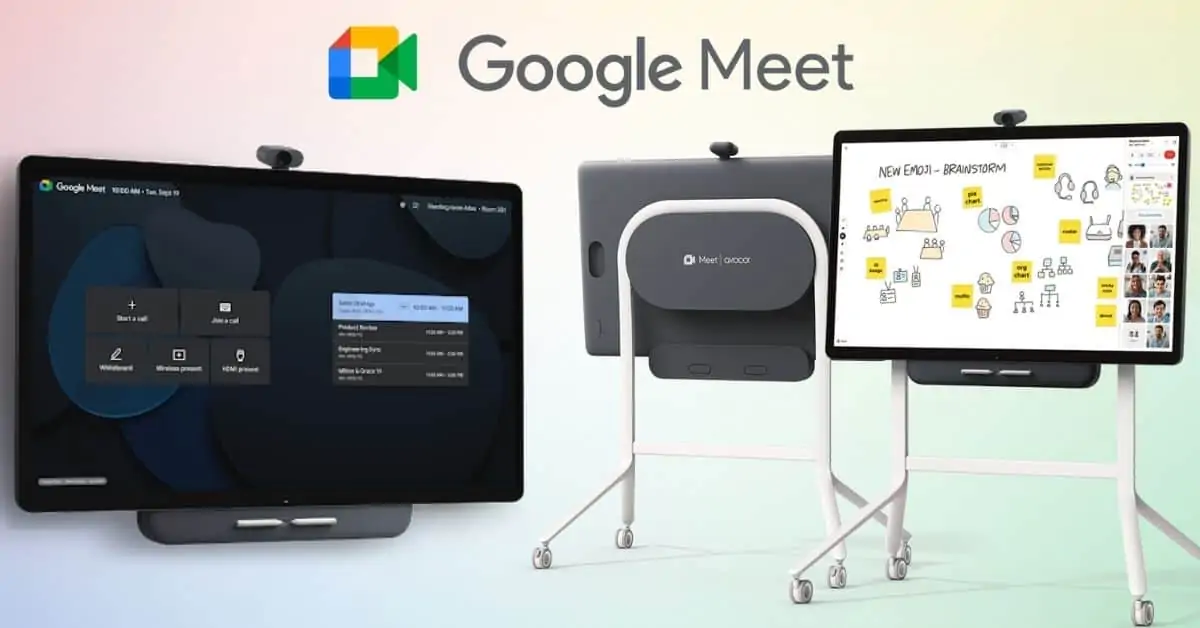
Google Meet Grid View: Revolutionizing Video Conferences
In today’s digital age, video conferencing has become an essential tool for businesses, organizations, and individuals to connect with each other remotely. Google Meet is one of the most popular platforms used for video conferencing, but it has its limitations. One of the major drawbacks of Google Meet is the inability to see all participants in a grid view, which can make it difficult to engage with multiple people at once. However, there’s a solution to this problem – Google Meet Grid View.
What is Google Meet Grid View?
Google Meet Grid View is an extension for Chrome, Edge, and Opera browsers that allows users to view all participants in a grid format, making it easier to interact with multiple people simultaneously. This extension is compatible with Google Meet and can be installed on both desktop and laptop computers (excluding smartphones and tablets).
Why Do You Need Google Meet Grid View?
Google Meet Grid View offers several benefits, including:
- Enhanced Engagement: With all participants visible in a grid view, you can engage with multiple people at once, making it easier to have productive meetings.
- Increased Productivity: By being able to see all participants, you can avoid distractions and stay focused on the discussion.
- Improved Collaboration: Google Meet Grid View promotes collaboration by allowing users to interact with each other more easily.
How to Install Google Meet Grid View
Installing Google Meet Grid View is a straightforward process. Here’s how to do it:
- Go to the Chrome Web Store and search for “Google Meet Grid View”.
- Click on the extension and click on the “Add to Chrome” button.
- A pop-up window will appear asking you to confirm the installation. Click on the “Install” button.
- Wait for the extension to install, which should only take a few seconds.
How to Use Google Meet Grid View
Using Google Meet Grid View is just as easy as installing it. Here’s how to do it:
- Open Google Meet and log in to your account.
- Click on the “New meeting” button to start a new meeting or join an existing one.
- Once you’re in the meeting, click on the grid icon in the top-right corner of the screen.
- A pop-up window will appear asking you to confirm the grid view. Click on the “Enable grid view” button.
- The participants will be displayed in a grid format, and you can interact with them as usual.
Conclusion
Google Meet Grid View is a game-changer for video conferencing. It allows users to see all participants in a grid format, making it easier to engage with multiple people at once. With its simple installation process and easy-to-use interface, Google Meet Grid View is a must-have extension for anyone using Google Meet regularly.
Frequently Asked Questions (FAQs)
Here are some frequently asked questions about Google Meet Grid View:
Q: What is Google Meet Grid View?
A: Google Meet Grid View is an extension for Chrome, Edge, and Opera browsers that allows users to view all participants in a grid format during video conferences.
Q: Why do I Need Google Meet Grid View?
A: You need Google Meet Grid View to enhance engagement, increase productivity, and improve collaboration during video conferences.
Q: How do I Install Google Meet Grid View?
A: To install Google Meet Grid View, go to the Chrome Web Store, search for “Google Meet Grid View,” click on the extension, and follow the installation prompts.
Q: How do I Use Google Meet Grid View?
A: To use Google Meet Grid View, open Google Meet, log in to your account, start a new meeting or join an existing one, click on the grid icon, and confirm the grid view.


