
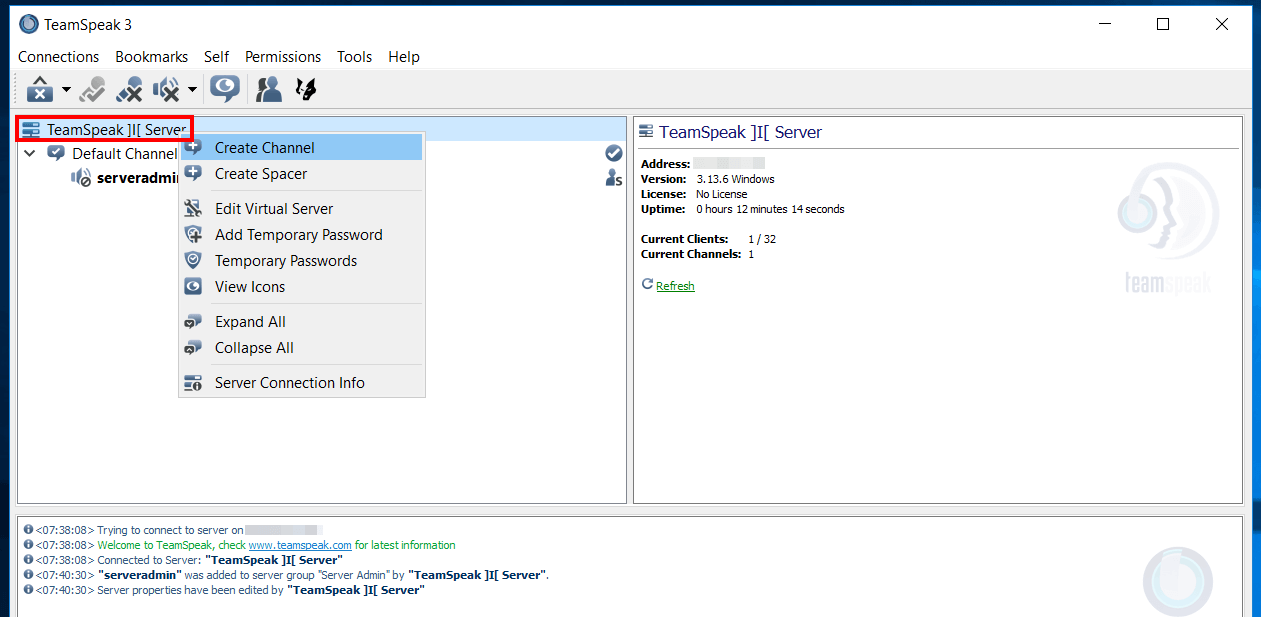
Creating a Teamspeak Server: A Step-by-step Guide
Are you ready to set up your own private chat server? Look no further! In this article, we’ll guide you through the process of creating a TeamSpeak server on your computer or acquiring one from a third-party provider.
Why Create a Teamspeak Server?
TeamSpeak is a popular communication platform for gamers and communities. By setting up your own server, you can invite friends to join a private chat room, play games together, and collaborate on projects without the need for external services. Plus, with a self-hosted server, you have complete control over user access and settings.
Creating a Teamspeak Server on Your Computer
To get started, you’ll need to download and install TeamSpeak Server on your computer. Follow these steps:
- Download Teamspeak Server: Visit the official TeamSpeak website and download the server software for your operating system (Windows or macOS).
- Install Teamspeak Server: Run the installer and follow the prompts to complete the installation.
- Launch Teamspeak Server: Open the TeamSpeak Server executable file and accept the license agreement.
Accessing Your Local Teamspeak Server
To access your local server, you’ll need to download and install the TeamSpeak client on another computer or device. Follow these steps:
- Download Teamspeak Client: Visit the official TeamSpeak website and download the client software for your operating system (Windows or macOS).
- Install Teamspeak Client: Run the installer and follow the prompts to complete the installation.
- Launch Teamspeak Client: Open the TeamSpeak client executable file and connect to your local server by entering “localhost” in the Server nickname now address field.
Acquiring a Teamspeak Server From a Third-party Provider
Alternatively, you can acquire a TeamSpeak server from a third-party provider. This option is ideal for those who want an always-updated service with pre-configured settings. Follow these steps:
- Choose a Hosting Service: Visit the TeamSpeak website and use their interactive map to find a hosting service in your area.
- Select a Service Provider: Choose a green icon on the map to select a service provider.
- Create an Account: Sign up for an account with the selected service provider.
- Purchase a Server Slot: Buy a server slot from the service provider, which determines the maximum number of users that can join your server.
Benefits of Acquiring a Teamspeak Server
Acquiring a TeamSpeak server offers several benefits, including:
- Always-up-to-date Software: Your server will always have the latest version of TeamSpeak software.
- Pre-configured Settings: The service provider will configure your server with optimal settings for maximum performance.
- Access to Advanced Features: Some service providers offer additional features, such as custom branding and advanced server management tools.
Conclusion
Creating a TeamSpeak server on your computer or acquiring one from a third-party provider is a straightforward process. By following these steps, you can set up your own private chat server and enjoy the benefits of self-hosting.
Frequently Asked Questions (FAQs)
- What Are The System Requirements For Running a Teamspeak Server?
- A computer with at least 2 GB of RAM and a decent processor is recommended.
- Can I Host Multiple Teamspeak Servers on The Same Computer?
- Yes, but each server will require its own instance of the TeamSpeak Server software.
- How do I Manage User Access And Permissions on my Local Server?
- You can use the TeamSpeak Server web interface or the client to manage user access and permissions.
- What Happens if I Close The Teamspeak Server Process or Shut Down my Computer?
- The server will go offline, and users will not be able to connect.
- Can I Use a Different Operating System to Host my Teamspeak Server?
- Yes, but you may need to configure the server software manually to ensure optimal performance.
- How do I Upgrade my Teamspeak Server Software?
- You can download and install newer versions of the server software from the official TeamSpeak website.
- Can I Use a Virtual Private Network (VPN) With my Teamspeak Server?
- Yes, but you may need to configure your VPN settings to allow incoming connections to your server.
- How do I Troubleshoot Common Issues With my Teamspeak Server?
- You can refer to the official TeamSpeak documentation or seek help from a community forum or support team.
We hope this guide has been helpful in getting you started with creating and managing your own TeamSpeak server!


