
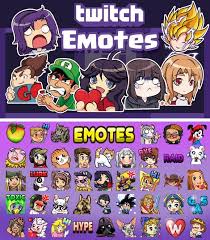
How to Create Emotes on Twitch: A Step-by-step Guide
Are you tired of using generic emotes on your Twitch channel? Do you want to add a personal touch to your live streams and interact with your community in a more engaging way? Look no further! In this article, we will guide you through the process of creating custom emotes for your Twitch channel.
What Are Emotes on Twitch?
Before we dive into the nitty-gritty of creating emotes, let’s first understand what they are. Emotes are small images or icons that can be used to express emotions or reactions during a live stream. They can be used to add humor, personality, or excitement to your channel and make it more engaging for your viewers.
Requirements For Creating Emotes on Twitch
Before you start creating emotes, there are some requirements you need to meet:
- You must have at least 50 followers on your Twitch channel.
- Your channel must have initiated a live stream in the last 30 days.
- Your channel must have had at least 500 total minutes of live streaming in the last 30 days.
- Your average viewership per stream must be at least 3 viewers.
If you meet these requirements, you can proceed to create custom emotes for your Twitch channel.
Tools For Creating Emotes
There are several tools available that can help you create custom emotes for your Twitch channel. Some of the most popular ones include:
- Photoshop: A powerful image editing software that allows you to create custom emotes from scratch.
- Gimp: A free and open-source image editing software that is similar to Photoshop.
- Bitmoji: A mobile app that allows you to create custom avatars and emotes for your Twitch channel.
How to Create Emotes on Twitch Using Photoshop
If you’re familiar with Adobe Photoshop, you can use it to create custom emotes for your Twitch channel. Here’s a step-by-step guide:
- Open Photoshop and create a new image with a transparent background.
- Choose the dimensions of your emote (between 112×112 and 4096×4096 pixels).
- Create or edit an image that you want to use as your emote.
- Save the image as a PNG file.
How to Create Emotes on Twitch Using Gimp
If you’re not familiar with Photoshop, you can use GIMP, a free and open-source image editing software. Here’s how:
- Open GIMP and create a new image with a transparent background.
- Choose the dimensions of your emote (between 112×112 and 4096×4096 pixels).
- Create or edit an image that you want to use as your emote.
- Save the image as a PNG file.
How to Add Emotes on Twitch
Once you have created custom emotes, you can add them to your Twitch channel by following these steps:
- Log in to your Twitch account and go to your dashboard.
- Click on “Rewards” and then click on “Emoticons”.
- Click on the “+” icon to add a new emote.
- Select the emote you want to add and click on the “Open” button.
Other Tools For Creating Emotes
There are other tools available that can help you create custom emotes, including:
- Emotes Maker: A web-based tool that allows you to create custom emotes for your Twitch channel.
- Placeit: A design platform that offers a range of templates and customization options for creating emotes.
- Own3d: A website that provides a range of tools and resources for creating custom emotes, including an editor and personalization features.
Conclusion
Creating custom emotes for your Twitch channel can be a fun and creative way to express yourself and engage with your community. By following the steps outlined in this article, you can create unique and personalized emotes that reflect your brand and personality. Remember to always follow the guidelines and requirements set by Twitch, and don’t hesitate to reach out if you have any questions or need further assistance.
Frequently Asked Questions (FAQs)
- What Are The Requirements For Creating Emotes on Twitch?
To create custom emotes on Twitch, your channel must have at least 50 followers, initiated a live stream in the last 30 days, and had at least 500 total minutes of live streaming in the last 30 days.
- What Tools Can I Use to Create Emotes on Twitch?
You can use Photoshop, GIMP, Bitmoji, Emotes Maker, Placeit, OWN3D, or other design platforms and software to create custom emotes for your Twitch channel.
- How do I Add Emotes to my Twitch Channel?
To add emotes to your Twitch channel, log in to your account, go to your dashboard, click on “Rewards” and then click on “Emoticons”. Click on the “+” icon to add a new emote.
- What Are The Dimensions of Custom Emotes on Twitch?
Custom emotes on Twitch can have dimensions between 112×112 and 4096×4096 pixels.
- Can I Use Other Tools Besides Photoshop or Gimp?
Yes, you can use other design platforms and software to create custom emotes for your Twitch channel.


