
How to Update Your Computer: A Step-by-step Guide
Are you tired of dealing with outdated software and security vulnerabilities? Do you want to keep your computer running smoothly and securely? Updating your operating system, applications, and programs is a crucial task that can help prevent problems and ensure optimal performance. In this article, we will guide you through the process of updating your computer, covering various platforms, including Windows 11, Windows 10, Mac, smartphones, and tablets.
Understanding Updates
Before diving into the update process, it’s essential to understand what updates are and why they’re necessary. Updates are patches or new versions of software that fix bugs, improve performance, and enhance security. They can be downloaded from the internet and installed on your computer or mobile device.
Windows 11 Update Guide
If you’re using Windows 11, updating your operating system is relatively straightforward. Here’s a step-by-step guide:
- Check For Updates: Go to Settings > Windows Update.
- Click on Check Availability of Updates: This will initiate the update process.
- Wait For The Download And Installation: Depending on your internet connection speed, this may take some time.
- Restart Your Computer: Once the update is installed, you’ll need to restart your computer.
Windows 10 Update Guide
For Windows 10 users, the update process is similar:
- Open Settings: Go to Start > Settings.
- Click on Update & Security: This will take you to the Windows Update settings page.
- Check For Updates: Click on Check availability of updates.
- Wait For The Download And Installation: As with Windows 11, this may take some time.
- Restart Your Computer: Once the update is installed, restart your computer.
Mac Update Guide
If you’re using a Mac, updating your operating system is also relatively easy:
- Go to System Preferences: Click on the Apple logo in the top left corner and select System Preferences.
- Click on Software Update: This will check for available updates.
- Wait For The Download And Installation: Depending on your internet connection speed, this may take some time.
- Restart Your Mac: Once the update is installed, restart your computer.
Smartphone And Tablet Update Guide
For smartphones and tablets, updating your operating system and apps is also crucial:
- Check For Updates: Go to Settings > System or Apps on most devices.
- Tap on Update: This will initiate the update process.
- Wait For The Download And Installation: Depending on your internet connection speed, this may take some time.
- Restart Your Device: Once the update is installed, restart your device.
Android Update Guide
If you’re using an Android device:
- Go to Settings: Tap on the gear icon or settings app.
- Click on System or About Phone: This will vary depending on your device.
- Tap on Update Software: This will initiate the update process.
- Wait For The Download And Installation: Depending on your internet connection speed, this may take some time.
- Restart Your Android Device: Once the update is installed, restart your device.
Iphone Update Guide
For iPhone users:
- Go to Settings: Tap on the gear icon or settings app.
- Click on General: This will vary depending on your device.
- Tap on Software Update: This will initiate the update process.
- Wait For The Download And Installation: Depending on your internet connection speed, this may take some time.
- Restart Your Iphone: Once the update is installed, restart your device.
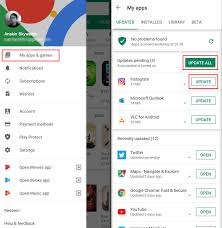
Update Apps
In addition to updating your operating system and programs, it’s also essential to keep your apps up-to-date:
- Check For Updates: Go to Settings > App Store or Google Play Store on most devices.
- Tap on Update: This will initiate the update process.
- Wait For The Download And Installation: Depending on your internet connection speed, this may take some time.
Best Practices
To ensure a smooth update experience:
- Backup Your Data: Before updating, backup your important files and settings.
- Connect to Wi-fi: Make sure you have a stable internet connection before starting the update process.
- Be Patient: Updates can take some time to download and install.
Conclusion
Updating your computer is an essential task that helps prevent problems and ensures optimal performance. By following these step-by-step guides for Windows 11, Windows 10, Mac, smartphones, tablets, Android devices, and iPhones, you’ll be able to keep your operating system, applications, and programs up-to-date.
Frequently Asked Questions
- Q: How Often Should I Update my Computer?
A: It’s recommended to check for updates regularly, especially if you’re using a public or shared device. - Q: What Are The Benefits of Updating my Operating System?
A: Updating your operating system can improve performance, fix security vulnerabilities, and add new features. - Q: Can I Update my Computer Manually?
A: Yes, you can check for updates manually by going to Settings > Windows Update or System Preferences > Software Update. - Q: Do I Need to Restart my Device After Updating?
A: Yes, restarting your device is usually necessary after updating your operating system or programs. - Q: Can I Update Multiple Devices at Once?
A: No, each device should be updated separately, as the process may vary depending on the device and operating system.
Additional Resources
- For more information on Windows 11 updates, visit the Microsoft support page.
- To learn more about Mac updates, check out the Apple support website.
- Android device owners can find more information on updating their devices by visiting the Google support page.
- IPhone users can get help with updating their devices by going to the Apple Support website.
I hope this helps you stay up-to-date!


