
How to Block Adult Sites on Pc, Mac, Chrome, Firefox, Edge, Safari, Android, And Ios
As a parent, it’s natural to worry about your child’s online safety. With the widespread use of the internet, it’s essential to take measures to block adult sites on various devices and browsers. In this article, we’ll guide you through the process of blocking adult sites on PC, Mac, Chrome, Firefox, Edge, Safari, Android, and iOS.
Why Block Adult Sites?
Blocking adult sites is crucial for protecting your child from exposure to mature content that may not be suitable for their age. Exposure to explicit content can lead to emotional and psychological issues in children. Moreover, accessing adult sites can also compromise the safety of your device by installing malware or viruses.
Blocking Adult Sites on Pc: Windows 10
If you’re using a Windows 10 PC, blocking adult sites is relatively easy. Microsoft has integrated a parental control feature into its operating system.
- Click on the Start button and select Settings.
- Go to Accounts > Family & other users.
- Select the “Add a family member” option.
- Create a new account for your child using an existing email address or create a new one.
- Set up parental controls by following these steps:
- Click on the three-dot menu icon and select Settings.
- Go to Family & other users > Manage family settings online.
- Sign in with your Microsoft account credentials.
- Select the “Block specific websites” option.
Blocking Adult Sites on Pc: Mac
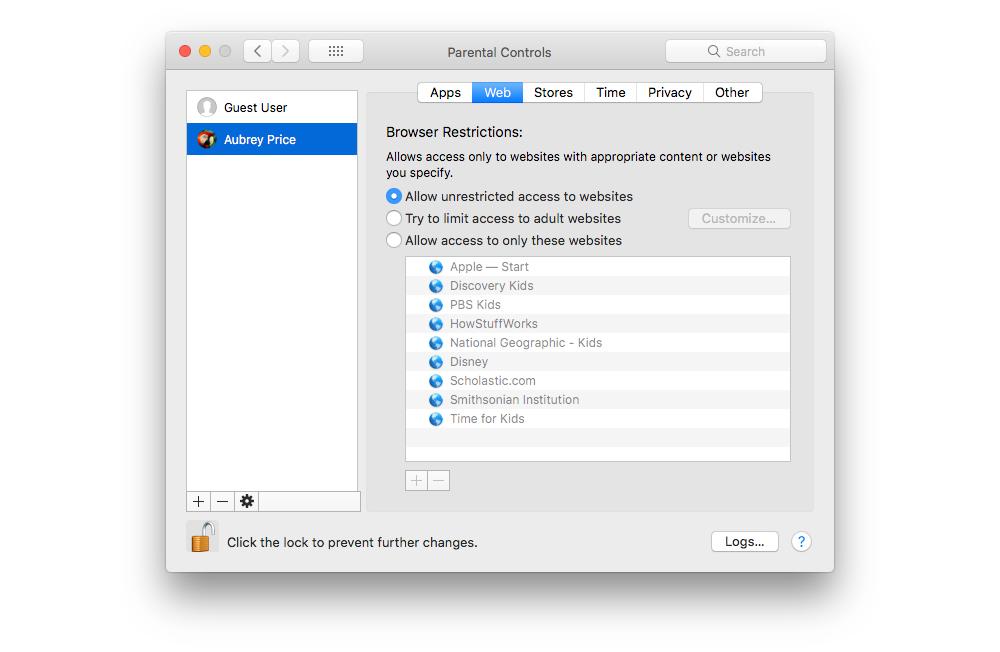
If you’re using a Mac, blocking adult sites is also straightforward. Apple has built-in parental controls that can be enabled to restrict access to certain websites.
- Click on the Apple logo and select System Preferences.
- Go to Parental Controls > Enable Parental Controls.
- Select the user account for your child.
- Set up parental controls by following these steps:
- Go to Web > Block Websites.
- Enter the URL of the website you want to block.
Blocking Adult Sites on Chrome
Chrome has a range of extensions available that can help block adult sites. However, some extensions may collect data or compromise your privacy. We recommend using:
- Blocksite: This extension allows you to block specific websites and keywords.
- Download BlockSite from the Chrome Web Store.
- Click on the three-dot menu icon and select Options.
- Add the URL of the website you want to block.
- Foxfilter: This extension uses keyword filtering to block adult sites.
- Download FoxFilter from the Mozilla Add-ons page.
- Install the extension in Chrome.
- Go to the FoxFilter settings page by clicking on the three-dot menu icon and selecting Options.
Blocking Adult Sites on Firefox
Firefox also has extensions available that can help block adult sites. We recommend using:
- Foxfilter: This extension uses keyword filtering to block adult sites.
- Blocksite: This extension allows you to block specific websites and keywords.
Blocking Adult Sites on Edge
The process of blocking adult sites on Edge is similar to Windows 10. Microsoft has integrated parental controls into its browser.
- Click on the three-dot menu icon and select Settings.
- Go to Family & other users > Manage family settings online.
- Select the “Block specific websites” option.
Blocking Adult Sites on Safari
On a Mac, you can block adult sites by using the built-in parental controls in Safari.
- Click on the Apple logo and select System Preferences.
- Go to Parental Controls > Enable Parental Controls.
- Select the user account for your child.
- Set up parental controls by following these steps:
- Go to Web > Block Websites.
- Enter the URL of the website you want to block.
Blocking Adult Sites on Android
On an Android device, you can block adult sites using:
- Safesearch: This feature allows you to filter search results and block certain websites.
- Go to Settings > Google account settings.
- Select SafeSearch and choose the level of filtering.
- Blockerx: This app allows you to block specific websites and keywords.
- Download BlockerX from the Play Store.
- Follow the setup process to enable parental controls.
Blocking Adult Sites on Ios
On an iOS device, you can block adult sites using:
- Restrictions: This feature allows you to restrict access to certain websites and apps.
- Go to Settings > General > Restrictions.
- Select the type of content you want to restrict (e.G., Web Content).
- Choose the level of filtering.
Conclusion
Blocking adult sites on various devices and browsers is essential for protecting your child from mature content. By following these steps, you can ensure a safe online experience for your child. Remember to set up parental controls on all devices and browsers used by your child.
Faqs
- Q: How do I Know Which Websites Are Adult Sites?
A: Adult sites typically contain explicit content that may not be suitable for children. You can use filters or extensions to block specific keywords or URLs. - Q: Can I Customize The Level of Filtering?
A: Yes, most parental control features allow you to adjust the level of filtering according to your child’s age and maturity level. - Q: Will Blocking Adult Sites Compromise my Device’s Performance?
A: Blocking adult sites should not affect your device’s performance. However, some extensions or filters may require permissions to function properly. - Q: Can I Block Specific Keywords or Words?
A: Yes, many parental control features allow you to block specific keywords or words. - Q: How do I Know if my Child Has Accessed an Adult Site?
A: Regularly monitor your child’s browsing history and set up alerts for suspicious activity. - Q: Can I Use Multiple Methods to Block Adult Sites?
A: Yes, you can combine different methods (e.G., Filters, extensions, parental controls) to ensure comprehensive protection.
Remember, blocking adult sites is an ongoing process that requires regular monitoring and updates. Stay informed about the latest methods and technologies to keep your child safe online!


