
How to Open a Meeting on Zoom: A Step-by-step Guide
Are you struggling to initiate a meeting on Zoom? Do you want to know how to open a meeting on your computer, smartphone, or tablet? Look no further! In this article, we will guide you through the process of opening a meeting on Zoom using various devices.
What is Zoom And How Does it Work?
Zoom is a video conferencing software that allows users to hold virtual meetings with up to 100 participants. It’s free to use for meetings lasting up to 40 minutes, and subscription plans are available for longer or more frequent meetings. With Zoom, you can share your screen, chat with participants, and even record meetings for future reference.
Opening a Meeting on Your Computer
To open a meeting on your computer, follow these steps:
- Download And Install Zoom: First, download and install the Zoom client on your Windows or macOS device.
- Log in to Your Account: Log in to your Zoom account using your email address and password.
- Access The Meeting Interface: Click on the “New Meeting” button to access the meeting interface.
- Choose Your Video Settings: Choose whether you want to use video, audio, or both for the meeting.
- Share The Meeting Link: Share the meeting link with participants via email, messaging apps, or social media.
- Start The Meeting: Click on the “Start” button to begin the meeting.
Opening a Meeting on Your Smartphone or Tablet
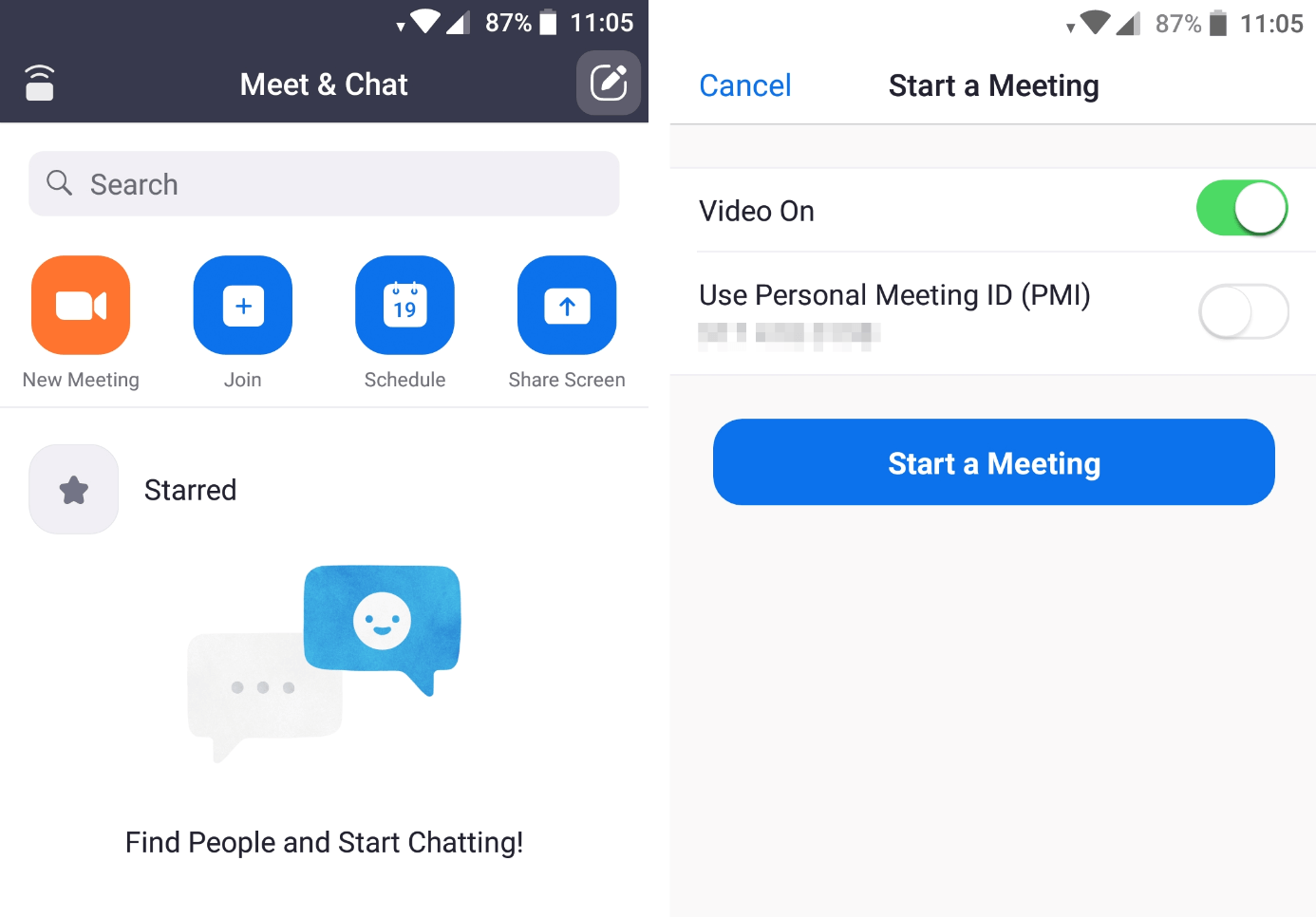
To open a meeting on your smartphone or tablet, follow these steps:
- Download And Install The Zoom App: Download and install the Zoom app from the App Store (for iOS devices) or Google Play Store (for Android devices).
- Log in to Your Account: Log in to your Zoom account using your email address and password.
- Access The Meeting Interface: Tap on the “New Meeting” button to access the meeting interface.
- Choose Your Video Settings: Choose whether you want to use video, audio, or both for the meeting.
- Share The Meeting Link: Share the meeting link with participants via messaging apps or social media.
- Start The Meeting: Tap on the “Start” button to begin the meeting.
Troubleshooting Common Issues
If you’re experiencing issues opening a meeting on Zoom, try the following:
- Check that your internet connection is stable and fast enough for video conferencing.
- Ensure that you have the latest version of the Zoom client or app installed.
- Restart your device and try again if you’re experiencing connectivity issues.
Tips And Tricks
Here are some additional tips and tricks to help you get the most out of Zoom:
- Use the “Share Screen” feature to share your screen with participants.
- Utilize the “Chat” feature to communicate with participants in real-time.
- Record meetings for future reference or sharing with others.
- Join meetings from your browser using the Zoom web client.
Conclusion
Opening a meeting on Zoom is easier than you think! By following these step-by-step guides, you can hold virtual meetings with up to 100 participants using various devices. Remember to troubleshoot common issues and utilize additional features to enhance your meeting experience.
Frequently Asked Questions (FAQs)
- Q: How do I Download And Install Zoom?
A: Download and install the Zoom client on your Windows or macOS device from the official Zoom website. - Q: What is The Maximum Number of Participants For a Free Zoom Meeting?
A: The maximum number of participants for a free Zoom meeting is 100. - Q: How do I Share The Meeting Link With Participants?
A: Share the meeting link via email, messaging apps, or social media. - Q: Can I Use Video And Audio Simultaneously in a Zoom Meeting?
A: Yes, you can use both video and audio simultaneously in a Zoom meeting. - Q: How do I Record a Zoom Meeting?
A: You can record a Zoom meeting by clicking on the “Record” button during the meeting. - Q: Can I Join a Zoom Meeting From my Browser?
A: Yes, you can join a Zoom meeting from your browser using the Zoom web client. - Q: How do I Troubleshoot Connectivity Issues During a Zoom Meeting?
A: Restart your device and try again if you’re experiencing connectivity issues. - Q: Can I Use Zoom on my Smartphone or Tablet?
A: Yes, you can use Zoom on your smartphone or tablet by downloading the official Zoom app.
We hope this article has been helpful in answering your questions about opening a meeting on Zoom!


