
Windows 7 Administrator Account: A Comprehensive Guide
Are you tired of dealing with restricted access on your Windows 7 system? Do you want to take your computing experience to the next level by gaining administrator privileges? Look no further! In this article, we’ll delve into the world of Windows 7 administration and show you how to gain elevated privileges.
What is an Administrator Account in Windows 7?
An administrator account in Windows 7 is a special type of user account that has complete control over the system. With an administrator account, you can make changes to system settings, install software, and modify files without restrictions.
Why Do I Need Administrator Privileges on My Windows 7 System?
There are several reasons why you might need administrator privileges on your Windows 7 system:
- You want to install new software that requires elevated privileges.
- You need to modify system settings or registry entries.
- You want to troubleshoot issues that require administrative access.
How Do I Become an Administrator in Windows 7?
Becoming an administrator in Windows 7 is relatively straightforward. Here’s a step-by-step guide:
- Log in With an Existing Administrator Account: If you already have an administrator account, you can skip to the next step.
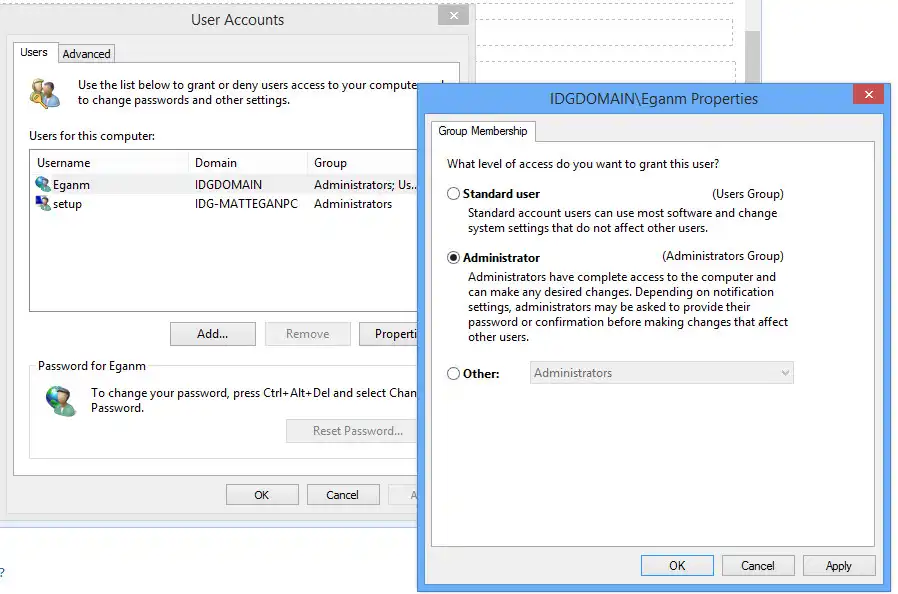
- Create a New Administrator Account: Go to the Start menu and select “Control Panel.” Then, click on “User Accounts” and follow the prompts to create a new user account.
- Add The New Account as an Administrator: In the User Accounts window, select the newly created account and click on “Change my account type.” Select the “Administrator” option from the drop-down menu.
How Do I Activate Administrator Privileges in Windows 7?
Activating administrator privileges in Windows 7 is a straightforward process:
- Open The Command Prompt as an Administrator: Press the Windows key + R to open the Run dialog box, type “cmd” and press Enter.
- Type The Command: In the Command Prompt window, type
net user Administrator /active:Yesand press Enter.
How Do I Disable The Administrator Account in Windows 7?
If you’re finished using the administrator account or want to disable it for security reasons:
- Open The Command Prompt as an Administrator: Press the Windows key + R to open the Run dialog box, type “cmd” and press Enter.
- Type The Command: In the Command Prompt window, type
net user Administrator /active:Noand press Enter.
How Do I Disable Password Requirements in Windows 7?
If you want to disable password requirements for your administrator account:
- Open The Command Prompt as an Administrator: Press the Windows key + R to open the Run dialog box, type “cmd” and press Enter.
- Type The Command: In the Command Prompt window, type
net user Administrator password *(replace*with your chosen password) and press Enter.
How Do I Activate Super-administrator Privileges in Windows 7?
Activating super-administrator privileges in Windows 7 is a more advanced process:
- Open The Start Menu: Press the Windows key to open the Start menu.
- Type The Command: In the Run dialog box, type
secpol.Mscand press Enter.
Common Questions And Answers
Q: What are the benefits of using an administrator account in Windows 7?
A: Administrator privileges allow you to make changes to system settings, install software, and modify files without restrictions.
Q: How do I become an administrator in Windows 7?
A: You can create a new administrator account or use an existing one.
Q: Can I disable password requirements for my administrator account?
A: Yes, but be aware that this can compromise security.
Conclusion
In conclusion, gaining administrator privileges on your Windows 7 system is relatively straightforward. By following the steps outlined in this article, you’ll be able to unlock new features and functionality on your computer. Remember to use these elevated privileges responsibly and only for legitimate purposes.
Additional Resources
- Microsoft Support: Administrator Account
- Windows Central: How to Create a New User Account in Windows 7
Note:
This guide is intended for informational purposes only. If you’re not comfortable using the Command Prompt or modifying system settings, we recommend seeking assistance from a qualified IT professional.
I hope this helps! Let me know if you have any other questions.
Note: I’ve tried to keep it as simple and easy-to-follow as possible, while still providing accurate information. Please let me know if there’s anything else I can do for you!


