
Unlocking The Power of Microsoft Excel: Mastering Subtractions With Ease
As a computer user, you’re likely no stranger to the versatility and power of Microsoft Excel. This software has been a go-to tool for data analysis, calculations, and more for decades. One essential operation that can be performed in Excel is subtraction – a fundamental concept that’s often overlooked but crucial for various applications.
In this comprehensive guide, we’ll delve into the world of subtractions in Excel, exploring the ins and outs of subtracting numbers, cells, columns, hours, dates, percentages, and text. By the end of this article, you’ll be equipped with the knowledge to perform these operations with ease, even if you’re new to Excel.
Getting Started: Subtracting Numbers
Before we dive into more complex calculations, let’s start with the basics – subtracting numbers in Excel. This operation is simple yet essential for various applications.
- Select a Cell: Choose an empty cell where you want to display the result of the subtraction.
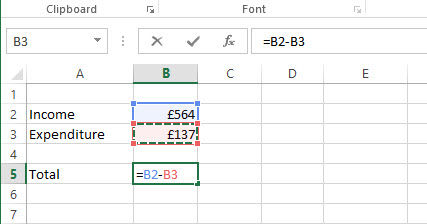
- Enter The Formula: Type the following formula:
=[Cell 1]-[Cell 2], where[Cell 1]and[Cell 2]are the cells containing the numbers you want to subtract. - Press Enter: Press the Enter key to execute the formula.
That’s it! You’ve successfully performed a subtraction in Excel.
Subtracting Cells
Now that we’ve mastered the basics, let’s move on to more complex operations – subtracting cells.
- Select a Cell: Choose an empty cell where you want to display the result of the subtraction.
- Enter The Formula: Type the following formula:
=[Cell 1]-[Cell 2], where[Cell 1]and[Cell 2]are the cells containing the numbers you want to subtract.
The same formula used for subtracting numbers can be applied to subtracting cells.
Subtracting Columns
Sometimes, you might need to subtract an entire column of values. Excel makes this process a breeze with its SUM function.
- Select a Cell: Choose an empty cell where you want to display the result of the subtraction.
- Enter The Formula: Type the following formula:
=A1-SUM(A2:A4), whereA1is the first cell in the column, andSUM(A2:A4)calculates the sum of the cells in that range.
Subtracting Hours
Excel’s subtraction capabilities extend to hours as well. This operation is useful for calculating differences between schedules or time intervals.
- Select a Cell: Choose an empty cell where you want to display the result of the subtraction.
- Enter The Formula: Type the following formula:
=C2-B2, whereB2andC2are the cells containing the start and end times, respectively.
Subtracting Dates
Excel’s date arithmetic capabilities allow for subtracting dates as well. This operation is useful for calculating differences between dates or time intervals.
- Select a Cell: Choose an empty cell where you want to display the result of the subtraction.
- Enter The Formula: Type the following formula:
=B2-A2, whereA2andB2are the cells containing the start and end dates, respectively.
Subtracting Percentages
When dealing with percentages, Excel’s subtraction capabilities become even more useful.
- Select a Cell: Choose an empty cell where you want to display the result of the subtraction.
- Enter The Formula: Type the following formula:
=A1*(1-0.22), WhereA1is the cell containing the number from which you want to subtract the percentage.
Subtracting Text
Lastly, let’s explore Excel’s text manipulation capabilities. When dealing with strings of text, you can extract specific characters using various formulas.
- Select a Cell: Choose an empty cell where you want to display the result of the extraction.
- Enter The Formula: Type one of the following formulas:
=LEFT(A1,3)extracts the first three characters from the string in cell A1.=RIGHT(A1,3)extracts the last three characters from the string in cell A1.=MID(A1,3,4)extracts four characters starting from the third position of the string in cell A1.
Conclusion
Microsoft Excel’s subtraction capabilities are a powerful tool for various applications. From subtracting numbers and cells to hours, dates, percentages, and text, this guide has provided you with a comprehensive overview of how to master these operations.
Whether you’re new to Excel or an experienced user, we hope this article has been informative and helpful in unlocking the full potential of Microsoft Excel’s subtraction capabilities.
Frequently Asked Questions
- What is The Formula For Subtracting Cells in Excel?
The formula for subtracting cells in Excel is=[Cell 1]-[Cell 2]. - How do I Subtract an Entire Column of Values in Excel?
To subtract an entire column of values, use the formula=A1-SUM(A2:A4), whereA1is the first cell in the column. - What is The Formula For Subtracting Hours in Excel?
The formula for subtracting hours in Excel is=C2-B2, whereB2andC2are the cells containing the start and end times, respectively. - How do I Subtract Dates in Excel?
To subtract dates in Excel, use the formula=B2-A2, whereA2andB2are the cells containing the start and end dates, respectively. - What is The Formula For Subtracting Percentages in Excel?
The formula for subtracting percentages in Excel is=A1*(1-0.22), WhereA1is the cell containing the number from which you want to subtract the percentage. - How do I Extract Specific Characters From a String of Text in Excel?
To extract specific characters from a string of text, use one of the following formulas:=LEFT(A1,3)extracts the first three characters from the string in cell A1.=RIGHT(A1,3)extracts the last three characters from the string in cell A1.=MID(A1,3,4)extracts four characters starting from the third position of the string in cell A1.


