
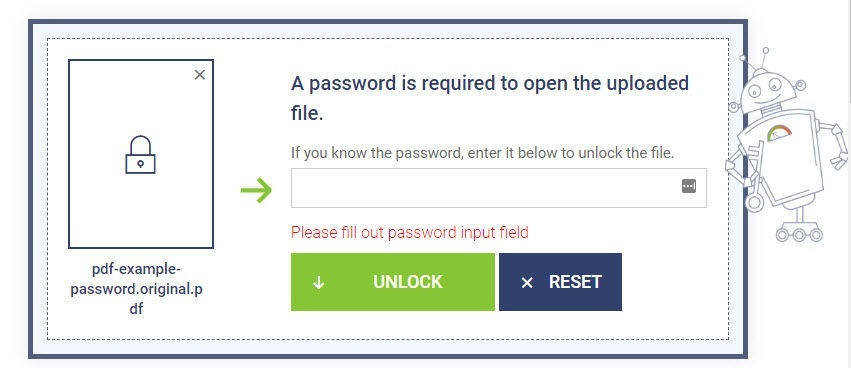
Unlocking Pdf Secrets: A Guide to Opening Protected Files
Are you struggling to open a password-protected PDF file? Look no further! In this comprehensive guide, we’ll walk you through the process of unlocking PDF files using various free tools and online services.
Understanding Pdf Protection
Before diving into the solutions, it’s essential to understand how PDFs are protected. There are two types of passwords used in PDF protection: Owner passwords and user passwords. Owner passwords prevent modifications or printing of a PDF file, while user passwords restrict access to the document itself.
Free Tools For Unlocking Pdfs
If you’re not comfortable using online services, fear not! We’ve got three excellent free tools that can help you unlock your PDF files.
Qpdf (Windows, Macos, Linux)
QPDF is an open-source, command-line tool that can decrypt and re-encrypt PDF files. It’s a great option for those who prefer using the terminal or are comfortable with command-line interfaces.
Step-by-step Guide:
- Download QPDF from SourceForge.
- Extract the ZIP file to a folder.
- Open the Terminal (Windows) or Prompt (macOS/Linux).
- Navigate to the QPDF folder and type
qpdf --decrypt input.Pdf output.Pdf(replaceinput.Pdfandoutput.Pdfwith your actual file paths). - Press Enter, and QPDF will decrypt your PDF file.
Pdfcrack (Windows, Macos)
PDFCrack is another powerful tool for unlocking PDF files. While it’s a bit more complex than QPDF, it’s still free and effective.
Step-by-step Guide:
- Download PDFCrack from SourceForge.
- Extract the ZIP file to a folder.
- Open the Terminal (Windows) or Prompt (macOS/Linux).
- Navigate to the PDFCrack folder and type
cd [folder PDFCrack](replace[folder PDFCrack]with your actual folder path). - Type
make f Makefileand press Enter. - Open a new Terminal window, navigate to the PDFCrack folder again, and type
pdfcrack -u "rows.Pdf"(replace"rows.Pdf"with your actual file name). - Press Enter, and PDFCrack will start decrypting your PDF file.
Free Pdf Unlocker (Windows)
If you’re looking for a user-friendly interface, Free PDF Unlocker is an excellent choice. It’s free, easy to use, and effective.
Step-by-step Guide:
- Download Free PDF Unlocker from the official website.
- Run the installer and follow the prompts.
- Launch Free PDF Unlocker and click “Add Rows.”
- Select your encrypted PDF file and choose a location for the decrypted file.
- Click “Unlock,” and Free PDF Unlocker will decrypt your PDF file.
Online Services
If you’re not comfortable using free tools or prefer online services, there are several excellent options available.
Soda Pdf Online
Soda PDF Online is a user-friendly service that can unlock PDF files with ease.
Step-by-step Guide:
- Visit the Soda PDF Online website.
- Drag and drop your encrypted PDF file onto the Soda PDF Online page or click “Choose a file” to select it manually.
- Click “Unblock,” and Soda PDF Online will decrypt your PDF file.
- Once decrypted, you can download your PDF file.
Ilovepdf
ILovePDF is another excellent online service for unlocking PDF files.
Step-by-step Guide:
- Visit the iLovePDF website.
- Drag and drop your encrypted PDF file onto the iLovePDF page or click “Seleziona PDF rows” to select it manually.
- Click “Unblock,” and iLovePDF will decrypt your PDF file.
- Once decrypted, you can download your PDF file.
Mobile Apps
If you’re using a smartphone or tablet, there are excellent mobile apps available for unlocking PDF files.
Pdf Utilities (Android)
PDF Utilities is an Android app that can unlock PDF files with ease.
Step-by-step Guide:
- Download and install the PDF Utilities app from the Google Play Store.
- Open the app and tap on the “Remove write-protection” option.
- Select your encrypted PDF file and confirm the action.
- Wait for the app to decrypt your PDF file, which will be saved in the same location as the original file.
Ilovepdf (iOS, Ipados)
ILovePDF is also available on iOS and iPadOS devices, making it easy to unlock PDF files on-the-go.
Step-by-step Guide:
- Download and install the iLovePDF app from the App Store.
- Open the app and tap on the “Unblock” button.
- Select your encrypted PDF file and confirm the action.
- Wait for the app to decrypt your PDF file, which will be saved in the same location as the original file.
Conclusion
Unlocking password-protected PDF files doesn’t have to be a daunting task. With these free tools and online services, you can easily access your documents and share them with others. Whether you’re using QPDF, PDFCrack, Free PDF Unlocker, Soda PDF Online, iLovePDF, or mobile apps like PDF Utilities or iLovePDF, there’s an option for everyone.
Faqs
- What is The Difference Between Owner Passwords And User Passwords?
Owner passwords prevent modifications or printing of a PDF file, while user passwords restrict access to the document itself. - Can I Use These Tools on my Smartphone or Tablet?
Yes! Many of the free tools and online services mentioned in this article have mobile app versions available for download from the Google Play Store (Android) or App Store (iOS). - Are There Any Subscription-based Services That Offer Additional Features?
Some online services, like iLovePDF, offer premium subscriptions with additional features, such as increased activity limits or priority customer support. - Can I Use These Tools to Unlock Pdf Files on my Mac or Linux Machine?
Yes! QPDF is available for Windows, macOS, and Linux, while PDFCrack can be used on Windows and macOS devices. - How Long Does it Take to Decrypt a Pdf File Using These Tools?
The time it takes to decrypt a PDF file varies depending on the tool and the complexity of the password. Some tools may complete the process in seconds, while others might take minutes or even hours. - Are These Tools Safe to Use?
Yes! The free tools and online services mentioned in this article are reputable and safe to use. However, always follow the instructions carefully and be cautious when entering sensitive information. - Can I Use These Tools to Unlock Pdf Files That Have Been Encrypted With a Password?
Yes! All of the tools mentioned in this article can handle PDFs encrypted with passwords.
I hope you found this comprehensive guide helpful!


