
How to Change Your Instagram Password: A Step-by-step Guide
Are you tired of using the same old password for your Instagram account? Do you want to ensure that your account is secure and protected from unauthorized access? Look no further! In this article, we will guide you through a step-by-step process on how to change your Instagram password.
Why Change Your Password?
Before we dive into the process of changing your password, let’s quickly discuss why it’s essential to do so. Using the same old password for an extended period can make your account vulnerable to hacking and unauthorized access. Changing your password regularly will ensure that your account remains secure and protected.
Changing Your Password on Mobile Devices
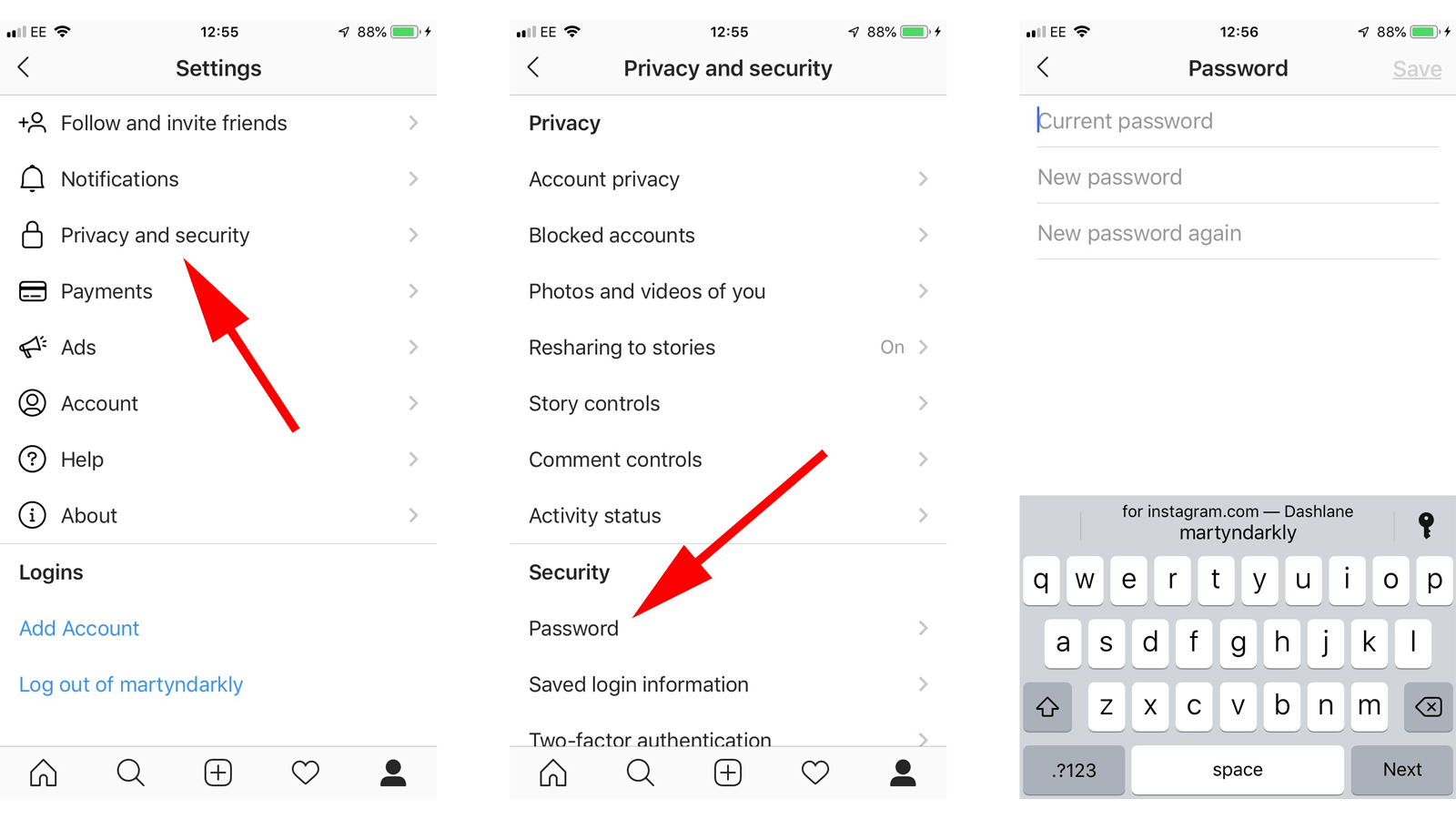
To change your Instagram password on mobile devices, follow these steps:
- Open The Instagram App: Open the Instagram app on your smartphone or tablet.
- Tap on The Profile Icon: Tap on the profile icon located in the bottom right corner of the screen.
- Select Settings And Privacy: Select the settings icon (represented by a cogwheel) and tap on “Settings and Privacy”.
- Select Account Management: Scroll down and select “Account Management” from the list of options.
- Select Password: Tap on the password option to edit your current password.
How to Change Your Instagram Password on Mobile Devices
To change your Instagram password on mobile devices, follow these steps:
- Enter Current Password: Enter your current password in the designated field.
- Create a New Password: Create a new password by typing it in the designated field.
- Confirm New Password: Confirm your new password by re-entering it in the designated field.
- Save Changes: Save your changes to update your Instagram password.
Changing Your Password on Computer
To change your Instagram password on computer, follow these steps:
- Open Instagram Website: Open the official Instagram website on your computer.
- Log In: Log in to your account using your current username and password.
- Select Settings: Select the settings icon (represented by a cogwheel) located at the top right corner of the screen.
- Select Account Management: Scroll down and select “Account Management” from the list of options.
- Select Password: Tap on the password option to edit your current password.
How to Change Your Instagram Password on Computer
To change your Instagram password on computer, follow these steps:
- Enter Current Password: Enter your current password in the designated field.
- Create a New Password: Create a new password by typing it in the designated field.
- Confirm New Password: Confirm your new password by re-entering it in the designated field.
- Save Changes: Save your changes to update your Instagram password.
What If I Forgot My Old Password?
If you forgot your old password, don’t worry! Instagram allows you to recover your account using either your email or phone number associated with your account. Here’s how:
- Open The Instagram App: Open the Instagram app on your smartphone or tablet.
- Tap on Forgotten Password: Tap on the “Forgotten Password” option located below the login screen.
- Enter Your Username/email/phone Number: Enter your username, email address, or phone number associated with your account.
- Follow Instructions: Follow the instructions provided by Instagram to recover your account.
What If I Don’t Have Access to My Email or Phone?
If you don’t have access to your email or phone, there’s still a way to change your password. Here are some alternatives:
- Contact Facebook Support: Contact Facebook support for assistance in recovering your account.
- Use The Instagram App: Use the Instagram app on another device with internet connectivity to change your password.
How to Change Your Password Using Facebook
If you’re unable to access your Instagram account using your email or phone, you can try changing your password using Facebook:
- Open The Instagram App: Open the Instagram app on your smartphone or tablet.
- Tap on Forgotten Password: Tap on the “Forgotten Password” option located below the login screen.
- Select Access With Facebook: Select the “Access with Facebook” option to log in using your Facebook account.
Conclusion
Changing your Instagram password regularly is essential to ensure that your account remains secure and protected from unauthorized access. In this article, we’ve guided you through a step-by-step process on how to change your Instagram password on both mobile devices and computer. Remember to always use strong passwords and avoid sharing them with others.
Frequently Asked Questions
- How do I Change my Instagram Password?
To change your Instagram password, follow the steps outlined in this article. - What if I Forgot my Old Password?
If you forgot your old password, you can recover it using either your email or phone number associated with your account. - Can I Change my Password on Computer?
Yes, you can change your password on computer by following the steps outlined in this article. - What if I Don’t Have Access to my Email or Phone?
If you don’t have access to your email or phone, you can try contacting Facebook support for assistance in recovering your account. - Can I Use Facebook to Change my Instagram Password?
Yes, you can use Facebook to change your Instagram password by logging in using your Facebook account.
References
- “How to Change Your Password on Instagram” by TechRadar
- “Instagram Password Recovery: A Step-by-Step Guide” by Digital Trends


