
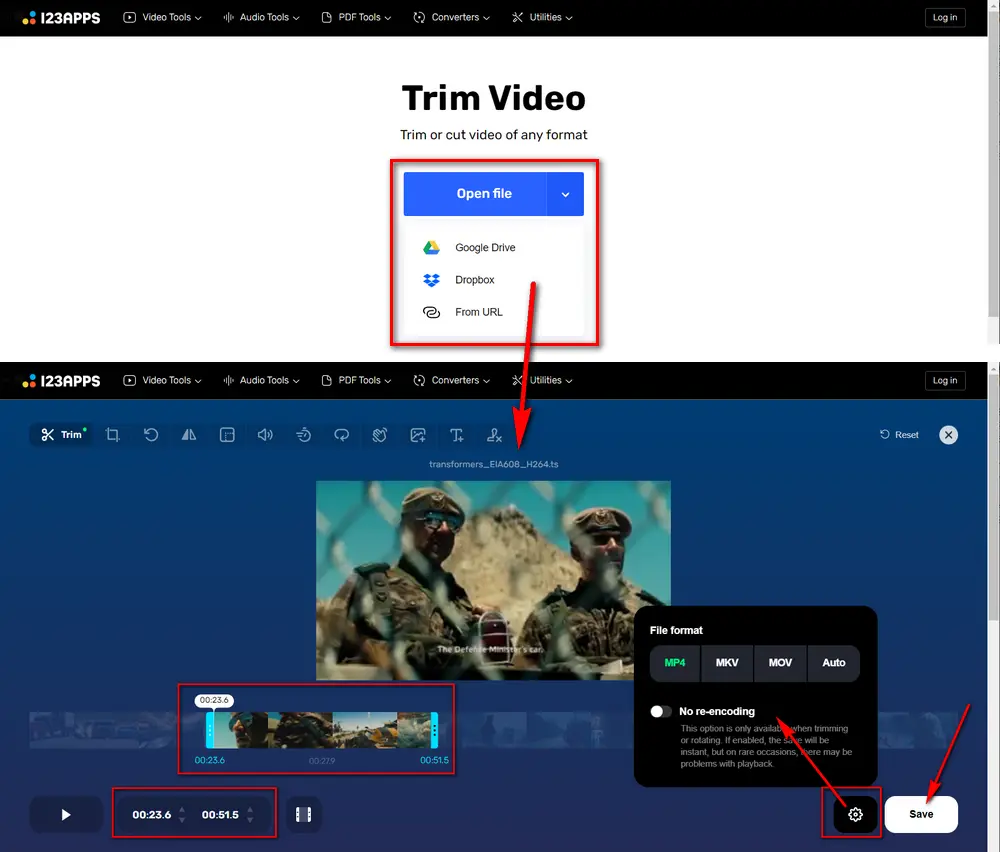
Cutting a Video Online: A Comprehensive Guide
Are you tired of downloading software on your computer just to cut a video? Look no further! In this article, we will guide you through the process of cutting a video online using various services that offer intuitive editing tools.
Why Cut a Video Online?
Cutting a video online has become increasingly popular due to its convenience and time-saving benefits. With the rise of social media and video content, having the ability to edit videos quickly and efficiently is essential for creators, marketers, and individuals alike.
Services to Cut a Video Online
There are several services available that allow you to cut a video online without downloading any software. Here are some popular options:
Clipchamp
Clipchamp is a free online service that offers a powerful and intuitive editor. With Clipchamp, you can cut, apply effects, add filters, and more to your videos. The free version comes with a watermark, but upgrading to a subscription plan (9 dollars/month) removes the watermark and provides additional features.
How to Cut a Video With Clipchamp
- Go to the Clipchamp website and click on the “Create” button.
- Select the video you want to edit and drag it into the editor.
- Use the cursor tools to cut the desired portion of the video.
- Apply effects, filters, or other modifications as needed.
- Export your edited video in the desired format.
Adobe Express
Adobe Express is another online service that allows you to edit videos and create various content types, such as logos, flyers, and social media graphics. The free version offers all basic editing tools, access to thousands of pre-made templates, and 2GB of cloud storage. Upgrading to a subscription plan (12 euros/month) provides additional features and increased storage capacity.
How to Cut a Video With Adobe Express
- Go to the Adobe Express website and click on the “Create” button.
- Select the video you want to edit and drag it into the editor.
- Use the cursor tools to cut the desired portion of the video.
- Apply effects, filters, or other modifications as needed.
- Export your edited video in the desired format.
Youtube
If you’re looking to edit a video from YouTube directly online, you can use the built-in editing tool. Simply access your YouTube account, go to the YouTube Studio, and select the video you want to edit. Use the editor to cut, apply effects, or add filters as needed.
Other Solutions to Cut a Video Online
In addition to Clipchamp, Adobe Express, and YouTube, there are other online services that allow you to edit videos without downloading software. Some popular alternatives include:
Clideo
Clideo is an online service that offers free editing tools, including the ability to cut videos, add subtitles, speed up or slow down footage, and more. The free version applies a watermark to exported videos.
How to Cut a Video With Clideo
- Go to the Clideo website and click on the “Cut” button.
- Select the video you want to edit and drag it into the editor.
- Use the cursor tools to cut the desired portion of the video.
- Apply effects, filters, or other modifications as needed.
- Export your edited video in the desired format.
Wevideo
WeVideo is an online service that allows you to edit videos with advanced features like color correction and keyframe animation. The free version limits exports to 480p resolution and applies a watermark.
How to Cut a Video With Wevideo
- Go to the WeVideo website and click on the “Create” button.
- Select the video you want to edit and drag it into the editor.
- Use the cursor tools to cut the desired portion of the video.
- Apply effects, filters, or other modifications as needed.
- Export your edited video in the desired format.
Magisto
Magisto is an online service that allows you to edit videos with automated editing features like scene detection and color correction. The free version has limited export options and applies a watermark.
How to Cut a Video With Magisto
- Go to the Magisto website and click on the “Get started” button.
- Select the video you want to edit and drag it into the editor.
- Use the cursor tools to cut the desired portion of the video.
- Apply effects, filters, or other modifications as needed.
- Export your edited video in the desired format.
Conclusion
Cutting a video online has never been easier! With these services, you can edit videos without downloading software and enjoy the convenience of online editing tools. Whether you’re a creator, marketer, or individual looking to edit videos, there’s an online service that suits your needs.
Faqs
- What is The Best Service to Cut a Video Online?
- The best service for cutting a video online depends on your specific needs and preferences.
- How do I Remove The Watermark From my Exported Video?
- Upgrading to a subscription plan or purchasing a paid version of the service can remove watermarks.
- Can I Edit Videos Directly in Youtube?
- Yes, you can use the built-in editing tool within your YouTube account.
- What Are Some Other Services Available For Online Video Editing?
- Some popular alternatives include Clideo, WeVideo, and Magisto.


