
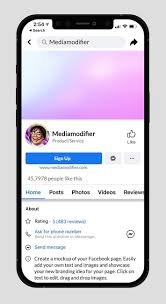
Creating a Page on Facebook: A Step-by-step Guide
Are you ready to take your business or personal brand to the next level? Creating a page on Facebook is an excellent way to promote yourself, share updates, and connect with others who are interested in what you have to offer. In this article, we will guide you through the process of creating a page on Facebook using both the mobile app and the browser.
Benefits of Having a Facebook Page
Before we dive into the step-by-step guide, let’s talk about the benefits of having a Facebook page. A page on Facebook allows you to:
- Share updates and news with your audience
- Connect with people who are interested in what you have to offer
- Promote your business or personal brand
- Build relationships with others through comments and messages
Creating a Page on Facebook Using The Mobile App
To create a page on Facebook using the mobile app, follow these steps:
Step 1: Download And Install The Facebook App
If you don’t already have the Facebook app installed on your device, download it from the Apple App Store (for iOS devices) or Google Play Store (for Android devices).
Step 2: Open The Facebook App And Log In
Open the Facebook app and log in to your account.
Step 3: Tap The Menu Icon
Tap the menu icon (three horizontal lines) on the top left corner of the screen.
Step 4: Select “Pages”
Select “Pages” from the menu.
Step 5: Tap The “+” Button
Tap the “+” button at the bottom right corner of the screen to create a new page.
Step 6: Choose a Category And Name Your Page
Choose a category for your page (e.G., Business, Artist, Author) and name your page.
Step 7: Add an Image And Cover Photo
Add an image and cover photo for your page.
Step 8: Invite Friends to Like Your Page
Invite friends to like your page.
Creating a Page on Facebook Using The Browser
If you prefer to create a page on Facebook using the browser, follow these steps:
Step 1: Log In to Your Facebook Account
Log in to your Facebook account using your device’s web browser.
Step 2: Click on “Create New Page”
Click on “Create New Page” at the top right corner of the screen.
Step 3: Choose a Category And Name Your Page
Choose a category for your page (e.G., Business, Artist, Author) and name your page.
Step 4: Add an Image And Cover Photo
Add an image and cover photo for your page.
Step 5: Invite Friends to Like Your Page
Invite friends to like your page.
Creating a Private Facebook Page
If you want to create a private Facebook page, follow these steps:
- Go to your profile page.
- Select “Settings” from the menu.
- Scroll down to the “How people can find and contact you” section.
- Click on the “Who can see this content?” dropdown menu.
- Select “Only me” or “Friends except acquaintances.”
Creating a Facebook Page Without a Profile
Unfortunately, it is not possible to create a Facebook page without a profile. To create a page on Facebook, you must have an active account and be logged in to your device.
Conclusion
Creating a page on Facebook is a simple process that can help you promote yourself, share updates, and connect with others who are interested in what you have to offer. Whether you use the mobile app or browser, follow these steps to create a page on Facebook:
- Log in to your account.
- Click on “Create New Page.”
- Choose a category and name your page.
- Add an image and cover photo.
- Invite friends to like your page.
By following these steps, you can create a professional-looking page that will help you achieve your goals.
Frequently Asked Questions
- Q: Can I create a Facebook page without a profile?
A: No, it is not possible to create a Facebook page without an active account and being logged in to your device. - Q: How do I make my Facebook page private?
A: To make your Facebook page private, go to your profile page, select “Settings,” and scroll down to the “How people can find and contact you” section. Click on the “Who can see this content?” dropdown menu and select “Only me” or “Friends except acquaintances.”
Sources
- Facebook Help Center
- Techopedia
- Social Media Examiner


