
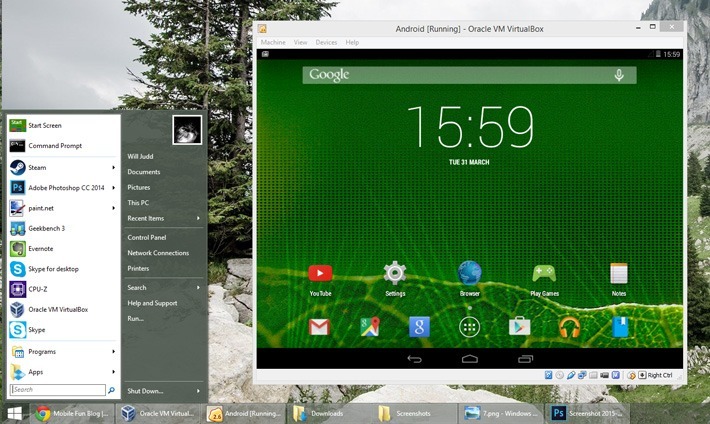
How to Virtualize Android on Windows And Mac
Are you interested in virtualizing Android on your computer? Look no further! In this article, we’ll guide you through the process of emulating Android on your Windows or Mac device using various programs.
Why Virtualize Android?
Virtualizing Android can be useful for several reasons. For instance, if you want to play mobile games or use Android apps on your PC without installing a virtual machine, this is an excellent solution. Additionally, it can also help you try out new Android features or apps before they’re released.
Programs to Virtualize Android
Here are some programs that allow you to virtualize Android on your Windows and Mac devices:
Bluestacks (Windows/MacOS)
BlueStacks is a free program that emulates Android on Windows and MacOS. It’s surprisingly easy to set up and offers access to a wide range of Android apps.
Step-by-step Instructions For Bluestacks
- Download the BlueStacks setup file from the official website.
- If you’re using Windows, open the
.Exefile and click “Yes” and then “Next” to start the installation process. This may take a few minutes as some files are downloaded from the internet. - If you’re using MacOS, open the
.Dmgfile, double-click on the BlueStacks Installer icon, and follow the instructions to install it.
Now.gg (Web)
Now.Gg is another great option for virtualizing Android online. This service allows you to play mobile games directly in your browser without installing anything.
Using Now.Gg
- Go to the Now.Gg website.
- Search for the game you want to play and click on it.
- Click the “Play in Browser” button to start playing.
Amazon Appstore (Windows 11)
If you’re using Windows 11, you can take advantage of the built-in Amazon Appstore feature. This allows you to install Android apps directly on your PC.
Installing Amazon Appstore
- Open the Microsoft Store app.
- Search for “Amazon Appstore” and click on it.
- Click the “Get” button to download and install the app.
- Once installed, log in with your Amazon account and start installing Android apps.
Other Helpful Solutions
There are also other programs that can help you virtualize Android, such as:
- Android-x86 (Windows/MacOS): A version of Android adjusted for desktop use, which can be installed directly on the computer or emulated using an operating system emulator.
- Ldplayer (Windows): A free Android emulator that allows you to play mobile games on your PC.
Conclusion
Virtualizing Android on your Windows or Mac device is easier than ever. With programs like BlueStacks, Now.Gg, and Amazon Appstore, you can enjoy a wide range of Android apps without installing a virtual machine. Whether you’re looking for a convenient way to play mobile games or try out new Android features, these solutions are definitely worth considering.
Frequently Asked Questions
Q: What is the best program to virtualize Android on my Windows device?
A: BlueStacks and LDPlayer are popular options that offer a wide range of Android apps.
Q: Can I virtualize Android on my Mac device?
A: Yes, you can use BlueStacks or Now.Gg to virtualize Android on your Mac device.
Q: How do I install Amazon Appstore on Windows 11?
A: Open the Microsoft Store app, search for “Amazon Appstore,” and click on it to download and install.


