
How to Block Strangers on Facebook: A Step-by-step Guide
Are you tired of receiving unwanted messages from strangers on Facebook? Do you want to limit the conversations with unknown persons but don’t know how to proceed? You’re not alone! In this article, we’ll show you how to block strangers on Facebook, both on your smartphone and computer.
Why Block Strangers on Facebook?
Facebook can become chaotic, especially when dealing with unknown persons. In some cases, it’s necessary to avoid unwanted conversations or messages. By blocking strangers on Facebook, you can prevent them from sending you messages or posting on your profile.
Blocking Strangers on Facebook: A Step-by-step Guide
How to Block Strangers on Facebook From Your Smartphone
- Open the official Facebook app on your Android or iOS device.
- Tap on the three horizontal lines (≡) in the top right corner.
- Scroll down and tap on “Settings and privacy” > “Settings”.
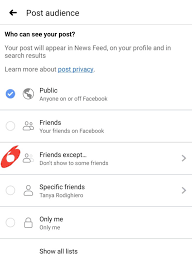
- Tap on “Profile and added tags” > “Who can issue contents on your profile?”
- Choose between “Friends” or “Only me”.
By selecting “Only me”, you’ll prevent anyone from posting on your profile except for yourself.
How to Block Strangers on Facebook From Your Computer
- Go to the official Facebook website and log in to your account.
- Click on the three horizontal lines (▾) in the top right corner.
- Click on “Settings and privacy” > “Settings”.
- Click on “Profile and added tags” > “Who can issue contents on your profile?”
- Select “Only me”.
Again, by choosing “Only me”, you’ll restrict access to only yourself.
Blocking Individual Persons
If you want to block specific individuals from contacting you or posting on your profile, follow these steps:
- Go to the Facebook Messenger app.
- Tap on the conversation with the person you want to block.
- Tap on the three dots (…) in the top right corner.
- Tap on “Ignore messages” and then confirm.
This will move the conversation to a separate folder, where you can view it without receiving notifications.
If you want to permanently block someone, follow these steps:
- Go to the Messenger app.
- Tap on the person’s name in the top right corner.
- Tap on “Block” and then confirm.
This will prevent them from contacting you or posting on your profile.
Blocking Strangers: Faqs
Here are some frequently asked questions about blocking strangers on Facebook:
- Q: Can I Block Someone Who is Not my Friend?
A: Yes, you can block anyone who is not a friend by following the steps above. - Q: Will I Still Receive Messages From Blocked Individuals?
A: No, you will not receive any further messages or notifications from blocked individuals. - Q: Can I Unblock Someone Later?
A: Yes, you can unblock someone at any time by following the same steps used to block them.
Conclusion
Blocking strangers on Facebook is a simple process that can help you maintain control over your online interactions. By following these step-by-step guides, you’ll be able to prevent unwanted conversations and messages from unknown persons.


